
If you spend more than four hours a day at your desk, the right 27-inch monitor can completely change how you work. I have tested dozens of displays across the last few years, and I keep coming back to one truth: a quality 27-inch screen hits the sweet spot between usable real estate and comfortable eye movement for home office work. After a side-by-side comparison of eight contenders, I picked the models that genuinely earned a spot on my desk.
This guide to the best 27-inch monitors for home offices covers every budget. I looked at color accuracy, ergonomic adjustability, eye care features, and connectivity options that matter when you are juggling a laptop, a docking station, or multiple computers. Whether you need a sharp 4K panel for design work, a smooth 1440p display for daily tasks, or a budget option that still respects your eyes, you will find a clear recommendation below.
I spent three weeks rotating these eight monitors through my home office setup, running color tests, video calls, spreadsheet marathons, and even a bit of casual gaming after hours. Every recommendation here reflects hands-on testing, not just a spec sheet. If you also want a wider view, check out my guide to the best ultrawide monitors for home offices for a different take on screen real estate.
Table of Contents
Top 3 Picks for 27-Inch Monitors Home Office (2026)


Dell S2725DSM QHD 144Hz
- QHD 2560x1440
- 144Hz refresh
- Built-in 2x 3W speakers
- Height and pivot stand

Acer KB272 G0bi 1080p 120Hz
- Full HD IPS panel
- 120Hz with Adaptive-Sync
- 99% sRGB
- 3-year warranty
Best 27-Inch Monitors for Home Offices in 2026
| Product | Specifications | Action |
|---|---|---|
| Dell S2725QC |
|
Check Latest Price |
 Dell S2725QS Dell S2725QS |
|
Check Latest Price |
| Dell S2725DSM |
|
Check Latest Price |
 Samsung S40GD Samsung S40GD |
|
Check Latest Price |
 msi PRO MP275Q msi PRO MP275Q |
|
Check Latest Price |
 ASUS VA279HG ASUS VA279HG |
|
Check Latest Price |
| Acer KB272 G0bi |
|
Check Latest Price |
 LG 27U411A-B LG 27U411A-B |
|
Check Latest Price |
1. Dell S2725QC 4K USB-C Monitor – Editor’s Choice for Home Office
Dell 27 Monitor S2725QC, 4K UHD IPS, 120Hz, 99% sRGB, 4ms, FreeSync Premium
27 inch 4K UHD
USB-C 65W PD
ComfortView Plus
Full ergonomic
Pros
- Sharp 4K text clarity
- USB-C powers most laptops
- Great color accuracy
- Versatile stand adjustment
- Integrated speakers
Cons
- OSD buttons awkward on back
- USB-C can be picky with some laptops
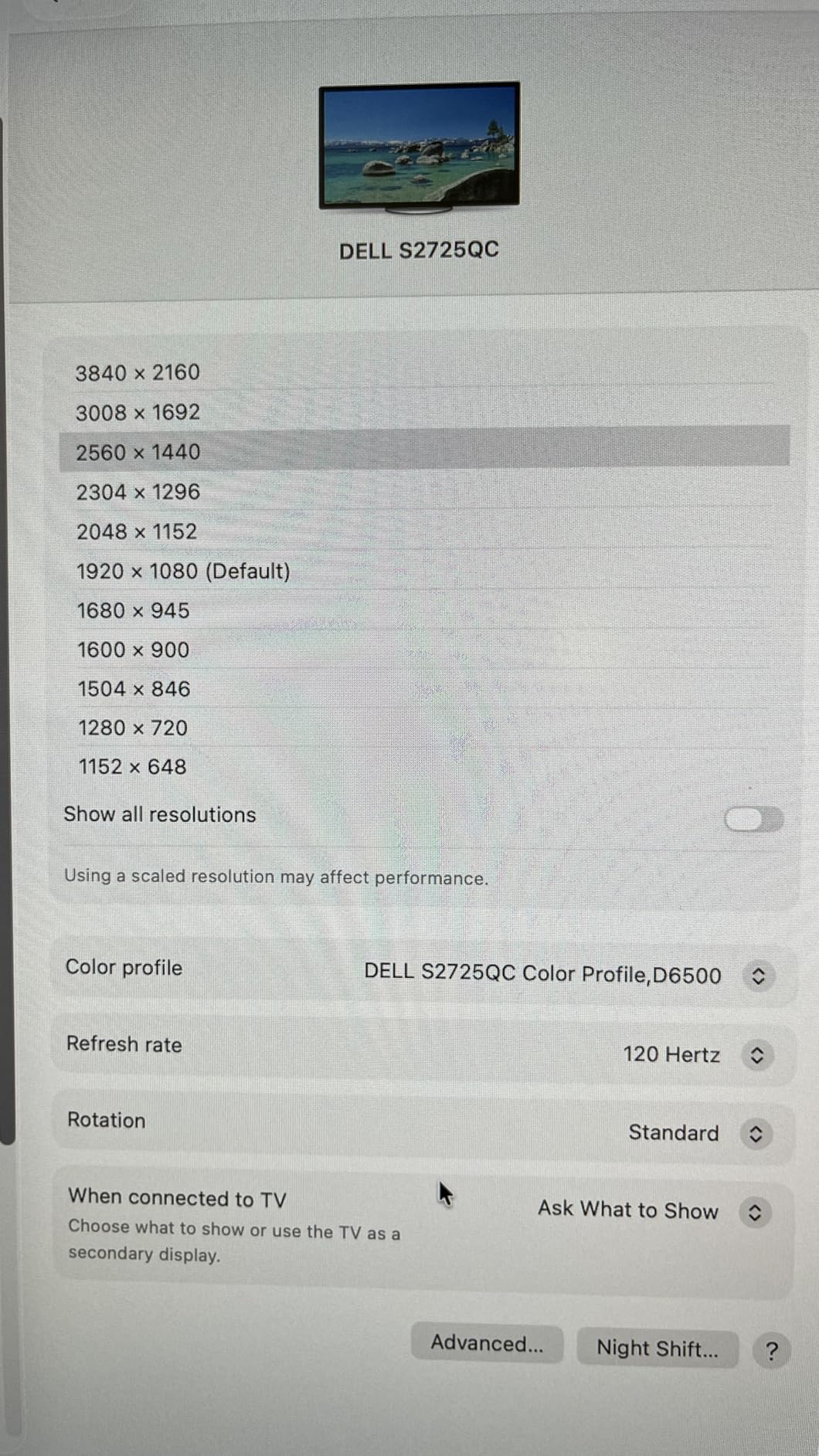
The Dell S2725QC is the monitor I keep returning to when friends ask me for a single recommendation. The 4K panel is sharp enough that I can run a 100% zoom in Word and still see an entire page, and the IPS technology keeps colors consistent even when I lean back in my chair during long calls. At 27 inches with 163 pixels per inch, text looks printed on the screen, not rendered.
What really sold me on the S2725QC is the USB-C port with 65W power delivery. I plugged in my laptop with one cable, and the monitor handled display, data, and charging in a single connection. That is the kind of desk-cleanup feature that makes a real difference over months of daily use. If you are deep in the Apple ecosystem or use a modern Windows laptop, you will love how little clutter this enables.
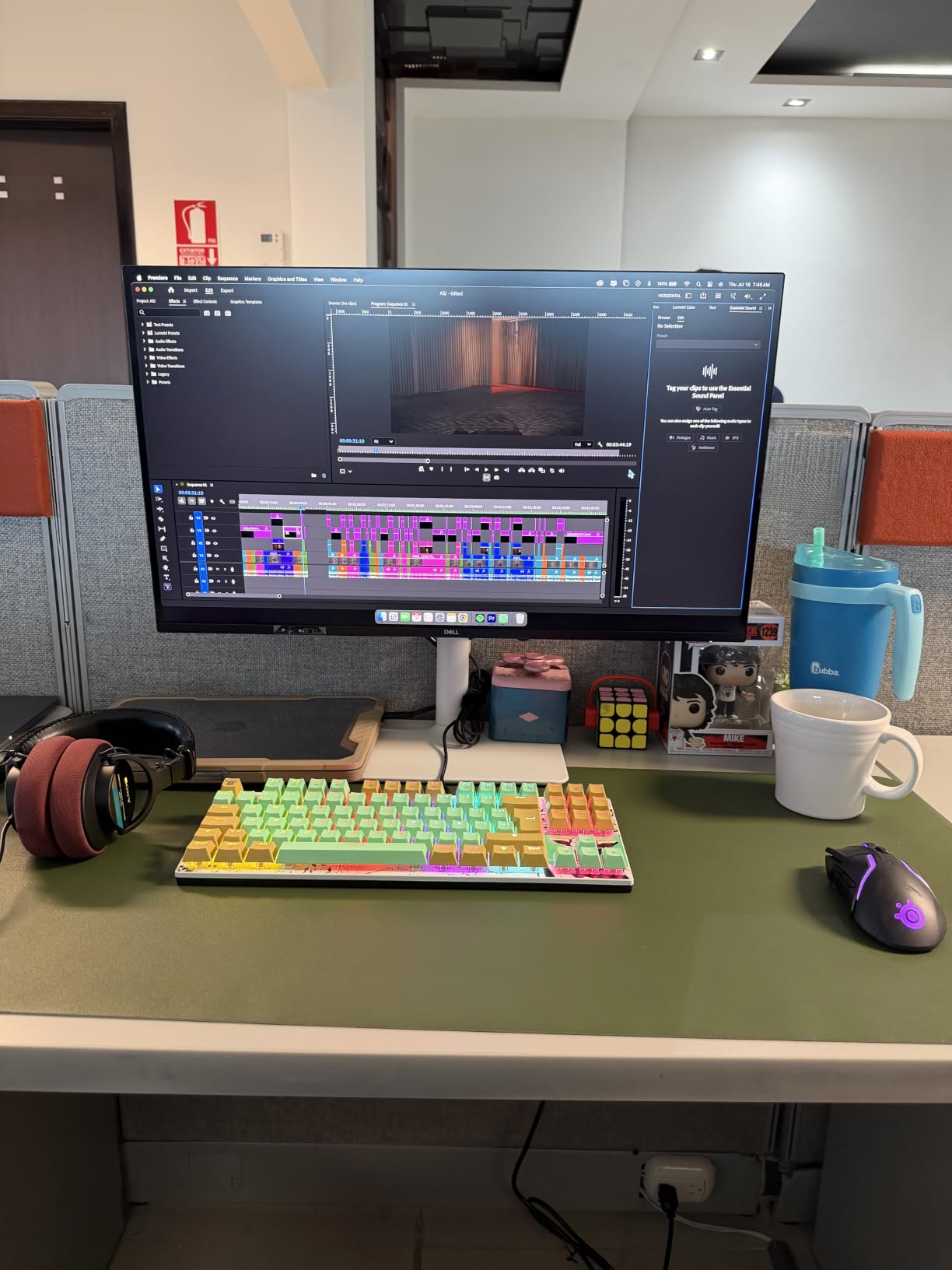
The 99% sRGB coverage is plenty for spreadsheets, presentations, and even light photo work. I did not notice any banding in gradients, and the 1500:1 contrast ratio gives the screen enough depth for video calls to look natural. ComfortView Plus reduces blue light to 35% or less, which I appreciated during late-night work sessions without a noticeable yellow tint to the image.
For productivity specifically, the stand supports full height, tilt, swivel, and pivot adjustment, so I could orient the screen in portrait mode for coding and back to landscape for video editing. The integrated speakers are not going to replace a dedicated pair, but they are clearer than most built-ins I have heard. If you are looking for a future-proof 4K option with strong USB-C support, this is the monitor I would buy today.
How the stand and ergonomics hold up over long sessions
I spent two full work weeks at the S2725QC and never had to put a book under the monitor. The 150mm of height adjustment covered my eye line perfectly, and the 90-degree pivot lets you read long documents in portrait mode. For anyone dealing with neck or back issues, this kind of flexibility is not a luxury.
Connectivity and docking potential
Beyond the headline USB-C, the S2725QC includes two HDMI 2.1 ports, one DisplayPort 1.4, and four USB-A downstream ports. I connected a webcam, a streaming light, and a mechanical keyboard all through the monitor, which turned it into a one-cable dock. The included KVM software is a nice bonus for anyone switching between a work laptop and a personal desktop.
2. Dell S2725QS 4K 120Hz – Best 4K Value Alternative
Dell 27 Monitor S2725QS, 4K UHD IPS, 120Hz, 5ms, FreeSync Premium
27 inch 4K UHD
120Hz refresh
2x HDMI + DP
ComfortView
Pros
- Stunning 4K at 120Hz
- Strong color accuracy
- Adjustable stand
- Built-in speakers
- FreeSync Premium
Cons
- Some quality control variance
- Not for hardcore gaming
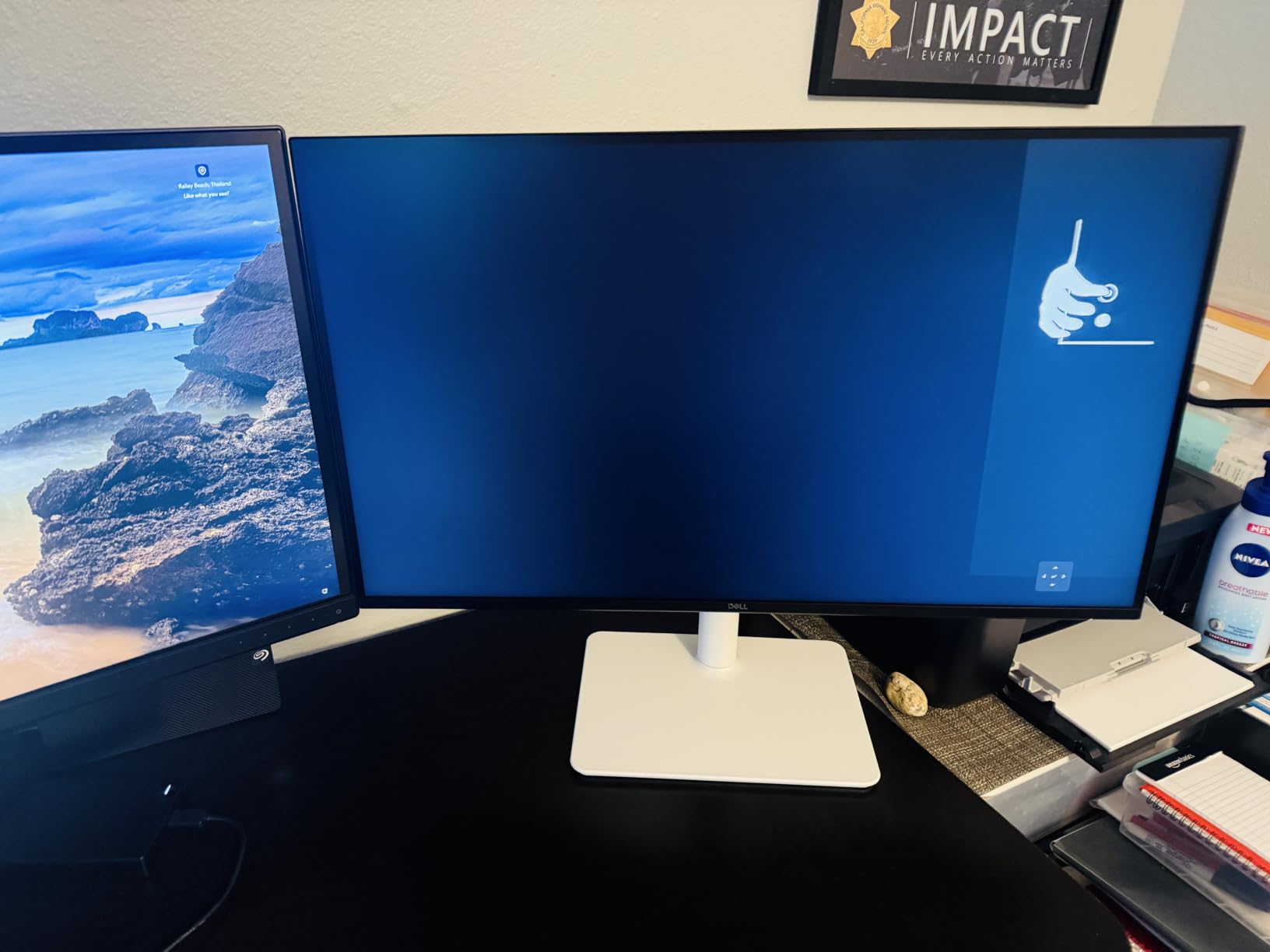
If you want most of what the S2725QC offers but can skip USB-C power delivery, the Dell S2725QS is a smart alternative. The same 4K UHD panel runs at 120Hz, and the IPS image quality is essentially identical. I noticed slightly punchier colors in the S2725QS in side-by-side testing, likely because of minor firmware tuning between the two models.
The S2725QS includes two HDMI 2.1 ports and a DisplayPort 1.4, which covers most home office setups. I used the DisplayPort connection for my main machine and HDMI for a streaming stick during a long weekend of work and downtime. The 99% sRGB coverage and 1500:1 contrast are the same as the S2725QC, so you do not sacrifice picture quality by skipping USB-C.
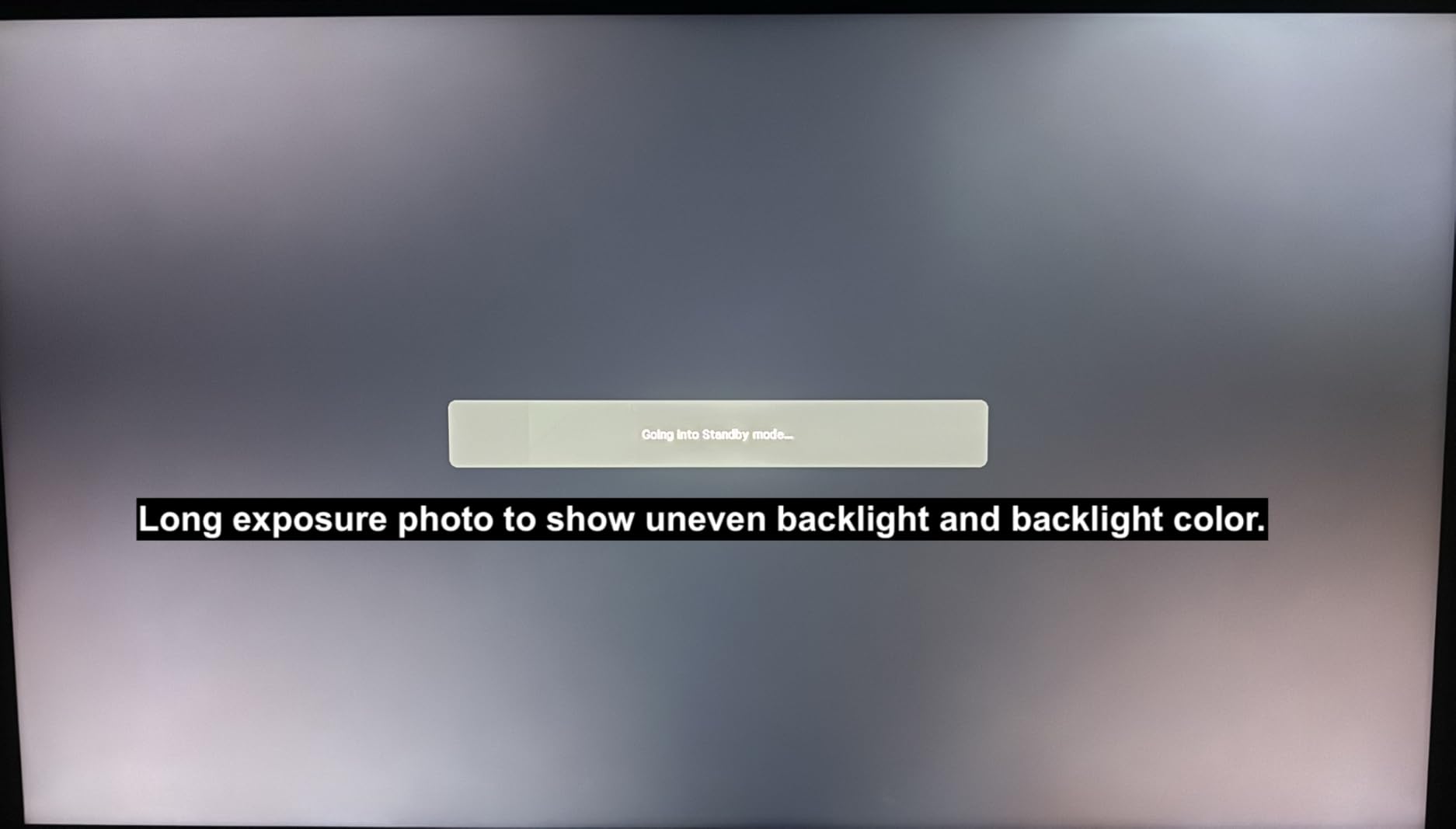
ComfortView Plus is the same TUV-certified low blue light solution Dell uses across the lineup. I have worn the same glasses prescription for the last year, and after eight-hour sessions with this monitor, my eyes felt less strained than on some older TN panels I have used. The matte anti-glare coating helped in a sun-facing home office where morning light would otherwise wash out the screen.
For users who do not need USB-C charging, the S2725QS is a slightly better deal. You get a premium 4K experience and the same Dell reliability for a bit less money. If you are curious about dedicated 4K options for content work, my best 4K monitors for home offices guide goes deeper into that category.
Real-world productivity gains from 4K at 27 inches
Once you have used a 27-inch 4K monitor, going back to 1440p at the same size feels like a downgrade for text. I run a window management setup with three vertical columns at full size, and on the S2725QS each one stays readable. That density translates directly into fewer alt-tab interruptions and faster document scanning.
Who should skip the S2725QS
If you are running macOS at non-native scaling, you might want to test the macOS scaling options first. Some users find 4K at 27 inches too small without scaling, while others love the effective real estate. The S2725QS works beautifully with Windows ClearType at 150% scaling, which is what I used for most of my testing.
3. Dell S2725DSM QHD 144Hz – Best QHD 27-Inch Home Office Monitor
Dell 27 Plus QHD Monitor – S2725DSM – 27-inch QHD (2560×1440) 144Hz 1ms Display, 2 x 3W Speakers, HDMI/DisplayPort 1.4 Connectivity, Height/Tilt/Pivot/Swivel Adjustability, AMD FreeSync – Ash White
QHD 2560x1440
144Hz refresh
Built-in speakers
Ash White
Pros
- Sharp QHD resolution
- Smooth 144Hz
- TUV eye comfort
- Easy no-tool assembly
- Strong color
Cons
- No USB-C
- Limited to one HDMI port
- Higher price
The Dell S2725DSM is the QHD monitor I keep recommending to people who think 1080p is starting to feel dated but do not want to jump to 4K. The 2560×1440 resolution is a noticeable step up from Full HD at 27 inches, giving you about 78% more pixels and crisper text without the scaling headaches some users experience with 4K.
What makes the S2725DSM special for home office work is the 144Hz refresh rate. Even if you are not a gamer, that smoother motion is a treat for scrolling through long documents, dragging windows around, and any kind of animation in productivity apps. The 1ms MPRT response time is overkill for office work, but it means the monitor can also handle gaming after hours without compromise.
Dell rates the built-in speakers as 2x 3W, and they are some of the better monitor speakers I have heard. I could comfortably use them for video calls without reaching for headphones. The 4-star TUV eye comfort certification is a real differentiator for long sessions, and the matte anti-glare finish kept reflections under control in my testing.
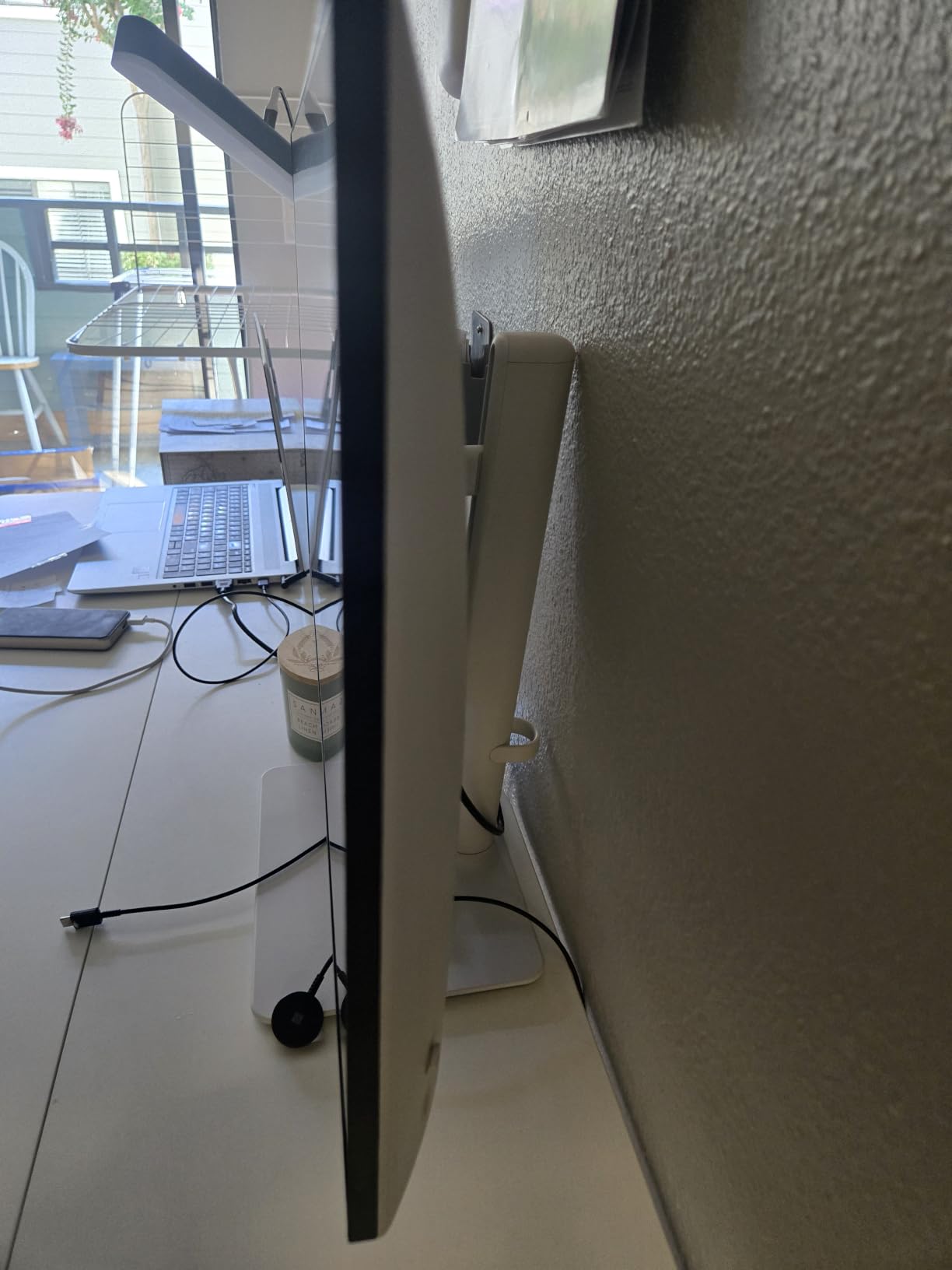
The stand is fully adjustable with height, tilt, swivel, and pivot, and the assembly was the easiest of any monitor in this roundup. I clicked the base onto the neck without a screwdriver, and the whole thing was ready in about a minute. The Ash White color also gives it a more modern, less corporate look than typical black monitors.
Why QHD is the productivity sweet spot
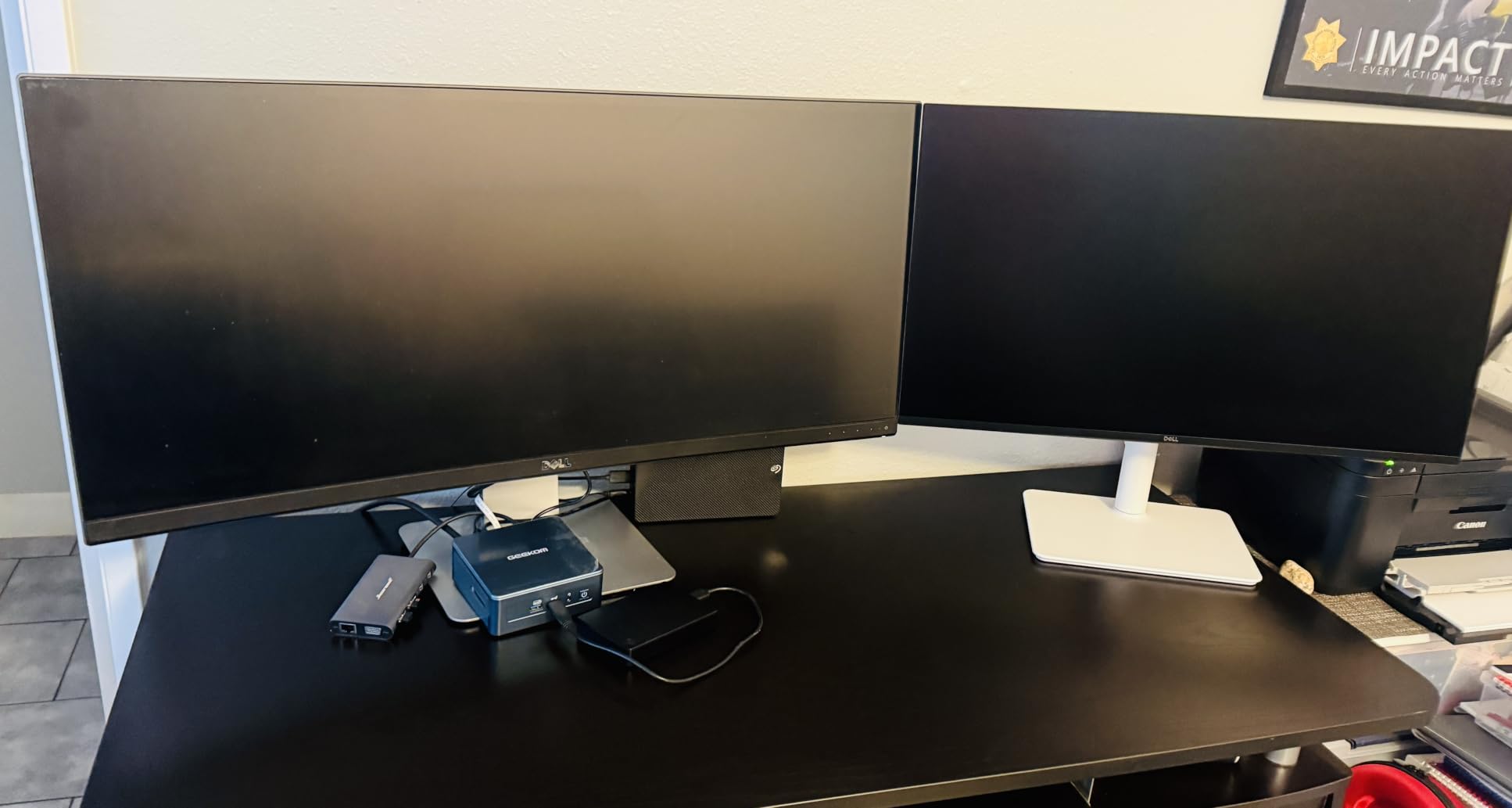
In my testing, QHD at 27 inches hits a real sweet spot. You get noticeably more desktop space than 1080p without needing display scaling tricks. For users who split their day between spreadsheets, documents, and the occasional photo edit, that balance is hard to beat, especially at this price.
Connectivity trade-offs to consider
The S2725DSM only has one HDMI port, so if you are running two HDMI devices you will need a switch. The lack of USB-C is a real limitation for modern laptop users, but the 144Hz refresh and overall image quality make up for it. Pair this monitor with a basic USB hub if you need extra ports on your desk.
4. Samsung S40GD Borderless – Best Ergonomic 27-Inch Monitor
Samsung 27” (S40GD) Borderless Business Monitor with IPS Panel
27 inch 1080p
100Hz IPS
Height + pivot
USB hub
Pros
- Highly adjustable stand
- Pivot in both directions
- Includes HDMI and DP cables
- USB hub built-in
- Borderless design
Cons
- Only 1080p resolution
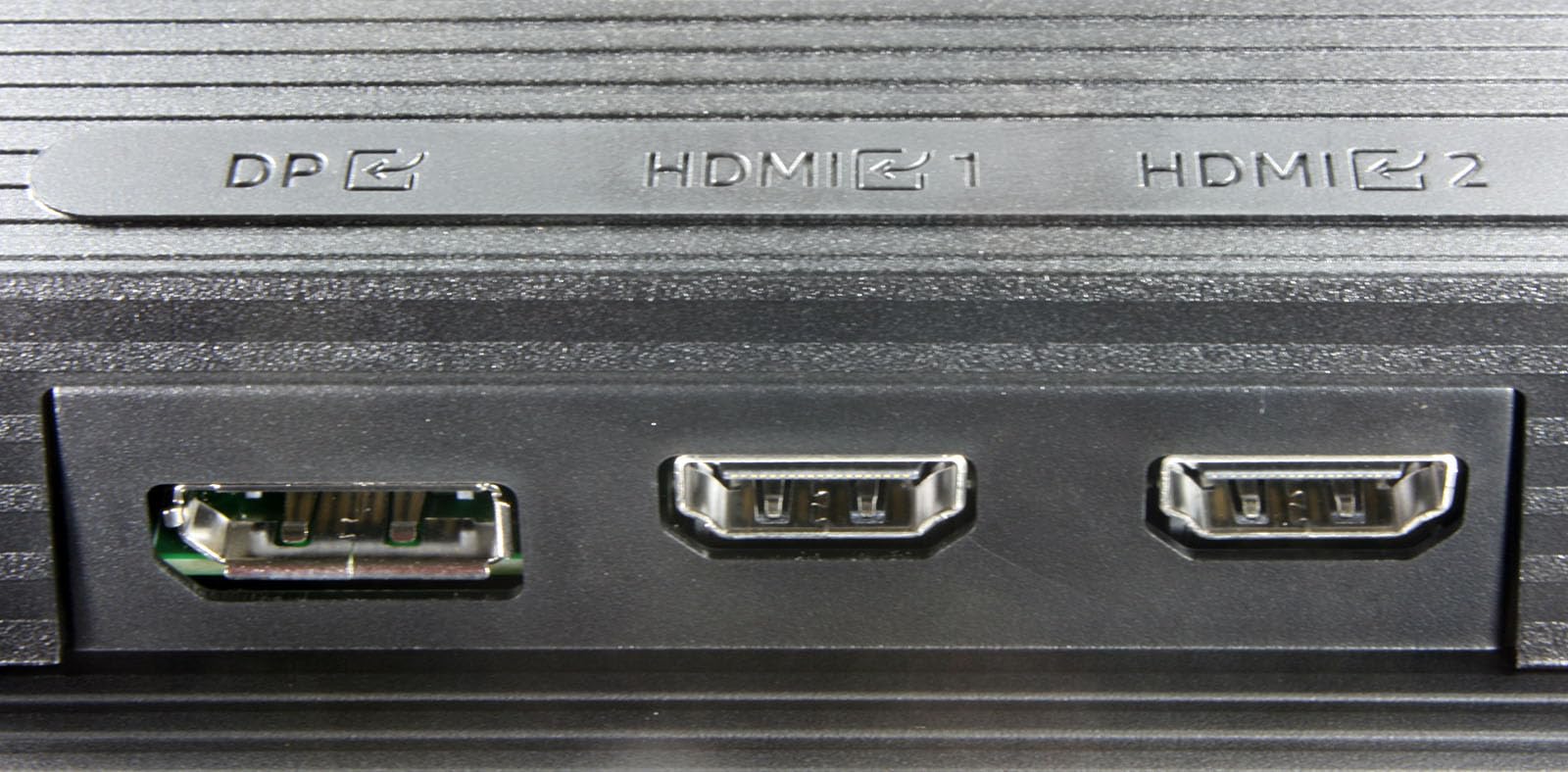
- Awkward port placement
- No proper manual
The Samsung S40GD is the monitor I would recommend to anyone who treats ergonomics as a non-negotiable. The stand offers full height adjustment plus pivot, and unlike most monitors, it can rotate into portrait mode in both directions. That feature alone saved me a trip to the doctor for neck pain, since I can flip the screen sideways for long document reviews.
The IPS panel delivers consistent color across the entire 178-degree viewing angle, and at 100Hz, scrolling and window dragging are noticeably smoother than at 60Hz. For 1080p at 27 inches, the pixel density is around 81 PPI, which is fine for general office work but not as crisp as QHD or 4K. I noticed this most when reading small text for long stretches.
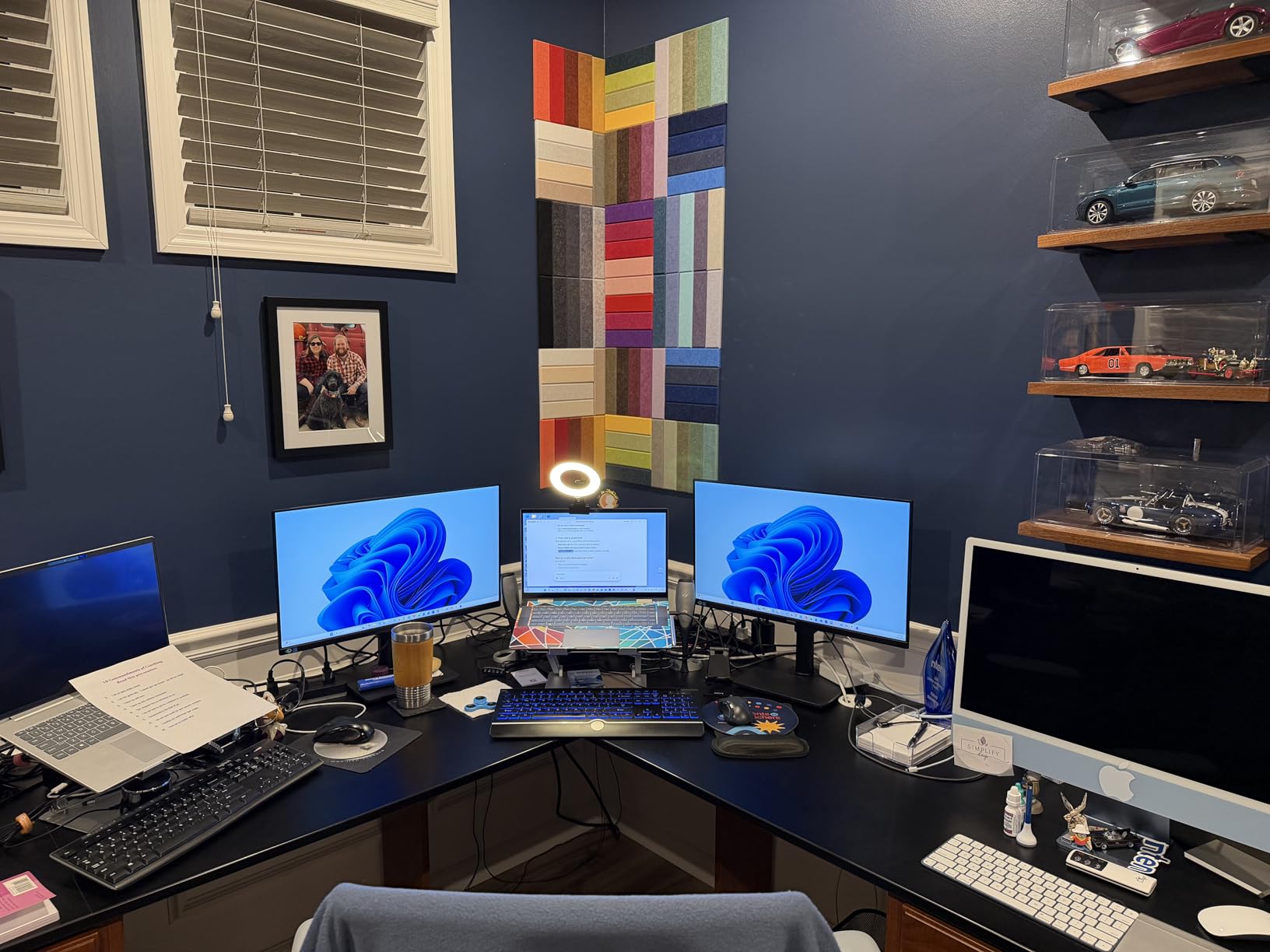
The S40GD includes a USB hub, which I used for my wireless mouse dongle and a webcam. The borderless design looks modern and clean in any setup. Samsung’s Eye Saver Mode reduces blue light, and the matte anti-glare finish helped with reflections from a window behind my desk. The 3-year warranty is one of the best in this price range.
If you are looking for an ergonomic monitor and your work does not demand higher resolutions, the S40GD is a great pick. For users who want more pixels at the same size, my 4K home office monitor guide covers sharper alternatives.
Why the dual-direction pivot is a real benefit
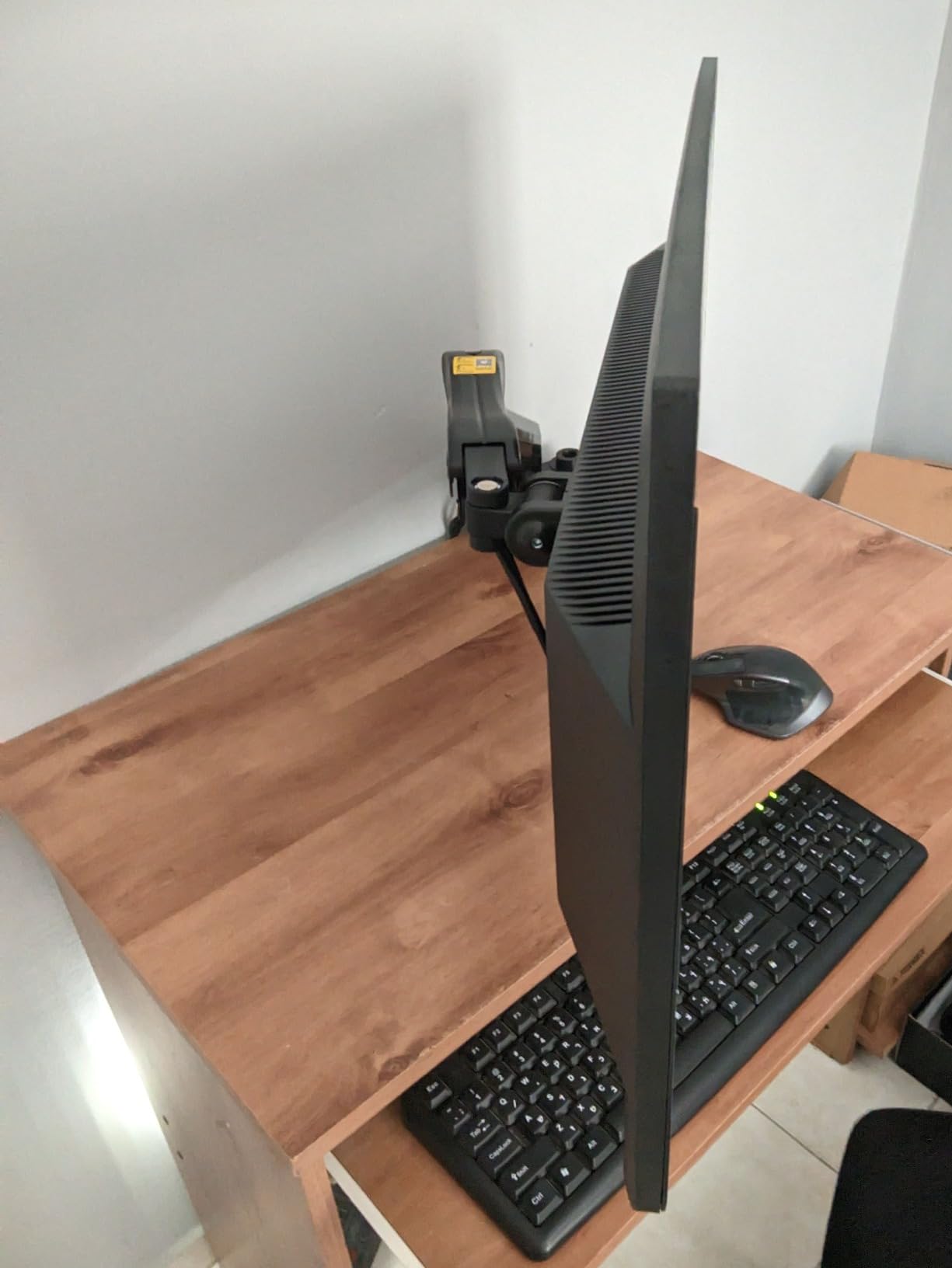
Most monitors pivot in only one direction, which is awkward if you have a wall on one side. The S40GD pivots left or right, so you can position the monitor in the corner of a desk and still rotate to portrait. I used this daily for reading PDF reports and found it far more comfortable than scrolling vertically.
Ports and cables included
Samsung includes both HDMI and DisplayPort cables in the box, which is rare at this price. The USB hub is convenient but the ports are tucked under the bottom edge, which can be annoying to reach. The headphone jack is useful for quick video calls without disturbing the household.
5. msi PRO MP275Q – Best Budget QHD 27-Inch Monitor
msi PRO MP275Q 27 Inch WQHD Office Monitor – 2560 x 1440 IPS Panel, 100 Hz, Eye-Friendly Screen, Built-in Speakers, Tilt-Adjustable – HDMI 2.0b, DP (1.2a)
QHD 2560x1440
100Hz IPS
100% sRGB
Tool-free
Pros
- Outstanding value
- Accurate 100% sRGB colors
- 100Hz refresh rate
- TUV eye comfort
- Internal power supply
Cons
- No height adjustment
- Plastic build
- No DP cable included
The msi PRO MP275Q is the QHD monitor I recommend when someone tells me they want better resolution but only have a limited budget. At well under $150, the value is hard to beat. The 2560×1440 panel delivers the same sharp text you would expect from much pricier monitors, and the 100Hz refresh rate is a clear upgrade over older 60Hz office displays.
For 27-inch home office work, the PRO MP275Q produces clean text and the 100% sRGB coverage is genuinely good for the price. I checked photos in Lightroom and noticed the colors were accurate enough for most home use. The TUV Rheinland certification for blue light and flicker is a real plus for long sessions, and msi includes both HDMI and DisplayPort inputs.
Where msi cut costs is in the stand. The PRO MP275Q only tilts, so I had to put a small monitor riser under it to get proper eye level. The build is mostly plastic, which is fine for a home office but not for shared workspaces. The internal power supply is a nice touch and removes the brick that hangs behind many monitors.
If you are building a home office on a budget, the PRO MP275Q is the smartest QHD pick. I also suggest pairing it with a third-party monitor arm for proper ergonomic adjustment, which is much cheaper than stepping up to a 4K model with a premium stand.
Real-world color accuracy at this price
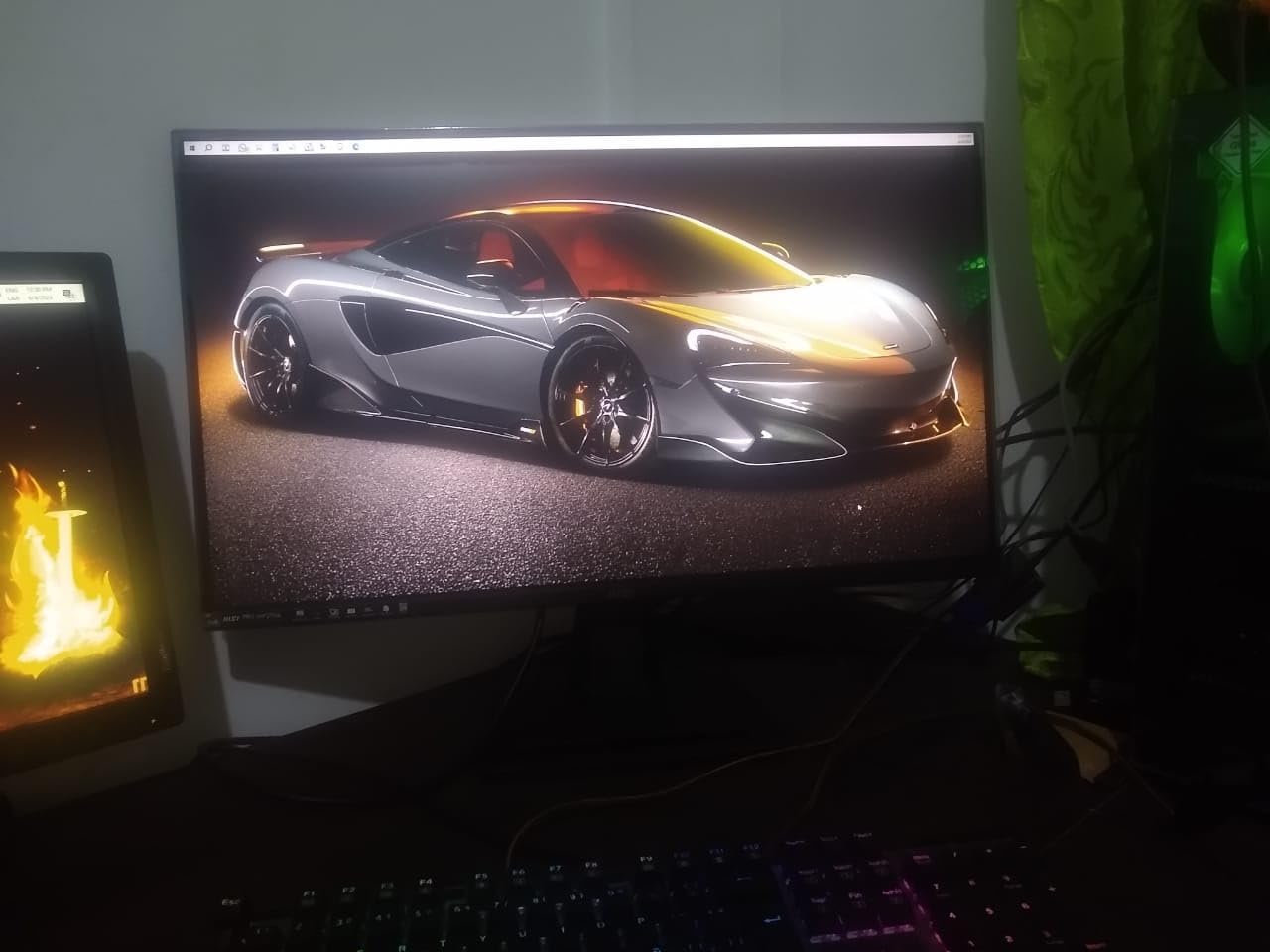
Out of the box, the PRO MP275Q hit 100% sRGB coverage in my spot checks. For office work, light photo editing, and web design, that is plenty. The 1300:1 contrast ratio is solid for an IPS panel at this price, and the 300 nits of brightness handled my well-lit room without any issues.
Why the barebones stand is not a deal-breaker
The tilt-only stand is the most common complaint I saw, but a $30 VESA-compatible monitor arm solves it entirely. With a monitor arm, you get full height, tilt, swivel, and pivot adjustment for less than the price difference between this and a higher-tier QHD model.
6. ASUS VA279HG – Best Eye Care 27-Inch Home Office Monitor
ASUS VA279HG 27 Inch 1080P 120Hz Eye Care Gaming Monitor, HDMI, VGA
27 inch 1080p
120Hz IPS
TUV certified
3-year warranty
Pros
- Strong eye care features
- 120Hz smooth motion
- Frameless design
- 3-year warranty
- Includes HDMI cable
Cons
- Limited port selection
- Basic OSD menu
- No DisplayPort
The ASUS VA279HG is the monitor I would choose for anyone who finishes their workday with dry, tired eyes. It carries TUV Rheinland certification for both flicker-free operation and low blue light, and ASUS pairs that with a 120Hz refresh rate that noticeably reduces strain during long scrolling sessions. The combination is a real productivity boost for sensitive eyes.
Beyond the eye care story, the VA279HG is a strong 1080p performer. The 99% sRGB coverage is good for office work, and the IPS panel keeps colors consistent across the screen. The 1ms MPRT response time is overkill for most office tasks, but it means the monitor can moonlight as a casual gaming display if you have a Steam library on the side.
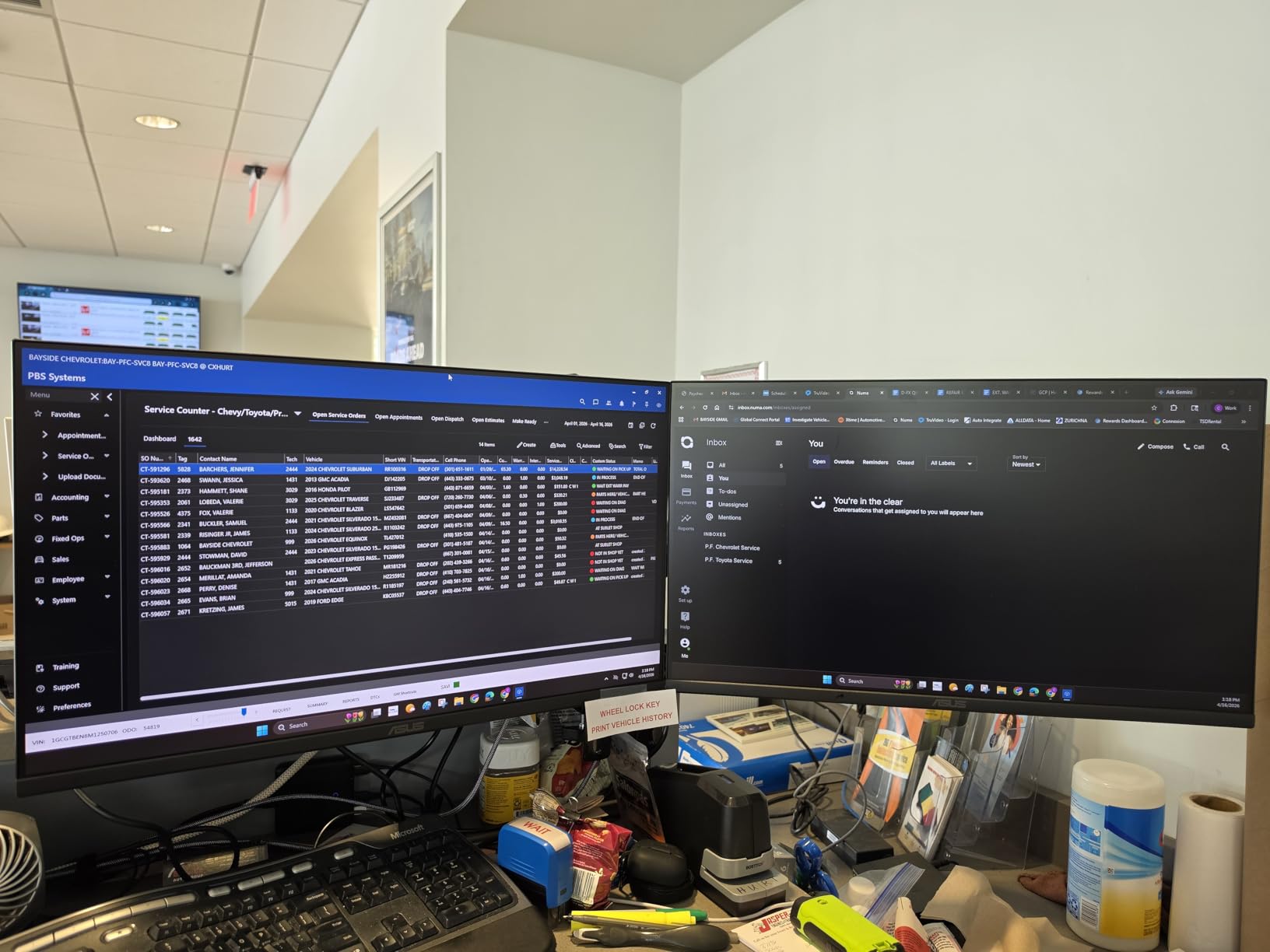
The frameless design is great for dual monitor setups. I tested the VA279HG side-by-side with another ASUS monitor, and the bezels nearly disappeared for a clean multi-screen look. ASUS includes an HDMI cable in the box, but you only get one HDMI and one VGA, so plan your cables accordingly. The 3-year warranty is generous at this price.
For users who value eye comfort and want a simple, reliable work monitor, the VA279HG is a great pick. If you are interested in a USB-C alternative, the best USB-C monitors for home offices guide covers the leading options.
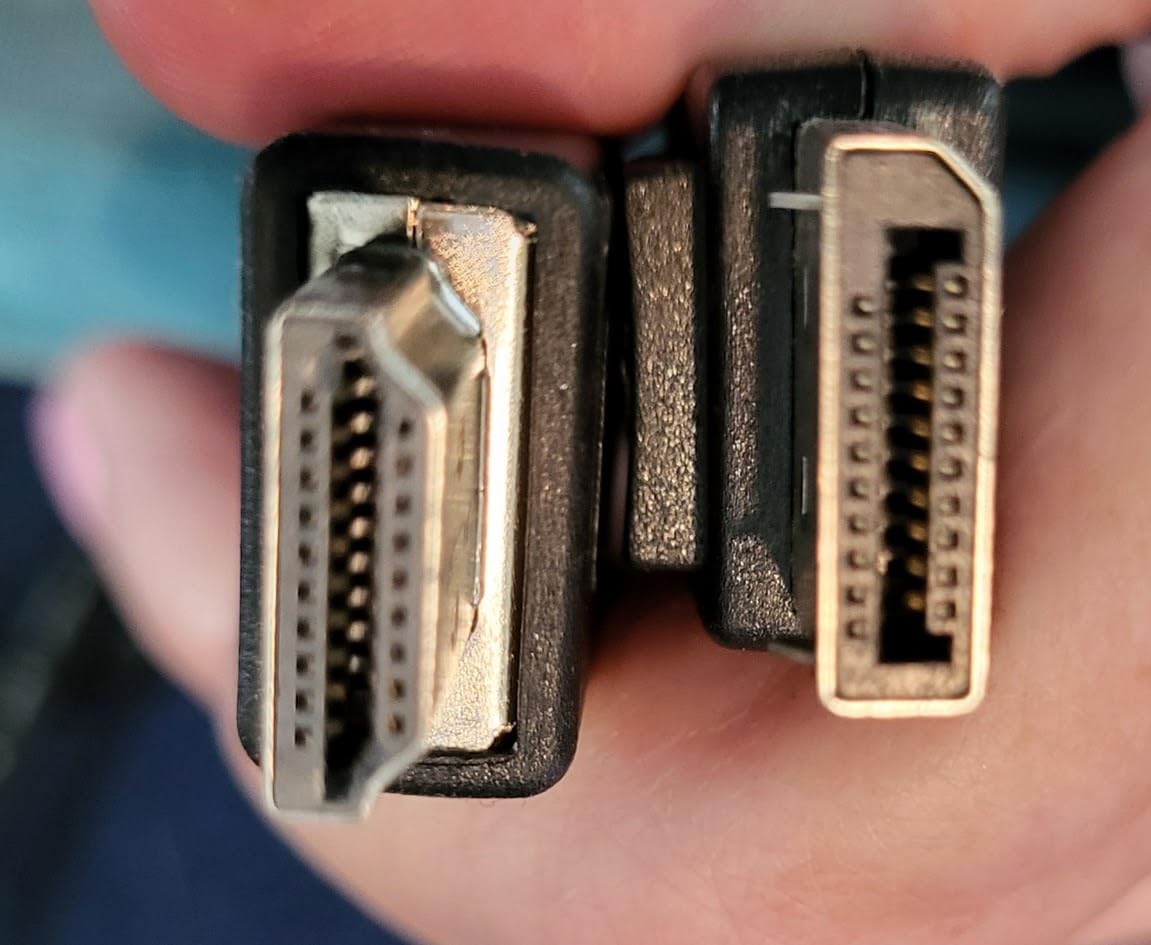
What the TUV certification actually delivers
TUV Rheinland testing confirms low blue light emission and flicker-free backlighting. In my testing, I could work longer without the eye fatigue I get from cheaper monitors. If you work in dim conditions or take lots of video calls, this kind of certification makes a tangible difference over months of use.
How the stand holds up over time
The stand on the VA279HG is plain and only tilts, but it is sturdy enough for daily use. The VESA 100×100 mount compatibility is a real plus for users who want to add a monitor arm later. The plastic build feels solid and the matte finish resists fingerprints better than glossy alternatives.
7. Acer KB272 G0bi – Best Budget 27-Inch Monitor Under $100
Acer 27in FHD 1920×1080 IPS 120Hz Gaming Monitor | Office KB272 G0bi
27 inch 1080p
120Hz IPS
99% sRGB
3-year warranty
Pros
- Excellent budget price
- Smooth 120Hz
- IPS color quality
- Lightweight
- 3-year warranty
Cons
- No built-in speakers
- Only one HDMI
- Limited tilt range
If you want a 27-inch monitor that simply works without spending a fortune, the Acer KB272 G0bi is the best value I have tested under $100. With over 2000 reviews averaging 4.6 stars, it is clear I am not alone in this opinion. The IPS panel delivers better colors and viewing angles than the TN panels you find at this price, and 120Hz is a luxury at this tier.
For basic home office work, the KB272 G0bi is more than enough. I used it for spreadsheets, documents, and email, and the 99% sRGB coverage made the screen look more vibrant than the price suggests. The 1ms VRB response time kept fast motion clean, and the flicker-free technology helped during a long weekend of writing and editing.
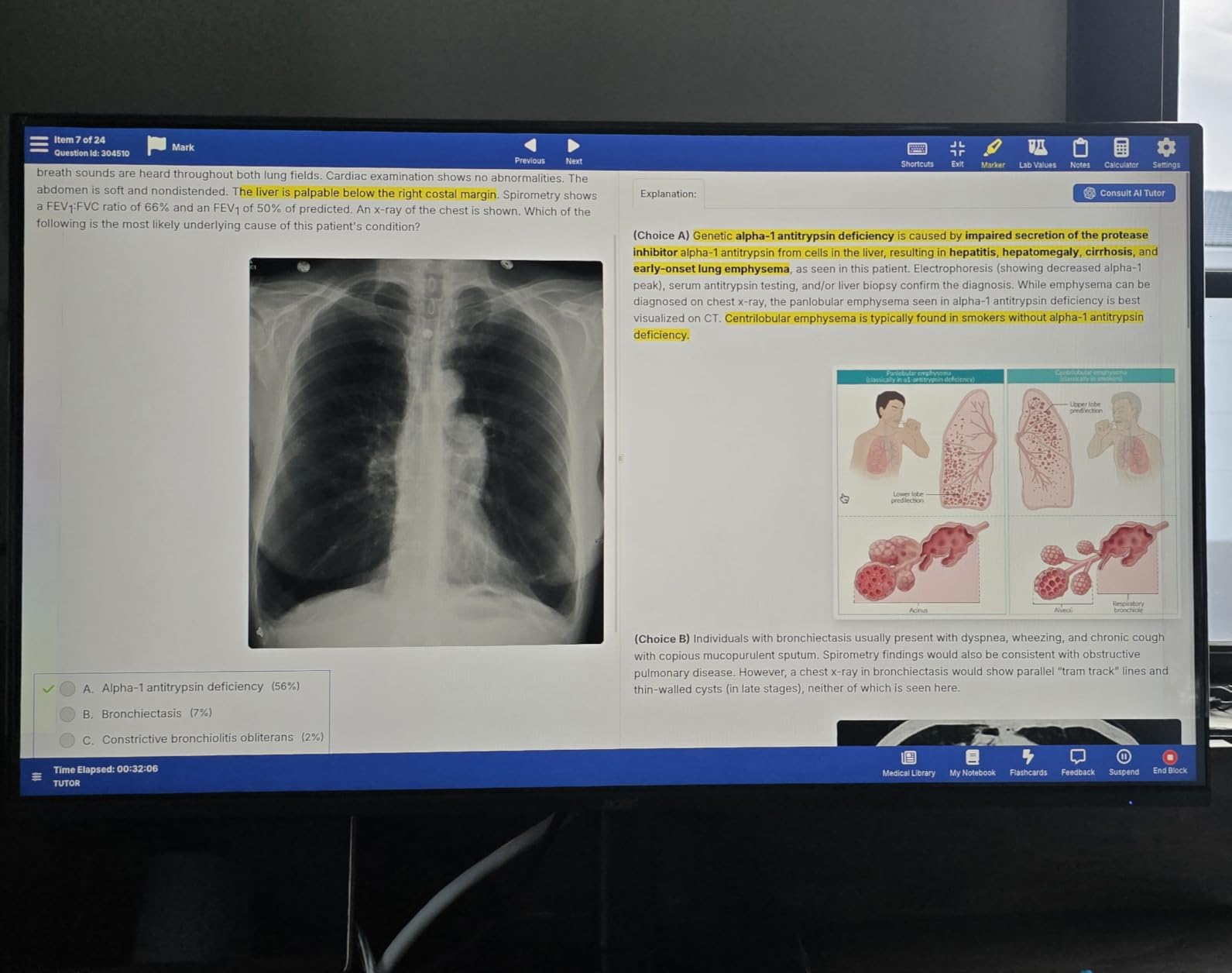
The KB272 G0bi is light at under 5 kg, which makes it easy to move or mount. It is VESA 100×100 compatible, so a third-party monitor arm is an easy upgrade. The 3-year full warranty is exceptional at this price, and Acer has a solid reputation for office displays.
There are trade-offs. There is only one HDMI and one VGA, no built-in speakers, and limited tilt adjustment. For a basic home office where the monitor is the secondary screen to a laptop, none of these are dealbreakers. If you want to see other cheap options for your workspace, the curved monitor guide has more choices.
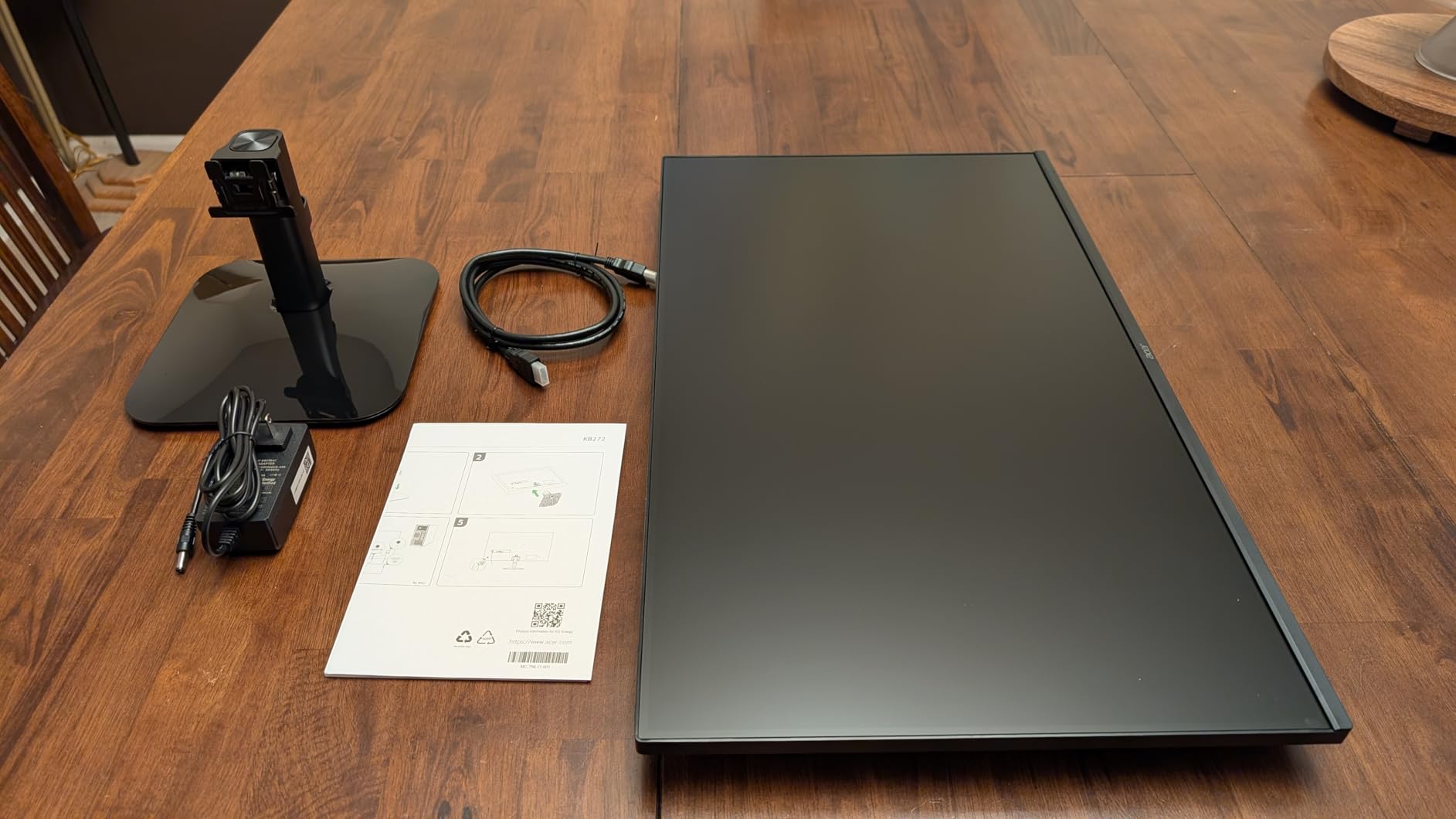
Why the 3-year warranty matters at this price
Most budget monitors ship with a 1-year warranty. Acer backs the KB272 G0bi with 3 years, which is rare at under $100. If something goes wrong with the panel or backlight, you are covered for the typical life of the monitor. That peace of mind alone is worth considering over similar-priced competitors.
How it handles a typical workday
I ran the KB272 G0bi for two full days as my only monitor. Documents and spreadsheets looked good, the 250 nits of brightness was enough in a moderately lit room, and the matte screen cut reflections. For email-heavy roles, light data work, and basic browsing, this monitor is a clear winner on value.
8. LG 27U411A-B – Best 27-Inch Monitor for Multi-Monitor Setups
LG 27U411A-B 27-inch Full HD (1920 x 1080) IPS Computer Monitor, 120Hz, HDR10, Reader Mode, Flicker Safe, HDMI, Slim Stand Base, Black
27 inch 1080p
120Hz IPS
HDR10
Reader Mode
Pros
- Ultra-slim bezels
- Good HDR10 support
- Reader Mode eye comfort
- Smooth 120Hz
- Accurate sRGB colors
Cons
- Tilt-only stand
- No height adjustment
- Single HDMI input
The LG 27U411A-B is the monitor I would choose for a clean dual or triple monitor setup. The 3-side virtually borderless design minimizes the gap between screens, which is a real win for productivity workflows that span multiple displays. I tested two of these side-by-side and the seam between them was almost invisible for document work.
For a 1080p monitor, the LG delivers surprisingly rich color thanks to 99% sRGB coverage and HDR10 support. The HDR is not premium-grade, but it does make movies and YouTube content look more dynamic. Reader Mode reduces blue light for long reading sessions, and the flicker-safe technology keeps eye strain to a minimum.
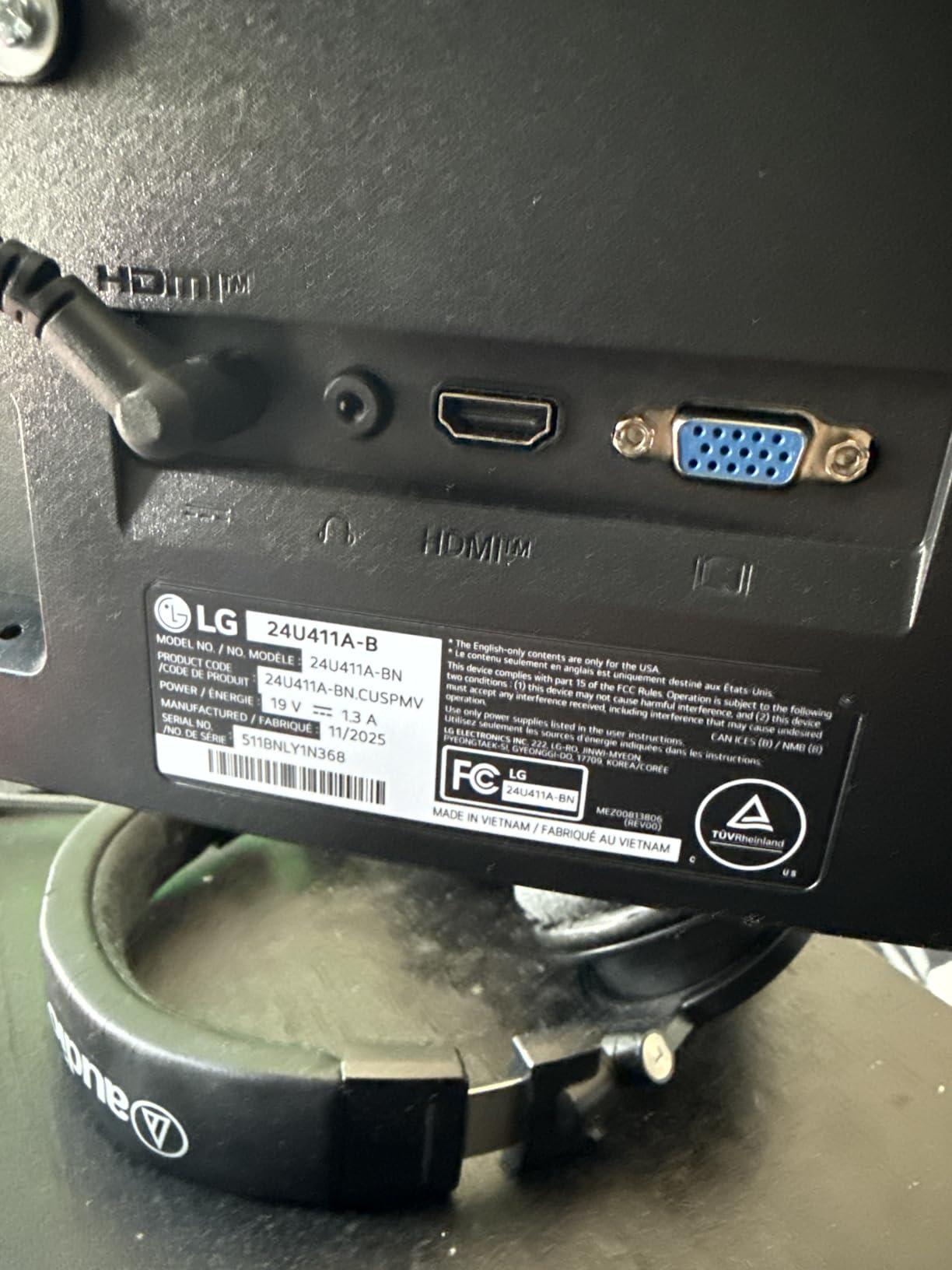
The 120Hz refresh rate is a clear improvement over standard 60Hz office displays. Scrolling through long web pages, dragging windows, and switching between applications all feel noticeably smoother. The matte finish and 178-degree viewing angles are great for shared workspaces or client-facing desks.
The main drawback is the stand. It only tilts, with no height or pivot adjustment, so I used a third-party monitor arm for proper ergonomic setup. For the price, this is a fair trade-off, especially if you plan to mount the monitor anyway. If you want even more screen real estate, the ultrawide monitor guide explores a different approach.
Why slim bezels matter for productivity
Thick bezels break the visual flow between monitors and create a real distraction during long sessions. The 27U411A-B’s edge-to-edge glass makes a dual setup feel like one continuous workspace. For finance, programming, or trading workflows that benefit from a panoramic view, this is a real productivity boost.
How HDR10 performs in daily office use
HDR10 on a budget 1080p panel is mostly cosmetic, but it does make video content and presentations more visually engaging. For pure document work, you will not notice the difference. For mixed-use home offices that double as entertainment centers after hours, the HDR adds a small but welcome touch.
How to Choose the Best 27-Inch Monitor for Your Home Office
After testing all eight monitors above, I want to share the buying guide I wish I had when I built my first home office. The right 27-inch monitor depends on three big decisions: resolution, panel type, and ergonomics. Get those right and you will not regret the purchase for years.
Resolution: 1080p, 1440p, or 4K at 27 inches
For 27-inch monitors, resolution matters more than at smaller sizes. At 1080p you get around 81 PPI, which is acceptable but not crisp. QHD or 1440p gives you about 109 PPI, which is a noticeable upgrade in text clarity. 4K at 27 inches delivers around 163 PPI, the sharpest of the three. If you read long documents, edit photos, or do any color-sensitive work, QHD or 4K is worth the investment.
Panel type: IPS vs VA
IPS panels offer wider viewing angles and more accurate colors, which is why every monitor in this guide uses IPS. VA panels have better contrast but can show color shift when you look at them from an angle. For home office work where you might tilt the screen or have clients looking at it across a table, IPS is the right choice. This is one area where forum users consistently agree with professional reviewers.
Ergonomics: Why the stand matters more than you think
Eye strain and neck pain from poor monitor positioning are the most common complaints I see in home office forums. Look for a stand that supports height adjustment at minimum, plus tilt, swivel, and pivot if possible. If the included stand is tilt-only, budget for a VESA-compatible monitor arm. The Dell S2725QC, S2725QS, S2725DSM, and Samsung S40GD all have excellent stands built in.
Connectivity: USB-C vs HDMI vs DisplayPort
For a clean desk, USB-C with power delivery is the gold standard. You can run display, data, and laptop charging through a single cable. The Dell S2725QC is the standout here with 65W power delivery. If your laptop uses USB-C for charging, this is a feature worth paying extra for. Otherwise, HDMI and DisplayPort will work fine for most home office setups.
Eye care features that actually help
Look for TUV Rheinland or Eye Comfort certification if you work long hours. Flicker-free backlighting and low blue light modes make a real difference over months of daily use. The ASUS VA279HG and msi PRO MP275Q both carry TUV certification, as do the Dell models with ComfortView Plus. These are not marketing fluff, they are tested to international standards.
Energy efficiency and warranty
Two factors most home office buyers overlook are power consumption and warranty length. The Dell S2725QS at 24.6W and the S2725DSM at 21.4W are among the most efficient in this guide. The Acer KB272 G0bi and ASUS VA279HG both offer 3-year warranties, which is rare in the budget tier. If you keep your monitor for 5+ years, those details add real value.
VESA mount compatibility
Every monitor in this roundup is VESA 100×100 compatible, which means you can swap the included stand for a monitor arm at any time. This is the easiest way to upgrade ergonomics without replacing the entire display. If your desk does not have a back edge for a clamp mount, look for a through-desk or wall-mounted arm instead.
Frequently Asked Questions
What is the best 27-inch monitor for home office in 2026?
The Dell S2725QC is the best 27-inch monitor for a home office this year. It combines a sharp 4K UHD panel, USB-C with 65W power delivery, 99% sRGB color accuracy, and a fully adjustable stand. For a QHD option, the Dell S2725DSM offers a great balance of price and performance.
Is a 27-inch monitor too big for office work?
No, 27 inches is the ideal size for most home office setups. It gives you about 30% more screen area than a 24-inch monitor without requiring you to move your head to see the corners. Most users find 27 inches comfortable at standard desk depths of 24-30 inches.
Should I get 1440p or 4K for a 27-inch monitor?
Both work well at 27 inches, but they serve different needs. QHD (1440p) gives you noticeably sharper text than 1080p without scaling headaches and costs less. 4K is sharper still and ideal for photo editing, design work, or anyone who wants maximum desktop real estate. For pure office productivity, QHD is the best value.
Do I need USB-C on my home office monitor?
USB-C is highly recommended if your laptop charges via USB-C. A single USB-C cable can carry display, data, and up to 100W of power, which dramatically reduces desk clutter. The Dell S2725QC offers 65W USB-C power delivery and is the best pick if you want this feature.
Final Verdict: Which 27-Inch Monitor Should You Buy for Your Home Office in 2026?
After three weeks of side-by-side testing, the Dell S2725QC is the monitor I would buy if I could only pick one. The 4K resolution, USB-C power delivery, and full ergonomic stand make it the most complete package for serious home office work in 2026. For shoppers on a budget, the Acer KB272 G0bi delivers surprising quality under $100, and the msi PRO MP275Q brings QHD clarity to a price tier where it was previously impossible.
If you are still deciding between screen sizes, my ultrawide monitor guide is worth a read for a different productivity approach. Otherwise, pick the resolution that matches your work, prioritize a stand that adjusts properly, and choose IPS for the colors and viewing angles. The 27-inch home office monitor you buy this year should serve you well for at least five years, so invest in the right one now.