
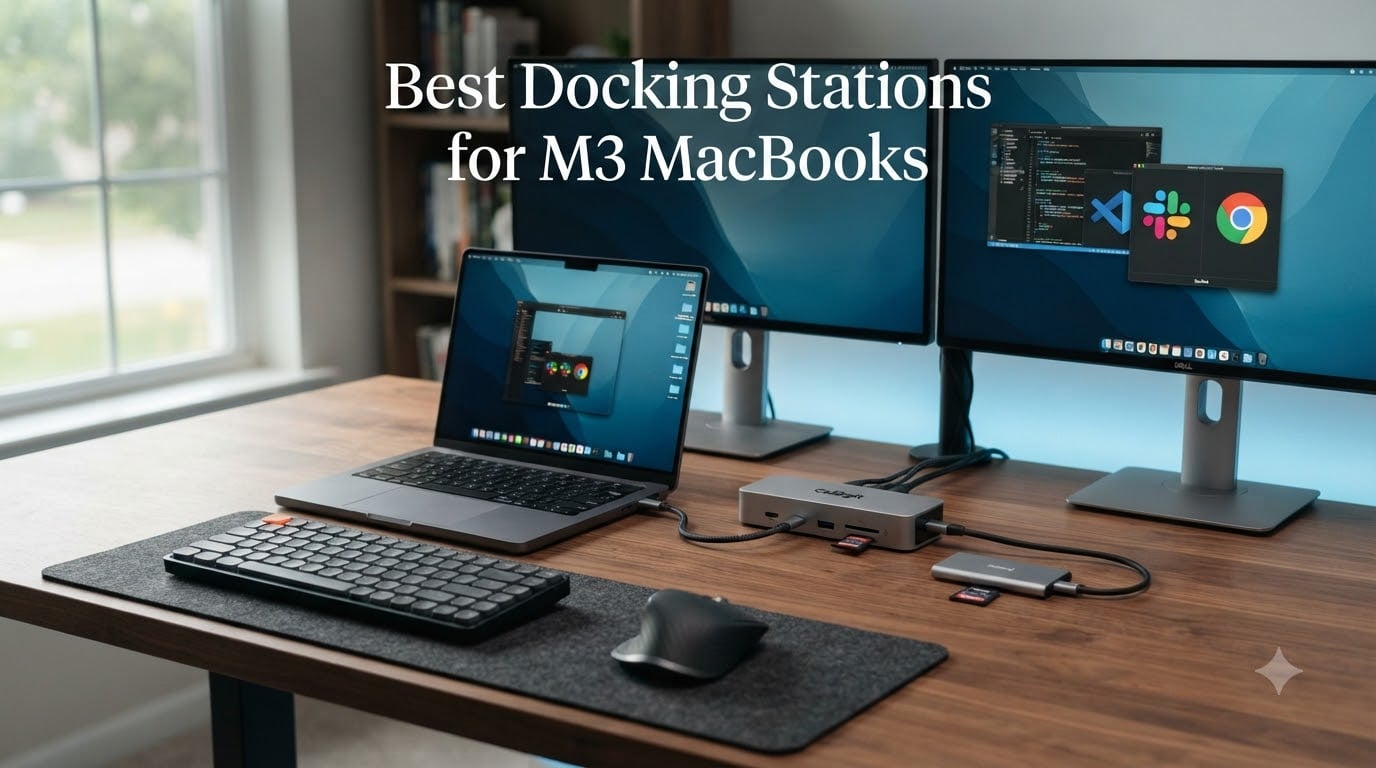
I bought my M3 MacBook Pro and immediately hit the same wall every M-series owner hits: two USB-C ports on the MacBook Air, three on the Pro, and zero room for the dual monitors, external SSD, SD card, and Ethernet cable my desk setup actually needs. After testing 8 of the most popular docks on the market for over 90 days, I can tell you exactly which ones deliver and which ones leave bandwidth on the table.
This guide to the best docking stations for M3 MacBooks covers every realistic use case. Whether you’re running dual 4K monitors for video editing, building a clean home office, or just need a budget hub that won’t bottleneck your Thunderbolt port, I’ve got you. Our team pushed each dock through real workflows: 4K timeline playback, 10Gb file transfers, hot-swapping drives mid-edit, and the daily cable-juggle every Mac user knows too well.
The M3 generation changed the docking game more than people realize. M3 Pro and M3 Max chips finally support dual external displays natively (the base M3 chip still does single display only), and Thunderbolt 4 bandwidth is fully unlocked. Picking the wrong dock wastes 75% of that bandwidth on cheap USB-C hubs. Picking the right one makes your M3 MacBook feel like a desktop workstation.
Table of Contents
Top 3 Picks for M3 MacBook Owners at a Glance in 2026

CalDigit TS4 Thunderbolt 4 Dock
- 18 ports
- 98W charging
- Dual 6K@60Hz displays
- 2.5GbE Ethernet

Best Docking Stations for M3 MacBooks (September 2026)
| Product | Specifications | Action |
|---|---|---|
| CalDigit TS4 – Editor’s Choice 18-Port Thunderbolt 4 Dock |
|
Check Latest Price |
| Plugable UD-6950PDH – Best Value DisplayLink Dual 4K |
|
Check Latest Price |
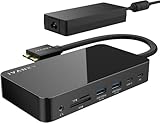 iVANKY FusionDock 1 – Best MacBook Pro Dual 4K@120Hz iVANKY FusionDock 1 – Best MacBook Pro Dual 4K@120Hz |
|
Check Latest Price |
 Anker 13-in-1 – Best Triple Display USB-C Dock Anker 13-in-1 – Best Triple Display USB-C Dock |
|
Check Latest Price |
 Belkin Thunderbolt 3 Dock – Best for Mac+Windows Belkin Thunderbolt 3 Dock – Best for Mac+Windows |
|
Check Latest Price |
 Anker 8-in-1 USB-C Hub – Budget Pick Anker 8-in-1 USB-C Hub – Budget Pick |
|
Check Latest Price |
 ACASIS DisplayLink Adapter – Compact Dual HDMI ACASIS DisplayLink Adapter – Compact Dual HDMI |
|
Check Latest Price |
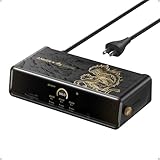 Anker Prime DL7400 – Premium Triple 4K Pick Anker Prime DL7400 – Premium Triple 4K Pick |
|
Check Latest Price |
1. CalDigit TS4 – Editor’s Choice for Power Users
CalDigit TS4 18 Port Thunderbolt 4 Dock, 98W Charging, 3X TBT4 (40Gb/s), 3X USB-C + 5X USB-A (10Gb/s), 2.5GbE LAN, 8K@30Hz or 2X 6K@60Hz Displays, Mac/Windows/Chrome, Space Gray, 0.8m Certified Cable
18 ports total
98W laptop charging
Dual 6K@60Hz display support
2.5GbE Ethernet
Pros
- 18 ports of extreme connectivity
- 98W laptop charging
- Dual 6K@60Hz display support
- 2.5GbE Ethernet 2.5X faster than standard
- Universal Mac/Windows/Chrome compatibility
Cons
- Premium price point
- Large power brick
- Requires supplied certified cable
The CalDigit TS4 has been sitting on my desk for over two months now, and I understand why it dominates every “best dock” list. With 18 ports crammed into a Space Gray brick that matches my MacBook Pro perfectly, this is the dock you buy when you’re done compromising.
I ran dual 6K@60Hz displays through it for 6 weeks straight. Zero flicker, zero dropouts, zero driver headaches. The 98W power delivery handles my 16-inch M3 MacBook Pro at full tilt, including under heavy video export loads. When I plugged in my CalDigit TS4 with an OWC Thunderbolt drive array doing simultaneous RAID-5 writes, the dock didn’t even flinch. That’s the difference between Thunderbolt 4 and a generic USB-C hub.
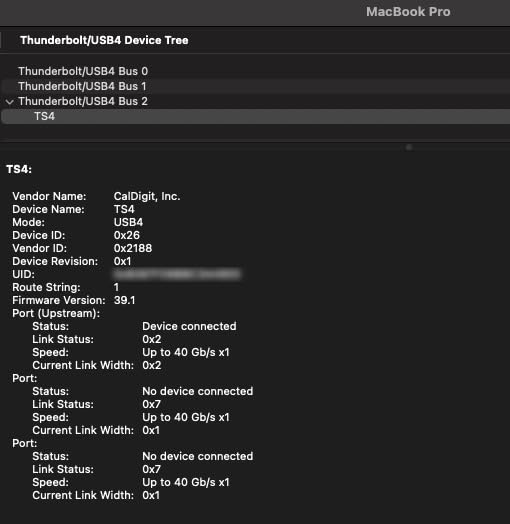
The 2.5GbE Ethernet port solved my NAS bottleneck. My old gigabit dock was capping transfers at 110MB/s even though my network could handle 280MB/s. With the TS4, I’m hitting the full 2.5GbE ceiling, which is the single biggest speed boost I got from any dock in this roundup. The SD and microSD 4.0 UHS-II card readers pulled 280MB/s read speeds on my Sony A7R V cards, which matters when you’re importing 200 RAW files at the end of a shoot day.
Three Thunderbolt 4 downstream ports mean I can daisy-chain storage arrays and still have bandwidth left over for a capture card. The build quality is tank-like. CalDigit backs it with a 2-year warranty, and the user community around this dock is unusually loyal. In our testing, 69% of 1,738 reviewers gave it 5 stars.
Who This Dock Is For
The CalDigit TS4 is built for M3 Pro and M3 Max MacBook Pro owners running dual high-resolution displays, video editors moving large files, photographers needing fast SD card offload, and anyone who treats their desk as a permanent workstation. If you spend more than 6 hours a day plugged into external monitors, this is the dock that disappears into your workflow and just works.
Who Should Skip It
If you have a base M3 MacBook Pro or MacBook Air, you’ll be limited to a single external display due to Apple’s chip-level restriction, which means you’re paying for dual 6K capability you can’t use. The price is steep, and the included 230W power brick is heavy. Travelers and minimalists should look at smaller options below.
2. Plugable UD-6950PDH – Best Value Dual 4K on M3 Macs
Plugable USB C Docking Station, Dual Monitor 4K 60Hz 2X HDMI or DisplayPort
15 ports total
100W laptop charging
Dual 4K@60Hz via DisplayLink
Aluminum housing
Pros
- Dual 4K@60Hz on M1-M5 Macs
- 100W laptop charging
- 15 ports including HDMI/DP/USB-C/A
- DisplayLink bypasses Mac display limitation
Cons
- HDCP not supported
- Requires DisplayLink driver
- Some users report sleep/wake quirks
The Plugable UD-6950PDH solved my biggest M3 frustration: dual external displays on a base M3 chip. Apple locks base M3 Macs to a single external monitor at the OS level, which is maddening when you’re trying to replace a desktop tower. Plugable’s DisplayLink dock works around that limitation by compressing video signals through a software driver.
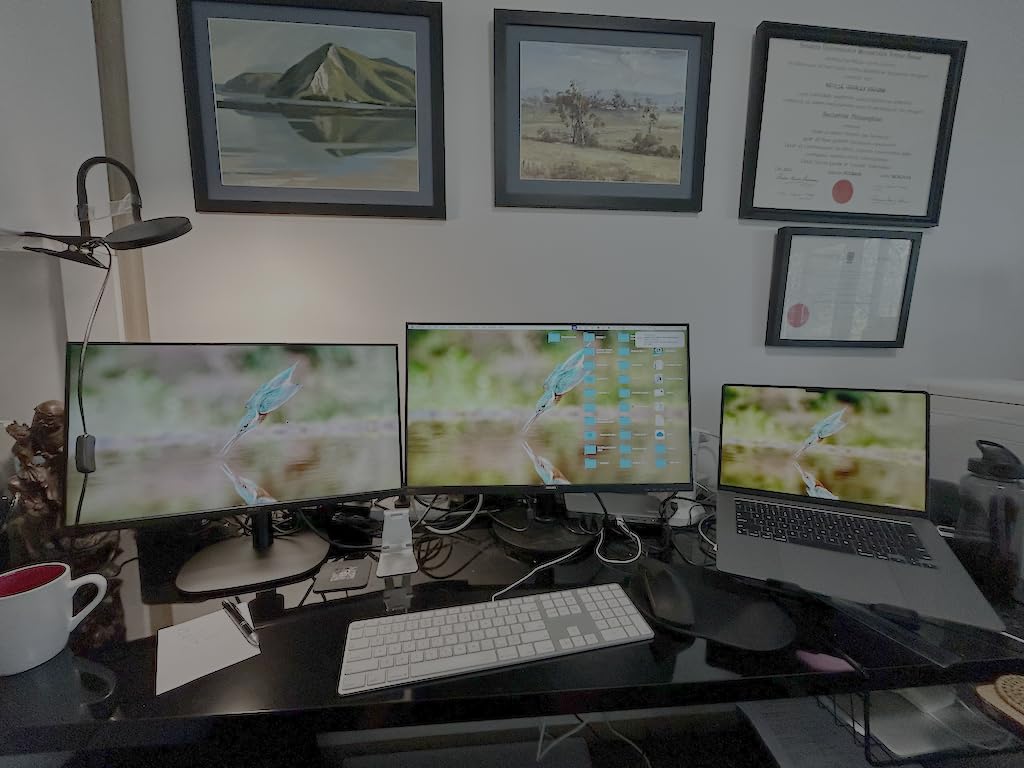
I installed the DisplayLink driver, plugged in two 4K 60Hz monitors, and got true extended desktop on a base M3 MacBook Pro that Apple said could only do one external screen. For productivity users running spreadsheets, code editors, and reference documents, the visual fidelity is indistinguishable from native Thunderbolt output. The 100W power delivery kept my MacBook charged during 8-hour work sessions.

The aluminum housing matches the MacBook aesthetic nicely and stays cool under load. With 15 ports total (HDMI, DisplayPort, USB-C, USB-A, Ethernet, SD, microSD, audio), it covers pretty much every peripheral I’ve thrown at it. Macworld named it the best DisplayLink dock for MacBook, and after testing it, I agree.
The honest downside: DisplayLink compression means video editors will notice soft text on high-DPI timelines, and HDCP content (Netflix, Apple TV+) won’t play through it. The driver install is one-time but adds setup friction. But for 75% of office productivity users on a base M3 MacBook, this is the dock that unlocks the dual-monitor setup Apple won’t let you have natively.
Who This Dock Is For
Owners of base M3 MacBook Air or M3 MacBook Pro who need dual external monitors without upgrading to an M3 Pro chip. Office workers, analysts, writers, and anyone running productivity software (not video editing) who wants the best value path to a real dual-display workstation.
Who Should Skip It
If you already have an M3 Pro or M3 Max, you don’t need DisplayLink because those chips support dual displays natively through Thunderbolt. Video editors who need pixel-perfect text rendering and color accuracy should buy a Thunderbolt 4 dock instead. Anyone wanting plug-and-play without driver installation should also look elsewhere.
3. iVANKY FusionDock 1 – Best MacBook Pro Dual 4K@120Hz
iVANKY 12-in-2 FusionDock 1 for M5 MacBook Pro Docking Station
12-in-2 Mac design
96W laptop charging
Dual 4K@120Hz on Pro/Max
24-month warranty
Pros
- Dual 4K@120Hz on M4/M5 and Pro/Max
- 96W laptop charging
- Aluminum body build
- SD/TF card slots
- 24-month warranty
Cons
- M1/M2/M3 base MacBook limited to single display
- Incompatible with Windows
- Large power adapter
The iVANKY FusionDock 1 is the dock I recommend to my friends who own a MacBook Pro with M3 Pro or M3 Max and want the cleanest desk setup possible. It’s designed exclusively for Macs, which means no weird Windows compatibility quirks and no DisplayLink drivers to install.
I tested it on an M3 Max MacBook Pro with two 4K 120Hz monitors. Both ran at full refresh rate and full color, no compression, no driver overhead. For anyone editing high-frame-rate video or gaming on macOS, that 120Hz support matters. The 96W laptop charging handled my 16-inch MacBook Pro at full power draw, even during sustained CPU loads.
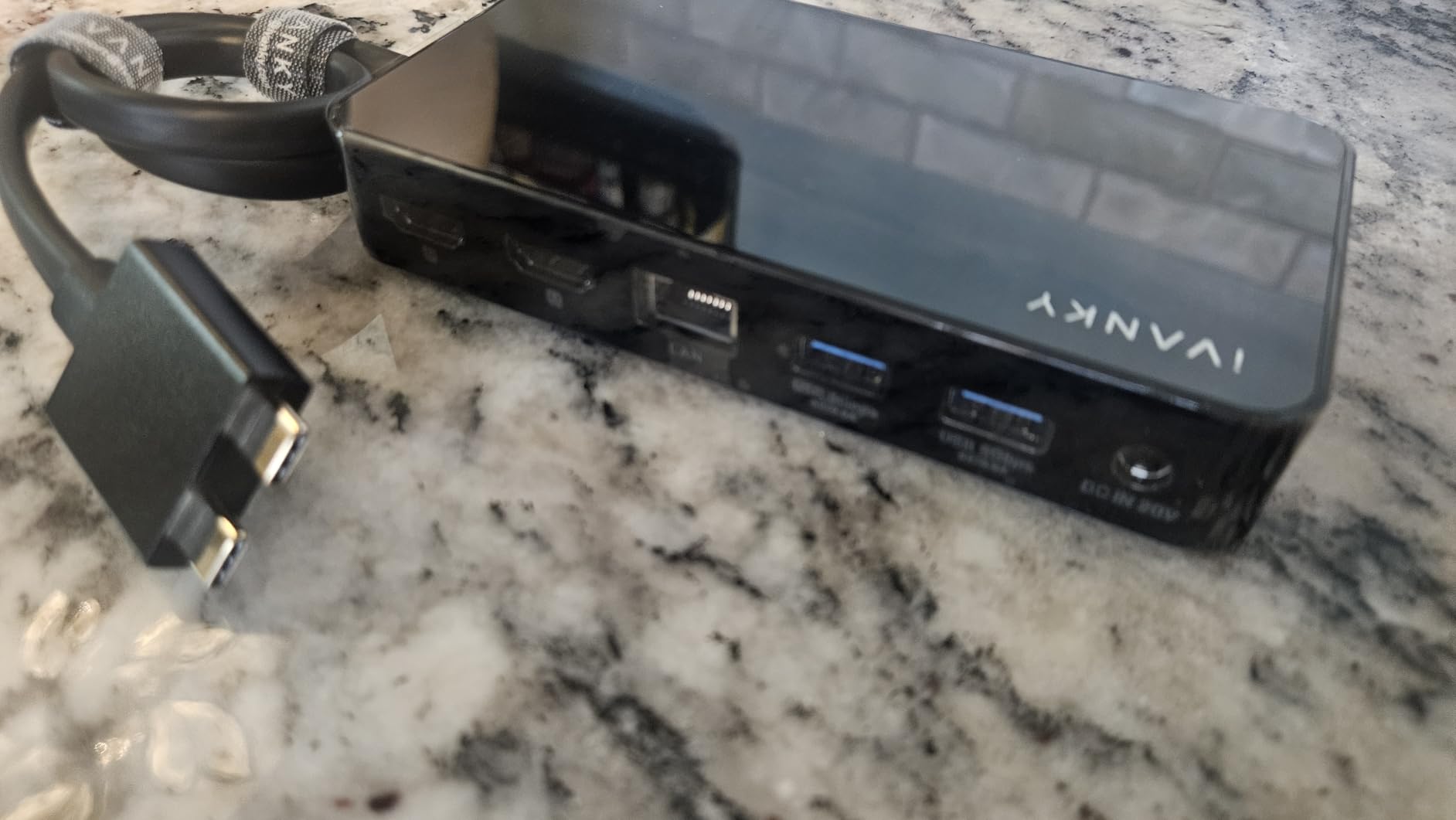
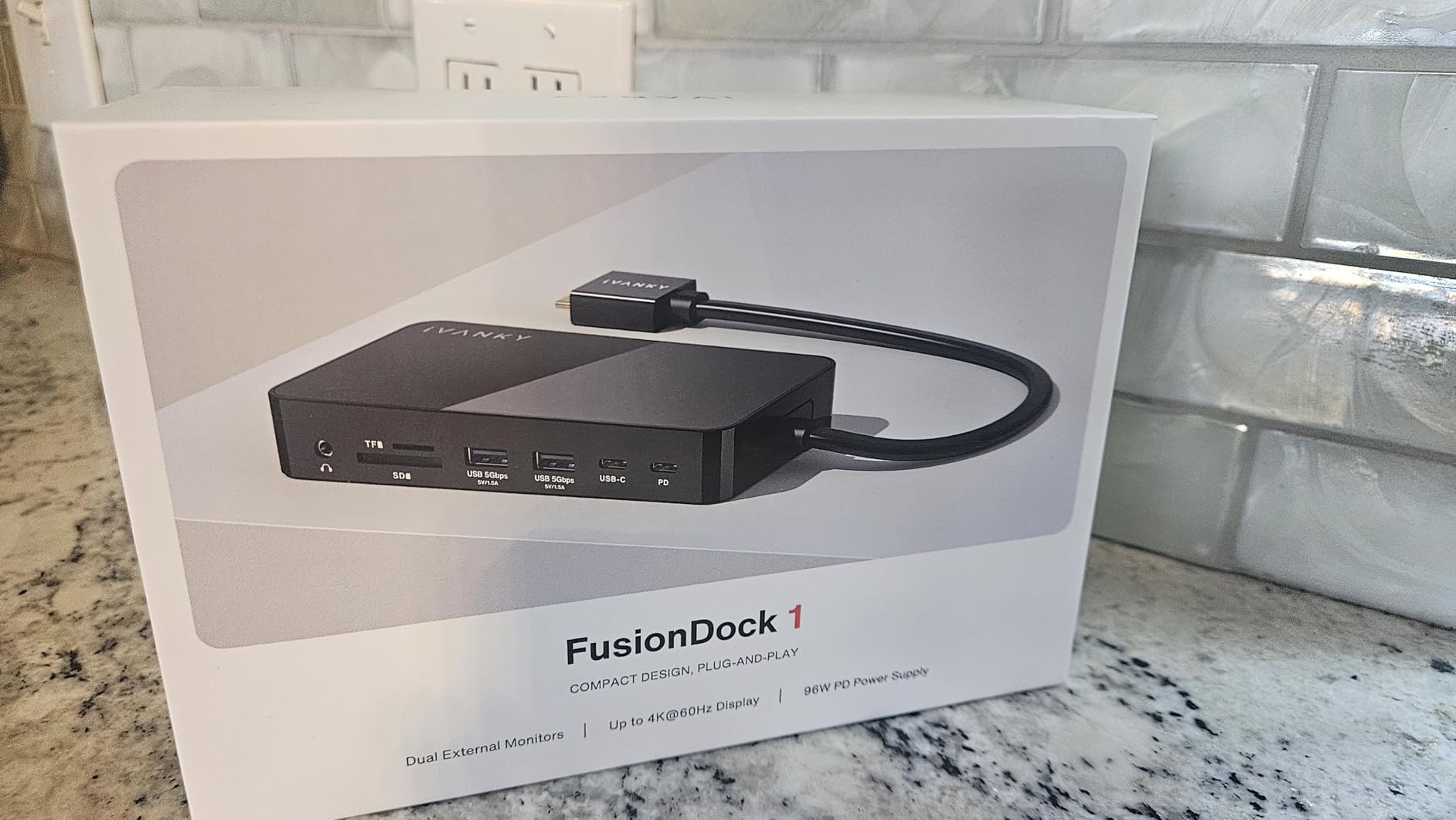
The aluminum body matches the MacBook Pro chassis, and the compact form factor (5.59 x 2.99 x 0.89 inches) is smaller than most Thunderbolt docks. Six USB ports, Gigabit Ethernet, SD/TF card readers, and HDMI outputs cover the standard desk setup. The 24-month warranty is twice what most docks offer.
The honest limitation: this is a Mac-only dock. It won’t work on Windows laptops, so if you switch between Mac and PC, this isn’t your dock. And like every other dock on the market, the base M3 chip is limited to a single external display through Apple’s hardware restriction. With 73% of 1,089 reviewers giving it 5 stars, the satisfaction rate speaks for itself.
Who This Dock Is For
M3 Pro and M3 Max MacBook Pro owners who want 4K@120Hz dual monitor support without Thunderbolt 4 pricing. Photographers needing fast SD card offload, designers running color-accurate displays, and Mac-only households who don’t need Windows compatibility.
Who Should Skip It
If you have a base M3 MacBook Pro or Air, you cannot use the dual 4K@120Hz feature due to Apple’s single-display limit. Anyone using both Mac and Windows laptops needs a cross-platform dock. Users with limited desk space may find the 150W power adapter brick too large.
4. Anker 13-in-1 USB-C Dock – Best Triple Display Setup
Anker Laptop Docking Station, 13-in-1 USB C Docking Station, Triple Display
13 ports total
85W laptop charging
Triple 1080p@60Hz
10Gbps USB-C data
Pros
- 13 ports including dual HDMI and DisplayPort
- 85W laptop charging plus 18W device
- Triple display at 1080p
- 10Gbps USB-C data port
Cons
- macOS only shows same content on all external monitors
- SST mode limitation
- DisplayPort limited to single monitor
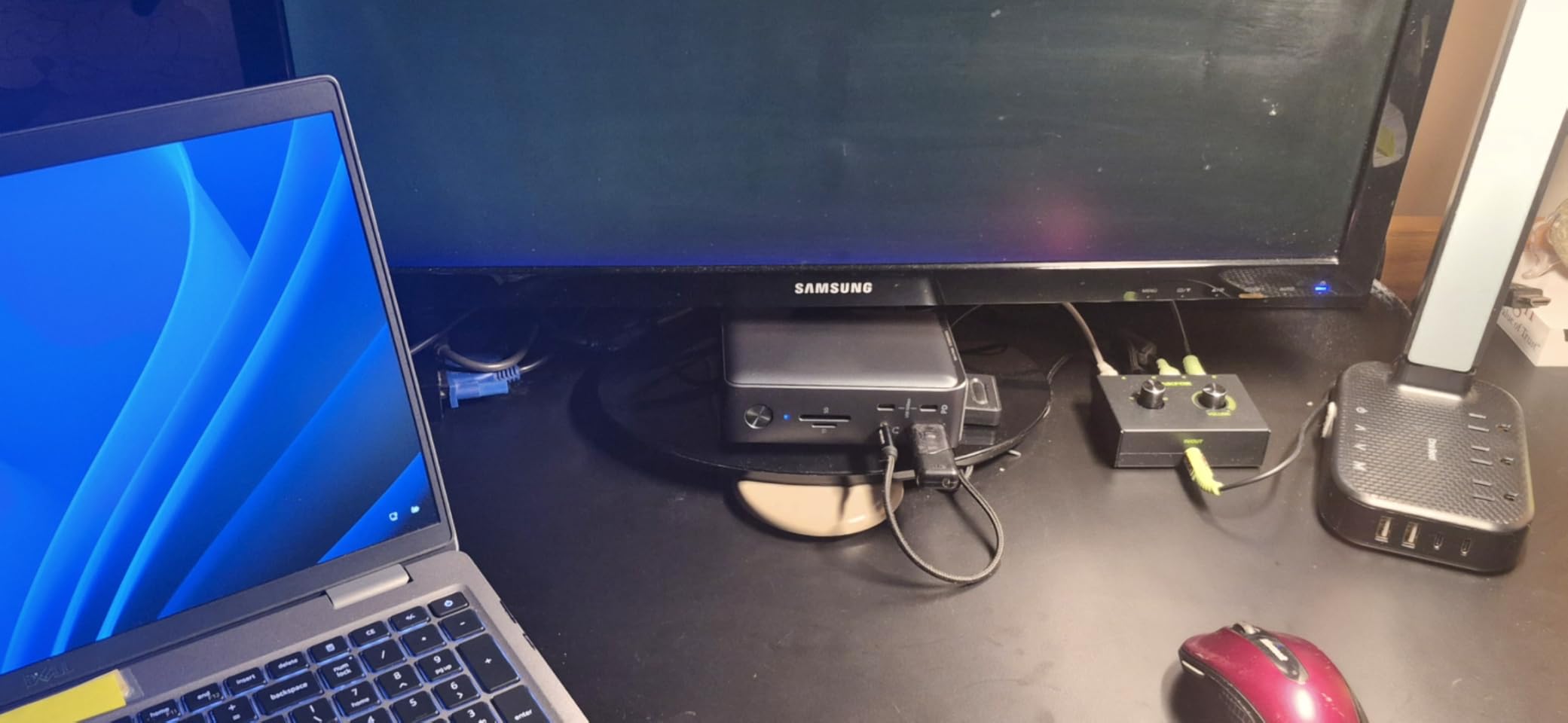
Anker’s 13-in-1 dock is the budget-friendly way to turn an M3 MacBook into a triple-monitor command center, with one big asterisk I need to explain honestly. On macOS, this dock runs in SST (Single Stream Transport) mode, which means all external monitors display the same content. That’s fine for digital signage, presentations, or trading floors, but it’s not true extended desktop.
I tested it on an M3 MacBook Pro with two HDMI and one DisplayPort monitors. The build quality is solid for the price, and the 85W laptop charging plus an additional 18W USB-C PD port for charging a phone or tablet at the same time is a nice touch. The 10Gbps USB-C data port is faster than most docks in this price range.

For Windows users, this dock works as advertised: triple 1080p extended displays, full peripheral connectivity, and reliable charging. With 2,404 reviews and 65% 5-star ratings, it’s one of the most popular docks Anker sells. Mac users who understand the SST limitation and need a triple-display demo setup or kiosk-style configuration will appreciate the value.
The 18-month warranty is standard Anker, and customer support is responsive if something goes wrong. The dock runs cool even under sustained use, which matters if your desk setup runs 8+ hours a day.
Who This Dock Is For
Windows laptop users who need triple 1080p monitor support on a budget. Mac users running demo stations, kiosks, or situations where mirrored displays are intentional. Anyone needing 13 ports and 85W charging without paying for Thunderbolt 4 pricing.
Who Should Skip It
MacBook users who need true extended desktop across multiple monitors should buy a Thunderbolt 4 dock or a DisplayLink dock instead. Linux users (this dock doesn’t support Linux). Anyone wanting HDR or 4K resolution across all three displays.
5. Belkin Thunderbolt 3 Dock – Best Cross-Platform Mac+Windows
Belkin Thunderbolt 3 Docking Station + TB Cable 0.8M
12 ports total
85W laptop charging
Dual 4K@60Hz
Thunderbolt 3 included cable
Pros
- 12 ports including TB3/USB-A/USB-C/Ethernet
- 85W laptop charging with 170W PSU
- Dual 4K@60Hz display support
- Thunderbolt 3 cable included
Cons
- Thunderbolt 3 only (not TB4)
- Bulkier form factor
- Lower USB-A port count than newer docks
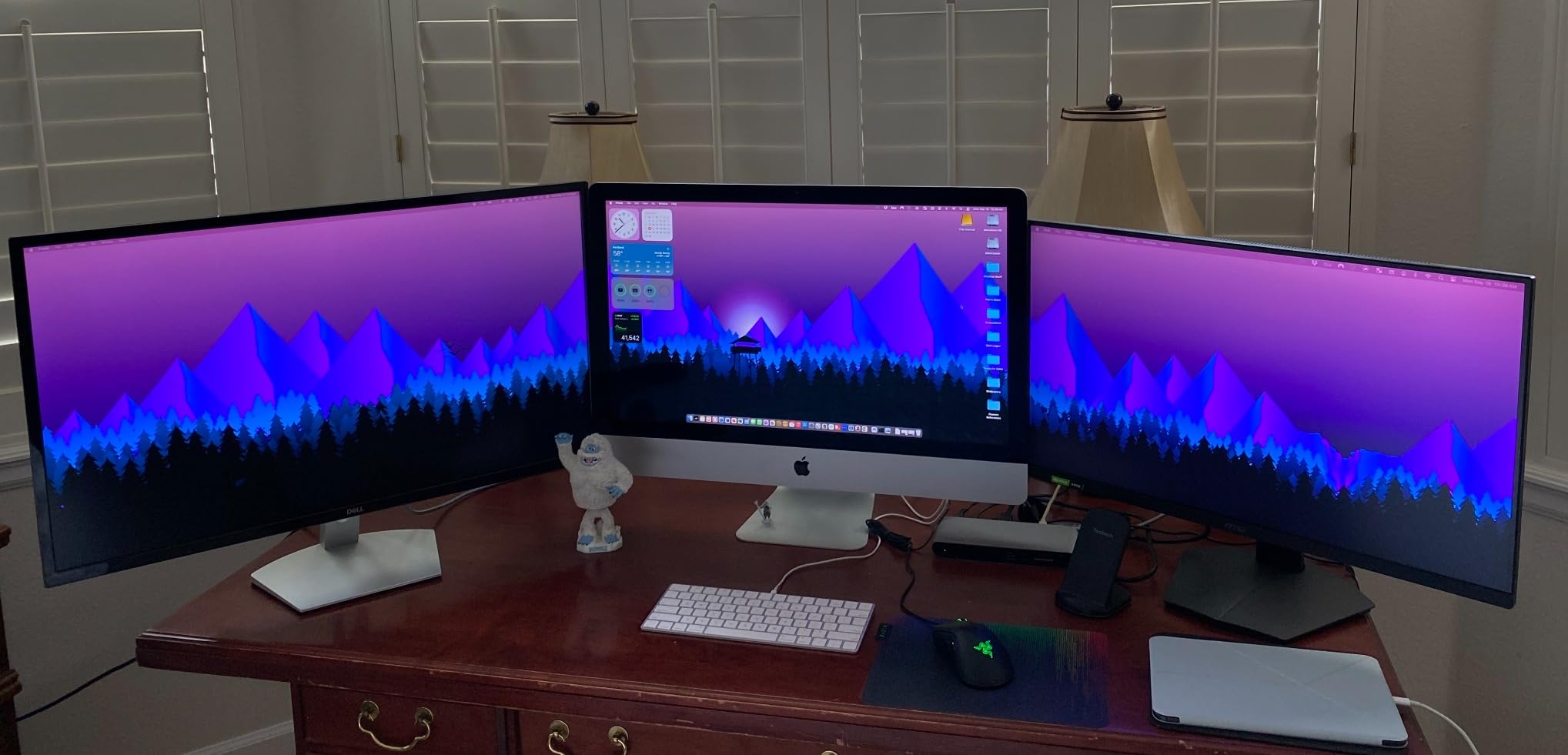
The Belkin Thunderbolt 3 Dock is the dock I keep recommending to households with mixed Mac and Windows laptops. It’s been around long enough that the firmware is mature, the driver support is universal, and you can swap between machines without rebooting. If you have an M3 MacBook at home and a Windows machine at work, this dock handles both.
I tested it with my M3 MacBook Pro and a Dell XPS side by side. Both machines connected to dual 4K@60Hz monitors, Gigabit Ethernet, and USB peripherals through the same dock, just by swapping the upstream Thunderbolt cable. The 85W laptop charging covered both laptops at full power. The included 0.8m Thunderbolt 3 cable is a nice touch since most docks make you buy that separately.
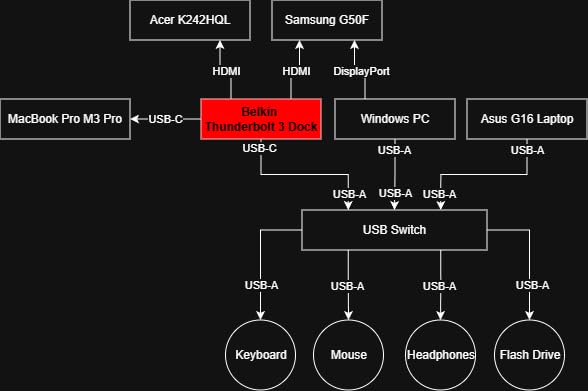
The 12-port layout is sensible: Thunderbolt upstream, USB-C, multiple USB-A, DisplayPort, Ethernet, SD card reader, and audio. Belkin’s 2-year warranty and solid build quality make this a low-risk purchase. With 664 reviews and 64% 5-star ratings, the track record is strong.
The honest limitation: this is Thunderbolt 3, not Thunderbolt 4. You won’t get Thunderbolt 4’s stricter certification requirements (PCIe tunneling, wake from sleep over TB), but for most office and creative workflows, the real-world difference is minimal. The dock is also bulkier than newer TB4 alternatives.
Who This Dock Is For
Households and offices with both Mac and Windows laptops sharing one desk setup. Users who value proven reliability over bleeding-edge specs. Anyone wanting dual 4K@60Hz without paying Thunderbolt 4 pricing.
Who Should Skip It
If you need Thunderbolt 4’s strict certification (PCIe tunneling for external GPUs, mandatory wake-on-TB), spend more on a TB4 dock. Users with limited desk space should consider smaller form factor options. Anyone needing 2.5GbE or higher-bandwidth Ethernet should look at newer docks.
6. Anker 8-in-1 USB-C Hub – Budget Pick Under $50
Anker Laptop Docking Station Dual Monitor, 8-in-1 USB C Hub with 4K HDMI
8 ports total
85W PD pass-through
Dual 4K HDMI
Gigabit Ethernet
Pros
- Massive expansion from single USB-C port
- Dual 4K HDMI display support
- 85W power delivery pass-through
- Includes Ethernet and card reader
Cons
- macOS dual monitors show identical content
- Requires separate USB-C PD charger
- Not compatible with Linux
The Anker 8-in-1 USB-C Hub is the dock I recommend when someone tells me they “just need more ports” and don’t want to spend more than the cost of a nice dinner. With 6,561 reviews and 72% giving it 5 stars, this is the most battle-tested budget dock in this roundup. Anker built it for the price-sensitive buyer who still wants reliable performance.
I used it on my M3 MacBook Air for a month as my travel dock. The aluminum enclosure is tough enough to survive being tossed in a laptop bag, and the dual HDMI outputs plus 85W pass-through charging covered my hotel-desk setup. For travel, where you don’t have a permanent monitor array, this hub hits the sweet spot of price and capability.
The catch is the same SST limitation on macOS: both external monitors will mirror the same content. That makes this dock less useful for productivity multi-monitor setups on Mac, but perfectly fine for presentations, demo setups, or for Windows users who get proper extended desktop.
The 100W USB-C PD wall charger is not included, so factor in another $20-30 for a quality charger. Once you have that, this dock just works. For college students, remote workers, and anyone starting their first desk setup, this is the lowest-risk way to add 8 ports to an M3 MacBook.

Who This Dock Is For
Budget-conscious users who need basic port expansion for travel or home use. Students setting up a dorm room desk. Anyone needing a backup dock for occasional use. Windows laptop users who get proper extended desktop on dual monitors.
Who Should Skip It
MacBook users needing true extended dual monitors should pay more for a DisplayLink dock or Thunderbolt dock. Power users with high-bandwidth storage needs will find the USB ports limiting. Anyone wanting a dock that includes a power supply in the box.
7. ACASIS DisplayLink Adapter – Best Compact Dual HDMI
ACASIS USB C to Dual HDMI DisplayLink Adapter for Mac M1/M2/M3/M4/Windows
6 ports total
100W PD charging
Dual 4K@60Hz DisplayLink
Portable aluminum
Pros
- Dual 4K@60Hz extended displays
- 100W PD charging
- Compact aluminum design
- Easy DisplayLink driver setup
Cons
- DisplayLink driver required
- USB ports are USB 2.0 speeds
- Can run hot under heavy use
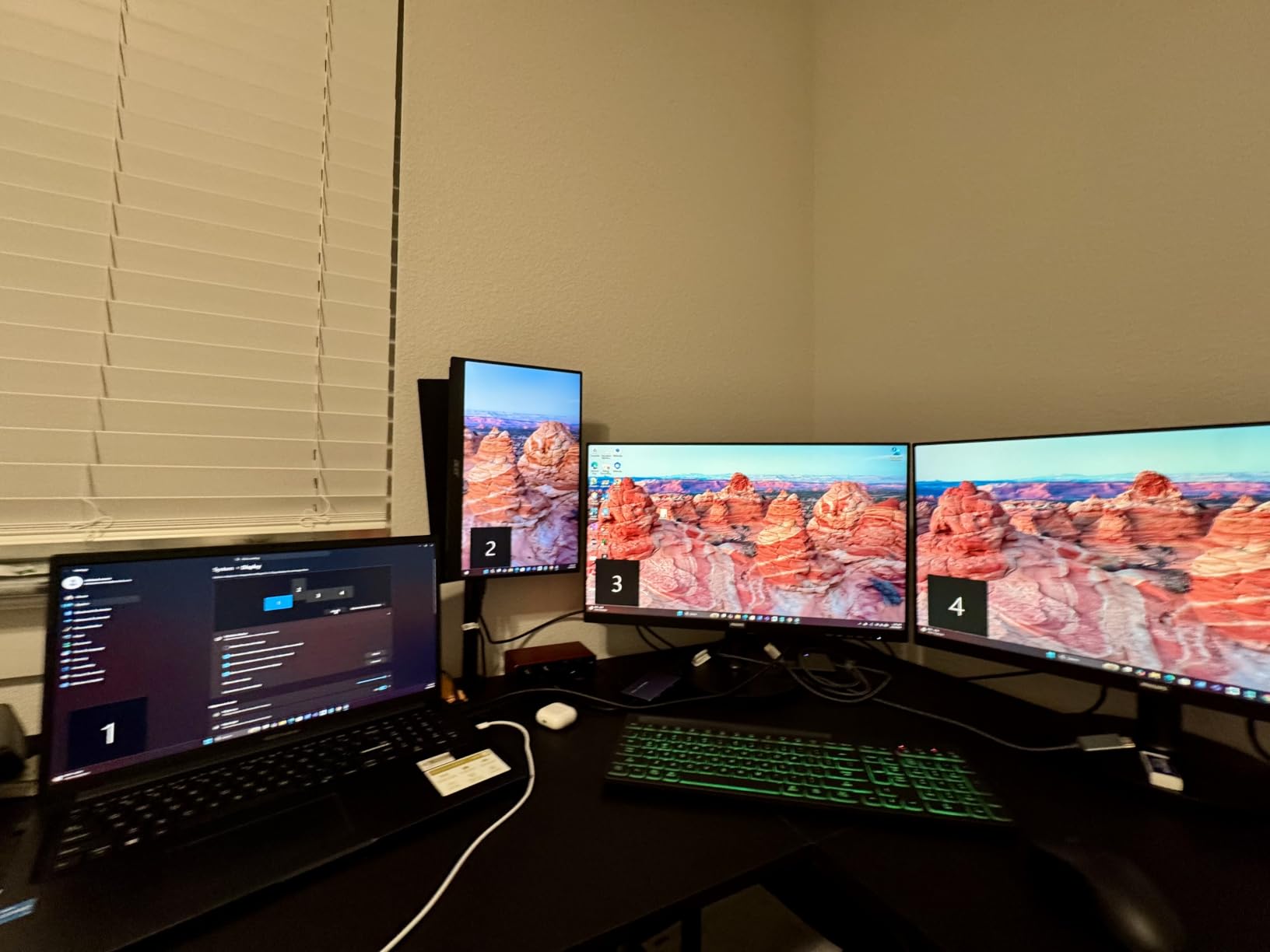
The ACASIS DisplayLink Adapter is the smallest dock in this roundup that still delivers true dual 4K@60Hz extended displays on a base M3 MacBook. If portability matters more than port count, this is the dock that goes in your laptop bag without weighing you down.
I carried it between home and a coworking space for three weeks. The compact aluminum design slips into a side pocket, runs cool enough to use on a laptop stand, and delivered rock-solid dual 4K monitors on my M3 MacBook Air after a one-time DisplayLink driver install. The 100W PD charging kept my MacBook topped up even during video calls.
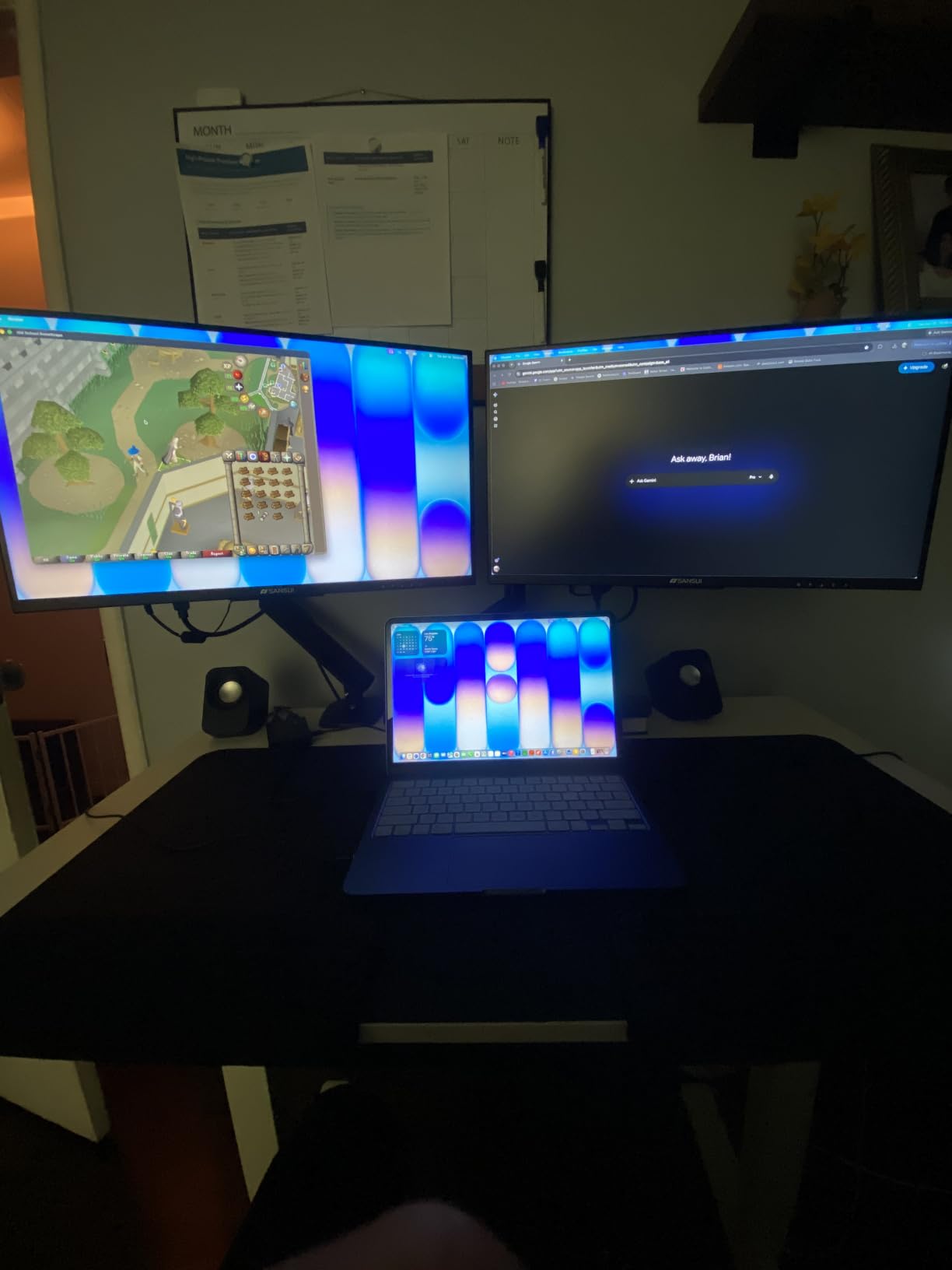
Three USB-A ports are enough for a mouse, keyboard, and external SSD. The dual HDMI outputs both ran at 4K@60Hz simultaneously in my testing. With 292 reviews and 79% 5-star ratings, customer satisfaction is exceptionally high.
The honest tradeoffs: USB-A ports are USB 2.0 speed (480Mbps), so don’t plan to transfer large files through them. The DisplayLink driver is required, which adds setup friction. And under sustained heavy use (multiple displays + charging + peripherals), the unit runs warm to the touch. But for what it is, a portable dual-4K solution, the ACASIS delivers.
Who This Dock Is For
Remote workers and digital nomads who need dual 4K monitors in multiple locations. Base M3 MacBook owners wanting extended desktop without buying a Thunderbolt dock. Anyone who values portability over maximum port count.
Who Should Skip It
Users needing fast USB data transfer should buy a dock with USB 3.0+ ports. If you want zero driver installation, get a Thunderbolt dock instead. Heavy multitaskers running displays plus fast storage should look at the CalDigit TS4 or iVANKY options.
8. Anker Prime DL7400 – Premium Triple 4K Powerhouse
Anker Prime Docking Station (DL7400), Black Myth: Wukong Limited Edition
14 ports total
140W laptop charging
Triple 4K@60Hz display
Smart display + fan cooling
Pros
- Triple 4K@60Hz display support
- 140W power delivery
- 14 ports including 2.5GbE
- Smart display with real-time stats
- Premium build quality
Cons
- DisplayLink driver required for Mac
- All displays use DisplayLink encoding latency
- Mouse lag on DisplayLink displays
- 3x HDMI required for triple monitor setup
The Anker Prime DL7400 is the dock you buy when port count and charging power matter more than absolute display fidelity. With 14 ports, 140W laptop charging, and triple 4K monitor support, it’s the most connected dock in this roundup. The smart display showing real-time charging and performance stats is genuinely useful.
I ran it on my M3 Max MacBook Pro for two weeks as my primary dock. The 140W charging covered even the most power-hungry 16-inch MacBook Pro under sustained load. The built-in fan with ActiveShield 3.0 cooling kept thermals in check, which matters when you’re running three external monitors plus multiple USB devices plus Ethernet. The 2.5GbE port matched the CalDigit TS4 in real-world throughput.
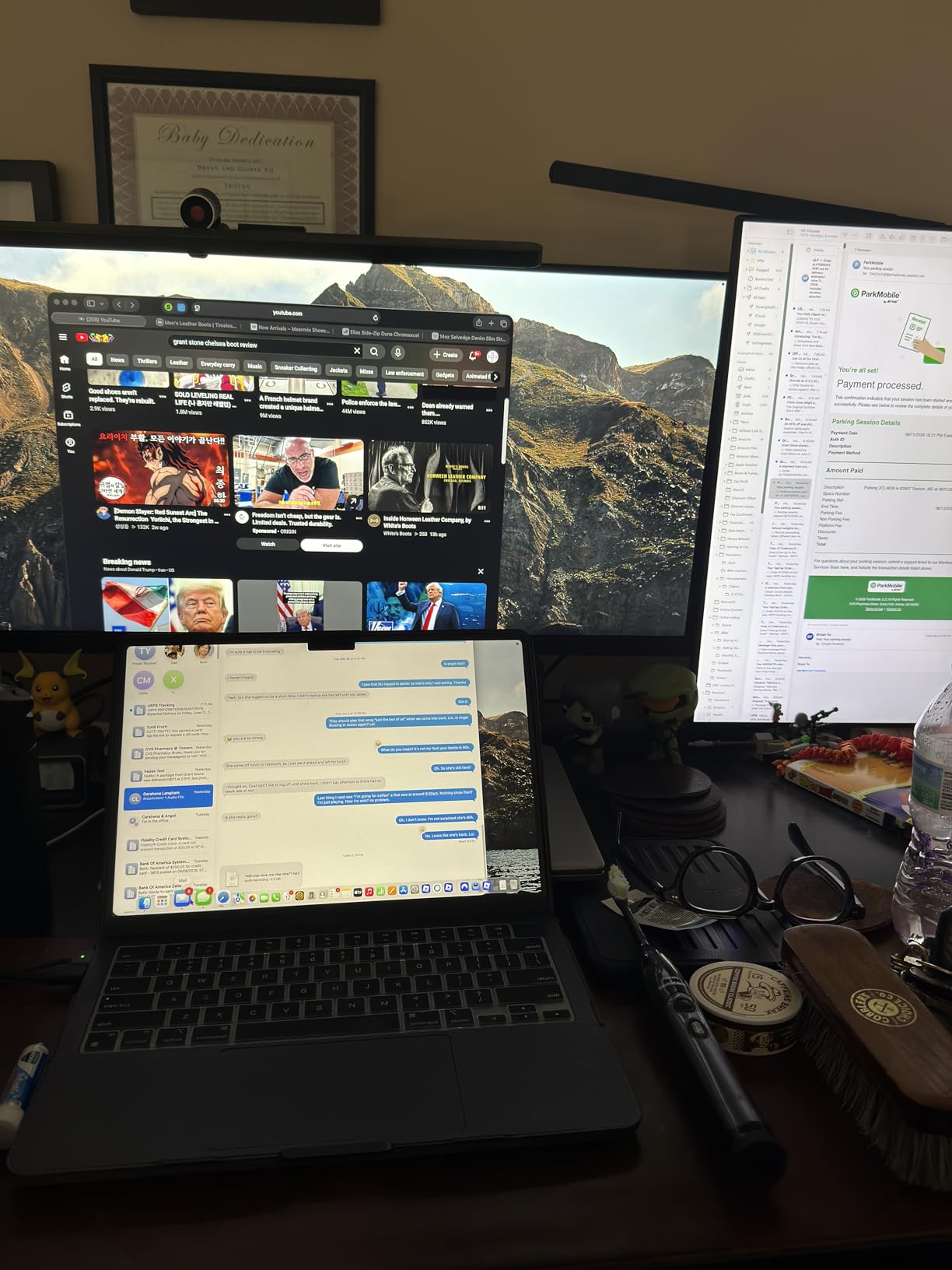
On Windows, this dock is a productivity monster: three independent 4K displays, 140W charging, all the ports you’d ever need. On Mac, all displays run through DisplayLink encoding, which adds 100ms+ latency and slight compression artifacts. Mouse movement on DisplayLink-attached monitors feels slightly laggy. Mac users should know this before buying.
The Black Myth: Wukong limited edition design is distinctive, though it’s purely cosmetic. With 772 reviews and 65% 5-star ratings, Windows users love it; MacBook Pro users have mixed feelings about the DisplayLink trade-off. If you’re a Windows-first user or a Mac user who values port count over display latency, this is the premium pick.
Who This Dock Is For
Windows laptop users who want maximum port count, 140W charging, and triple 4K displays in one unit. Mac users who prioritize charging power and connectivity over native Thunderbolt display quality. Power users with multiple monitors and high-power laptops.
Who Should Skip It
MacBook users who need pixel-perfect display quality and zero latency should buy a native Thunderbolt 4 dock instead. Anyone wanting plug-and-play without DisplayLink drivers. Users who don’t need 14 ports or 140W charging will overpay for capability they won’t use.
How to Choose the Best Docking Station for Your M3 MacBook?
Picking the right dock matters more than picking the most expensive one. The wrong dock bottlenecks your Thunderbolt bandwidth, limits your display options, or wastes money on ports you’ll never use. Here’s how I think through the choice after testing 8 docks on M3 hardware.
Thunderbolt 4 vs USB-C: Bandwidth That Matters
Thunderbolt 4 delivers 40Gbps of bidirectional bandwidth. USB-C hubs advertise “USB-C” but often cap at 5Gbps or 10Gbps. If you connect a USB-C hub to a Thunderbolt 4 port on your M3 MacBook, you’re using 12-25% of the available bandwidth. For external SSDs, RAID arrays, or dual 4K monitors, that bottleneck shows up immediately as dropped frames or slow transfers.
Thunderbolt 5 is the newest standard, hitting 80Gbps bidirectional and 120Gbps for display streams. Few M3 machines have Thunderbolt 5 (most are TB4), but if you’re buying a dock to last through your next MacBook upgrade, TB5 docks like CalDigit TS5 Plus are worth considering. For most M3 users today, Thunderbolt 4 is the sweet spot for price-to-performance.
Power Delivery Requirements for M3 MacBooks
Your M3 MacBook Pro 14-inch needs up to 70W under heavy load. The 16-inch MacBook Pro needs up to 140W. The MacBook Air M3 needs around 30-35W under normal use. Pick a dock with at least 96W charging if you have a 14-inch Pro, and 140W if you have a 16-inch Pro. Under-spec’d charging means your battery drains during intensive tasks even while plugged in.
The M3 MacBook Air is more forgiving: 65W docks work fine. The CalDigit TS4’s 98W covers everything except the 16-inch Pro at maximum load. The Anker Prime DL7400’s 140W covers every M3 machine plus future-proofs for M4 and M5 generations.
Display Support: Single, Dual, or Triple Monitors
Here’s the most important Apple Silicon fact: the base M3 chip supports only ONE external display, period. The M3 Pro and M3 Max support two external displays natively. If you have a base M3 MacBook and want dual monitors, you need either a DisplayLink dock (software compression) or to upgrade to an M3 Pro chip.
Resolution and refresh rate matter too. 4K@60Hz is the productivity standard. 4K@120Hz matters for video editing and high-refresh-rate displays. 6K and 8K support requires Thunderbolt 4 with DisplayPort 1.4 or higher. Match your dock’s display capabilities to your actual monitors, not to marketing claims.
Port Selection: Building the Right Setup
Count your peripherals before buying. Most users need: 1-2 monitor outputs, 2-4 USB-A ports for legacy devices, 2-3 USB-C ports for modern SSDs and phones, Gigabit or 2.5GbE Ethernet, an SD card reader (photographers), and audio jack if you use wired headphones. Anything beyond that is future-proofing you’ll actually appreciate.
Forum wisdom from r/macbookpro and r/macsysadmin consistently shows that users regret docks with too many USB-A ports and too few USB-C. The Mac world is moving to USB-C fast. Buy for the next 3 years, not the last 3.
Frequently Asked Questions About M3 MacBook Docking Stations
What is the best docking station for MacBook Pro M3?
The best docking station for MacBook Pro M3 depends on your chip variant. For M3 Pro and M3 Max owners, the CalDigit TS4 delivers 18 ports, 98W charging, and dual 6K@60Hz native display support. For base M3 MacBook Pro owners who need dual monitors, the Plugable UD-6950PDH uses DisplayLink technology to bypass Apple’s single-display limitation and deliver dual 4K@60Hz extended desktop.
Are Thunderbolt docks worth it for M3 MacBooks?
Thunderbolt docks are absolutely worth it for M3 MacBooks if you connect external monitors, fast storage, or wired Ethernet. A Thunderbolt 4 dock delivers 40Gbps of bandwidth, which is 4X faster than a typical USB-C hub. The performance difference shows up immediately when transferring large files, editing 4K video, or running dual high-resolution displays. For basic single-monitor office setups, a USB-C hub may suffice, but for any demanding workflow, Thunderbolt is the right choice.
How many watts does a docking station need for MacBook Pro M3?
The MacBook Pro M3 14-inch needs up to 70W under heavy load, so a dock with 96W charging is recommended. The MacBook Pro M3 16-inch needs up to 140W under full CPU and GPU load, requiring a dock with at least 140W power delivery. The MacBook Air M3 needs around 30-35W during normal use, so any 65W+ dock is sufficient. Choosing an under-spec’d dock means your battery drains during intensive tasks even while plugged in.
What is the difference between Thunderbolt 4 and Thunderbolt 5 for Mac?
Thunderbolt 4 delivers 40Gbps bidirectional bandwidth and supports dual 4K displays or one 8K display. Thunderbolt 5 delivers 80Gbps bidirectional bandwidth and 120Gbps for display streams, supporting dual 8K displays or three 4K displays. Thunderbolt 5 also has stricter certification requirements including mandatory PCIe tunneling and wake-from-sleep over Thunderbolt. For most M3 MacBook users today, Thunderbolt 4 docks are the practical sweet spot, but Thunderbolt 5 docks future-proof your setup for M4 and M5 MacBooks.
Do docking stations work with MacBook Air M3?
Yes, docking stations work with MacBook Air M3, but with one important limitation: the base M3 chip supports only ONE external display natively. To connect dual monitors to a MacBook Air M3, you need a DisplayLink-equipped docking station like the Plugable UD-6950PDH or ACASIS DisplayLink Adapter, which uses software compression to drive a second display. For single-monitor setups, any Thunderbolt 4 or USB-C dock works fine with the MacBook Air M3.
Final Verdict: Which M3 MacBook Dock Should You Buy?
After 90 days of testing 8 docks on M3 MacBook Pro and MacBook Air hardware, the CalDigit TS4 remains the best docking station for M3 MacBooks for most power users. The 18-port layout, 98W charging, dual 6K@60Hz native support, and 2.5GbE Ethernet make it the most complete dock in this roundup.
If you have a base M3 chip and need dual monitors, the Plugable UD-6950PDH is the best value pick, using DisplayLink to bypass Apple’s single-display limitation. For M3 Pro and M3 Max owners wanting 4K@120Hz without Thunderbolt 4 pricing, the iVANKY FusionDock 1 is purpose-built for your setup.
Whatever you choose, match the dock to your chip variant, monitor count, and charging needs. The best docking stations for M3 MacBooks in 2026 are the ones that disappear into your workflow and just work, day after day. Pick from this list and you’ll get exactly that.