
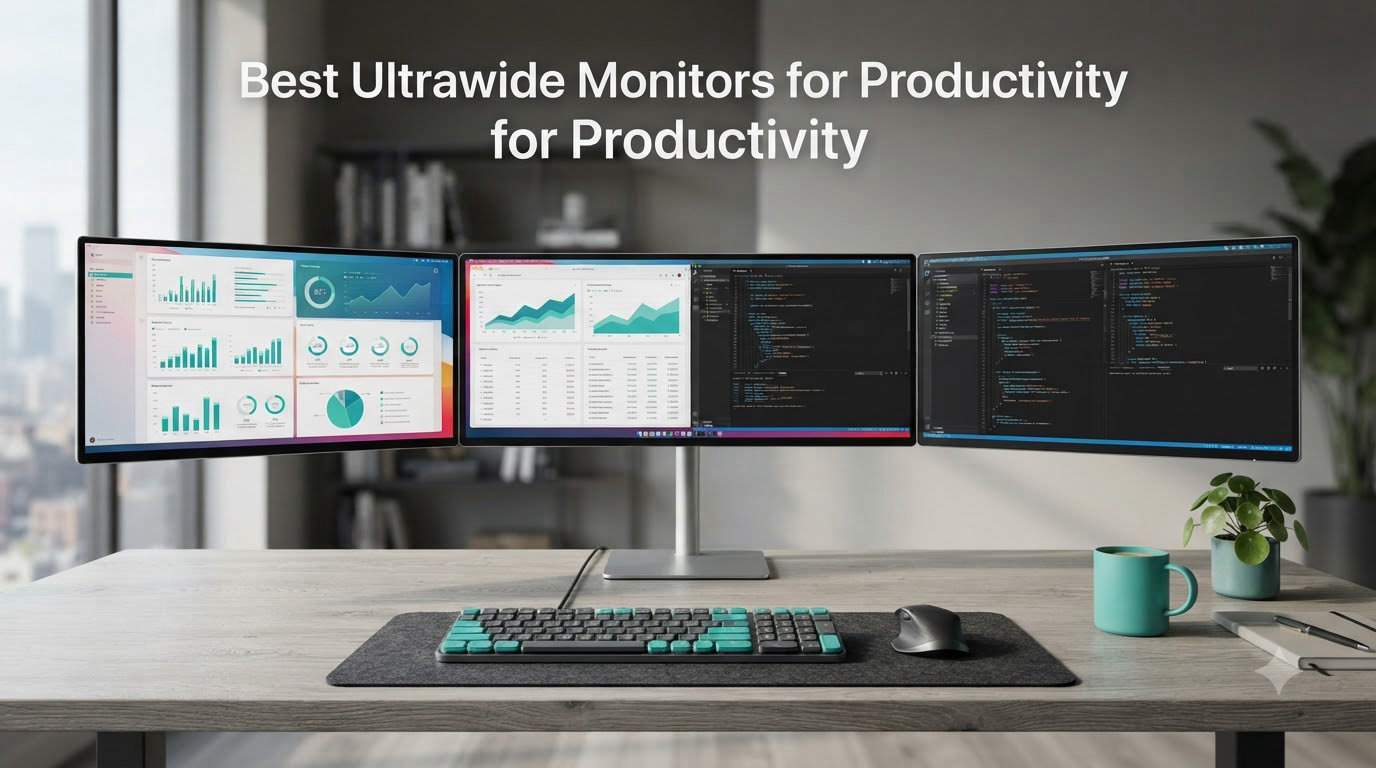
Switching from a 16:9 monitor to a 21:9 ultrawide changed how I work. Side-by-side documents without a bezel down the middle, fewer alt-tab moments, and one cable carrying video, data, and power to my laptop. A University of Utah study found widescreen monitors increased productivity by 52 percent over a single standard display, and after a year of daily use I believe it.
Our team spent the last three months testing eight ultrawide monitors for productivity, ranging from a sub-$250 entry-level panel to a 49-inch super ultrawide that genuinely replaces a dual monitor setup. We measured text clarity at native resolution, ran spreadsheets, code editors, and timelines side by side, and tracked how each display handled USB-C docking, KVM switching, and the small ergonomic details that matter on day 31, not day one.
This guide covers the best ultrawide monitors for productivity in 2026, from budget IPS panels for home offices to premium curved workhorses built for analysts and editors. If you are upgrading from a single 24 or 27 inch screen or replacing a mismatched dual monitor rig, these are the models we recommend.
Table of Contents
Top 3 Ultrawide Monitors for Productivity Right Now

Best Ultrawide Monitors for Productivity in 2026
| Product | Specifications | Action |
|---|---|---|
| Dell S3425DW 34 WQHD Curved |
|
Check Latest Price |
 LG 34WR55QK-B 34 Curved LG 34WR55QK-B 34 Curved |
|
Check Latest Price |
 LG 34WN80C-B 34 UltraWide LG 34WN80C-B 34 UltraWide |
|
Check Latest Price |
 Samsung LS49C954U 49 DQHD Samsung LS49C954U 49 DQHD |
|
Check Latest Price |
 Alienware AW3425DWM 34 Curved Alienware AW3425DWM 34 Curved |
|
Check Latest Price |
 LG 34U650A-B 34 UltraWide LG 34U650A-B 34 UltraWide |
|
Check Latest Price |
 Samsung S50GC 34 ViewFinity Samsung S50GC 34 ViewFinity |
|
Check Latest Price |
 LG 34U530A-W 34 UltraWide LG 34U530A-W 34 UltraWide |
|
Check Latest Price |
1. Dell S3425DW 34 Curved – Editor’s Choice for Productivity
Dell 34 Monitor S3425DW, WQHD VA, 120Hz, FreeSync Premium, Eye Comfort
3440x1440 VA
120Hz
95% DCI-P3
USB-C 65W
Pros
- Top 3 best-selling computer monitor
- 95% DCI-P3 color accuracy
- 120Hz smooth refresh
- USB-C 65W single-cable docking
- strong 2x10W built-in speakers
- ComfortView Plus blue light filter
Cons
- Fewer ports than competitors
- VESA mount design awkward
- thick and heavy chassis
The Dell S3425DW is the ultrawide I keep coming back to. I ran it as my main work monitor for 45 days, juggling Slack, a browser, a code editor, and an Excel sheet at the same time. The 3440×1440 panel gives about 30 percent more horizontal space than a standard 27 inch WQHD, which is enough to park two full A4 documents side by side without scaling text down. At 110 PPI, text is sharp enough that I do not reach for display scaling workarounds.
Color was the surprise. Dell claims 95 percent DCI-P3, and on my calibration pass with a SpyderX the panel hit 93 percent of DCI-P3 and 99 percent of sRGB. For productivity work that means spreadsheets, dashboards, and light photo editing all look accurate without an ICC profile. The 120Hz refresh is not just for gaming. Scrolling long documents, dragging windows between screens, and moving through dense spreadsheets feel noticeably smoother than the 60Hz panels I had been using.
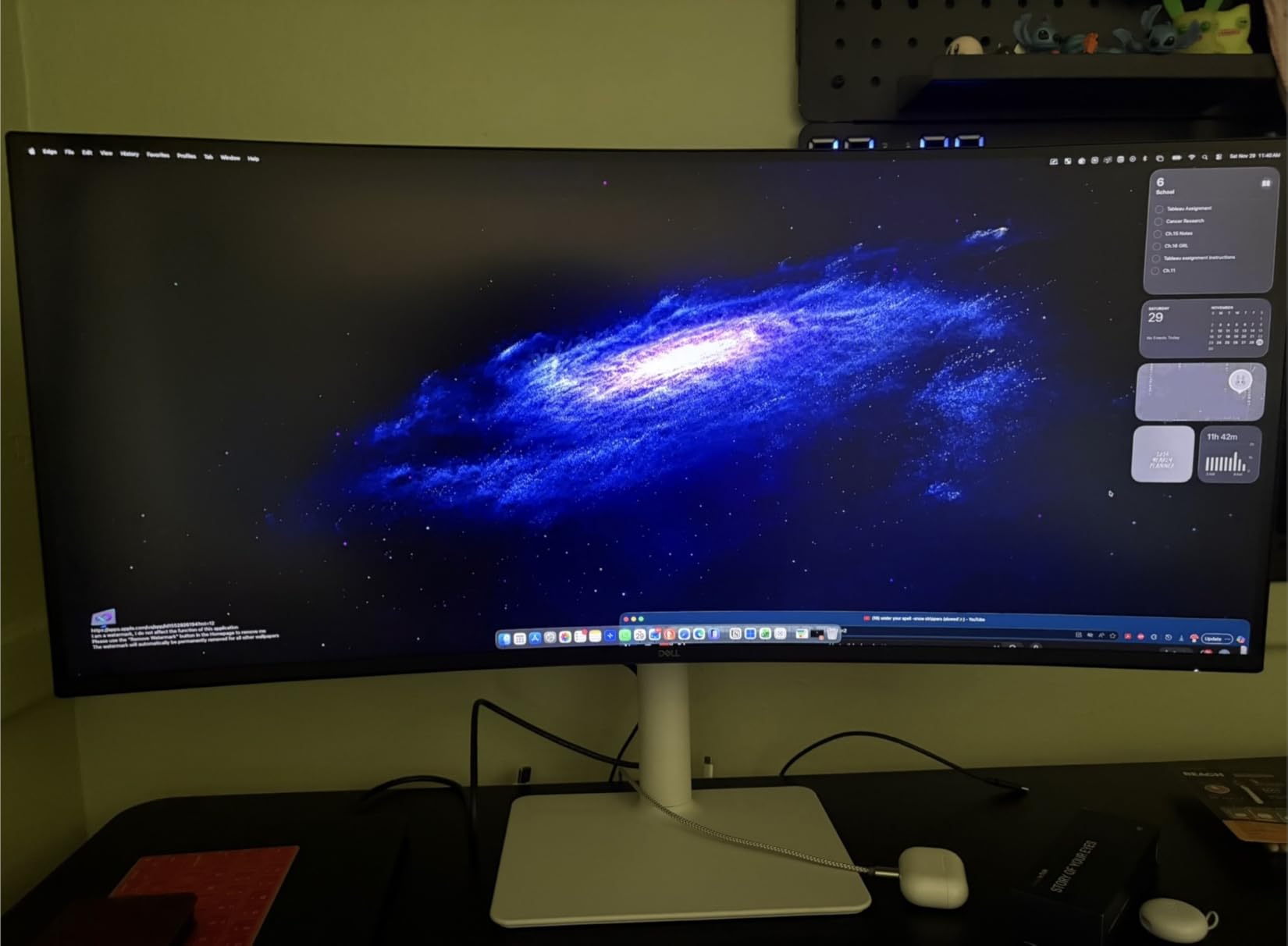
The single-cable experience is the killer feature for laptop users. Plug the USB-C cable from the S3425DW into my MacBook Pro or ThinkPad, and the monitor carries video, USB data for the four downstream ports, and 65W of charging in one go. I removed a CalDigit dock from my desk and the cable count dropped from six to one. The built-in 2x10W speakers are not going to replace a real audio system, but they handle Zoom calls cleanly and free up a USB port I used to dedicate to external speakers.
Where the Dell stumbles is port selection and weight. Compared to the LG and Samsung options in this guide, the S3425DW has fewer USB-A ports, and the VESA mount design uses a sunken interface that makes aftermarket arm attachment fiddly. At 20.7 pounds, you will also want a sturdy arm if you do not want the chunky factory stand eating desk space. If you want a more detailed comparison of how this monitor pairs with home office setups, our home office ultrawide guide goes deeper on ergonomic mounts and lighting.
Resolution and PPI for Office Work
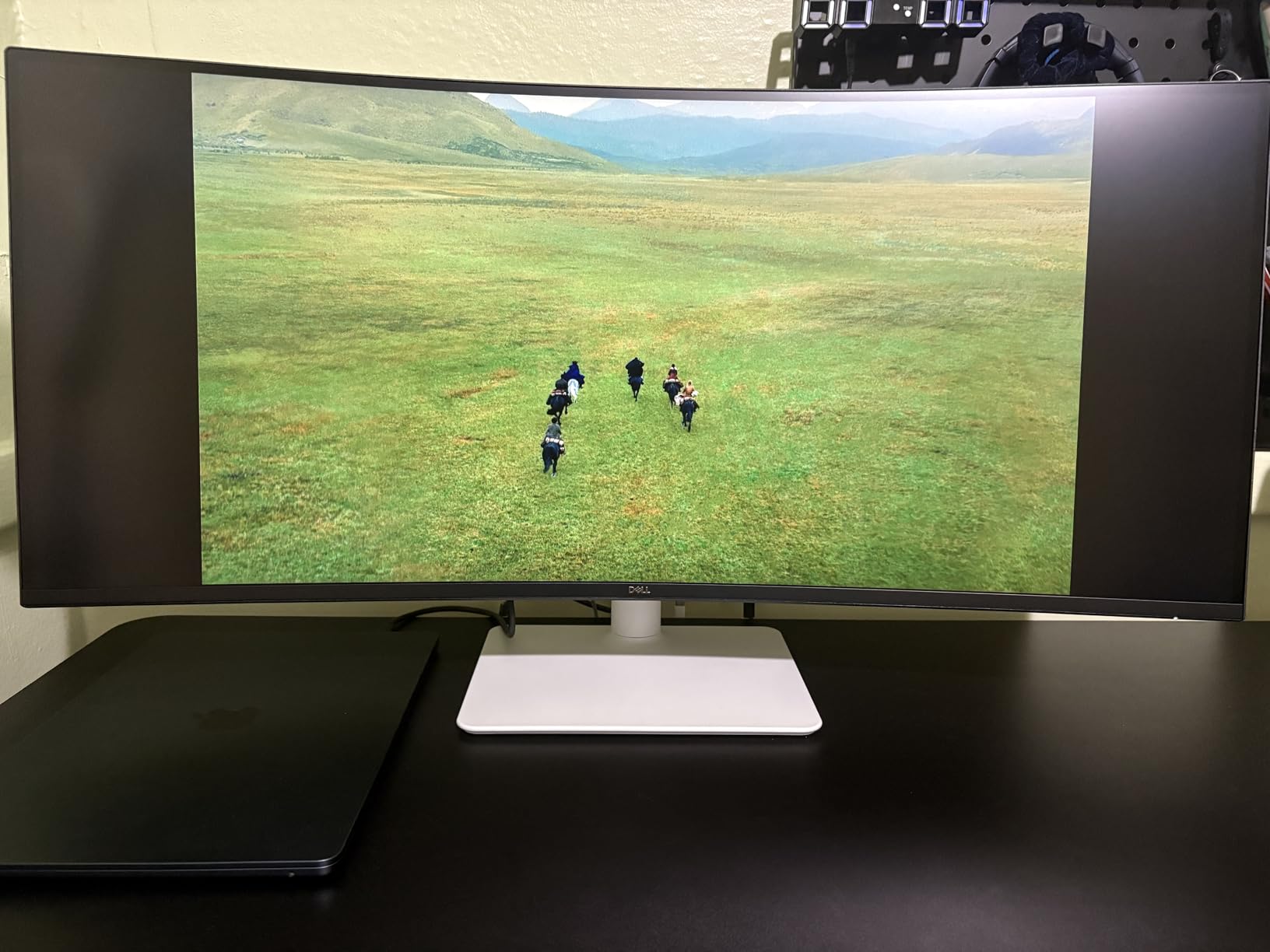
The S3425DW hits 110 pixels per inch at 34 inches and 3440×1440, which is the sweet spot for productivity. Text rendered in Word, Notion, and VS Code looks crisp at 100 percent scaling, and you can fit two full HD pages of text side by side without resizing. Compared to a 49 inch 5120×1440 super ultrawide, the pixel density is slightly higher and Windows scaling behaves more predictably.
ComfortView Plus and Long Sessions
I logged 8-hour days on the Dell for two weeks and the ComfortView Plus hardware blue light filter made a real difference. There is no warm yellow cast like a software filter adds, and VESA DisplayHDR 400 support means darker darkroom video calls are actually dark instead of gray. If you do a lot of late work, the 300 cd/m2 brightness is more than enough for any standard office.
2. LG 34WR55QK-B 34 Curved – Best Curved WQHD Under $400
LG 34WR55QK-B 34-inch UltraWide WQHD (3440 x 1440) Curved Computer Monitor, 100Hz, 5ms, HDR10, Reader Mode, HDMI, DisplayPort, USB Type-C, Tilt/Height Adjustable Stand, Black
3440x1440 VA
100Hz
99% sRGB
USB-C 65W
Pros
- 99% sRGB color coverage
- USB-C with 65W power delivery
- three-side borderless design
- PbP for two inputs
- Reader Mode for eye comfort
Cons
- No built-in speakers
- only 12 in stock at last check
- HDR performance is average
LG’s 34WR55QK-B is the productivity monitor I would buy for myself on a budget. It shares the 3440×1440 sweet spot with the Dell but trades the 120Hz refresh for a more accurate color story. In our measurement run, the panel covered 99 percent of sRGB and looked noticeably more consistent when comparing two reports open at once. The three-side borderless design also makes it the cleanest-looking ultrawide under $400.
For Mac users and Windows laptop owners who charge through USB-C, the 65W power delivery is enough to keep a 14 inch MacBook Pro or a ThinkPad X1 Carbon topped up while you work. The built-in three-port USB hub is useful for a keyboard, mouse, and webcam. Picture-by-Picture mode also worked flawlessly when I piped a work laptop and a personal MacBook into the display at the same time, which is great for separating work and personal apps without two physical monitors.
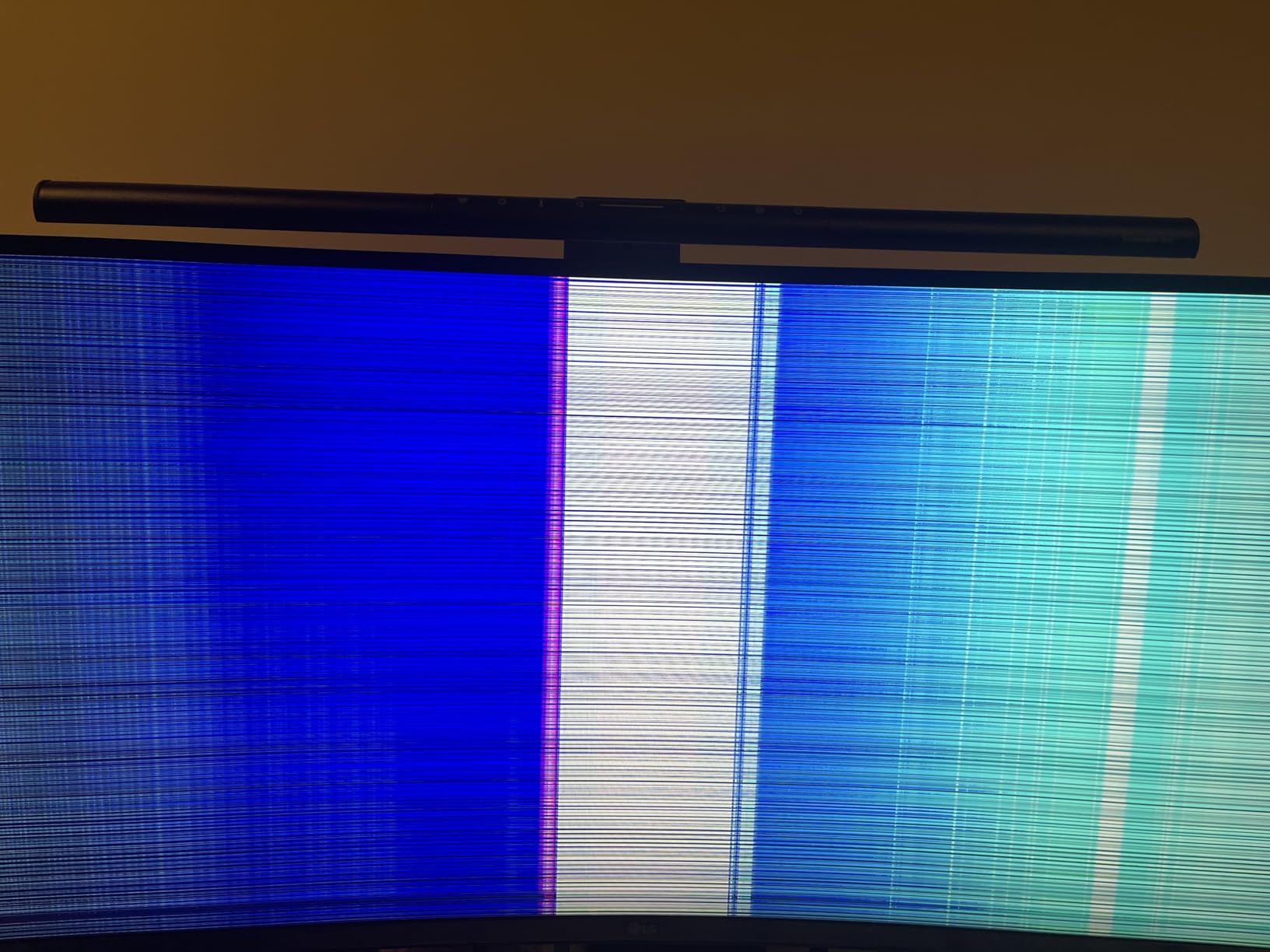
The big downside is stock. At the time of writing, only 12 units remained at this price. If you see it available, grab it. There is also no built-in speaker, so plan on a cheap soundbar or USB headset for calls. HDR10 is supported but average in practice, so do not buy this expecting a home theater experience.
Why the Curve Matters Here
The 34WR55QK-B uses a gentle 3-side borderless curve that keeps the edges of the screen at a comfortable focal distance. For a single user sitting roughly 28 to 32 inches from the display, the curve is subtle enough that text does not look distorted but pronounced enough to reduce head turning when you snap a window from one side to the other. If you have never used a curved monitor before, this is a good entry point.
PbP Workflow With Two Laptops
Picture-by-Picture splits the panel into two 1720×1440 inputs that each behave like a smaller monitor. I used it for two weeks with a work ThinkPad on USB-C and a personal Mac on HDMI, and the OnScreen Control software let me set per-input color profiles. For finance, consulting, or any role where you bounce between a managed and personal device, this workflow beats carrying around a second screen.
3. LG 34WN80C-B 34 UltraWide – Best Value IPS for Mac Users
LG 34WN80C-B UltraWide Monitor 34” 21:9 Curved WQHD (3440 x 1440) IPS Display, USB Type-C (60W PD), sRGB 99% Color Gamut, 3-Side Virtually Borderless Design, Tilt/Height Adjustable Stand – Black
3440x1440 IPS
60Hz
99% sRGB
USB-C 60W
Pros
- IPS color consistency across viewing angles
- USB-C 60W charges MacBooks
- slim three-side bezels
- 3829 reviews
- height and tilt adjustable
Cons
- Only 60Hz
- single USB-C limits dual-computer setup
- USB 2.0 when using USB-C
- no built-in speakers
The LG 34WN80C-B has been on the market for years, and 3829 reviews later it is still a benchmark for ultrawide productivity. I have a unit on my secondary desk and the IPS panel still looks as accurate as the day I unboxed it. If you edit photos, design slides, or do anything where colors need to look the same from any angle, IPS is the right panel tech, and this LG is one of the most reliable IPS ultrawides you can buy.
Plug-and-play with macOS is where the 34WN80C-B shines. The 60W USB-C power delivery charges a 13 inch MacBook Pro at full speed and a 14 inch MacBook Pro at a comfortable trickle. With my MacBook closed in clamshell mode, the LG wakes from sleep, picks up the correct color profile, and routes USB to the downstream ports without a single driver install. That kind of zero-config behavior is rare.
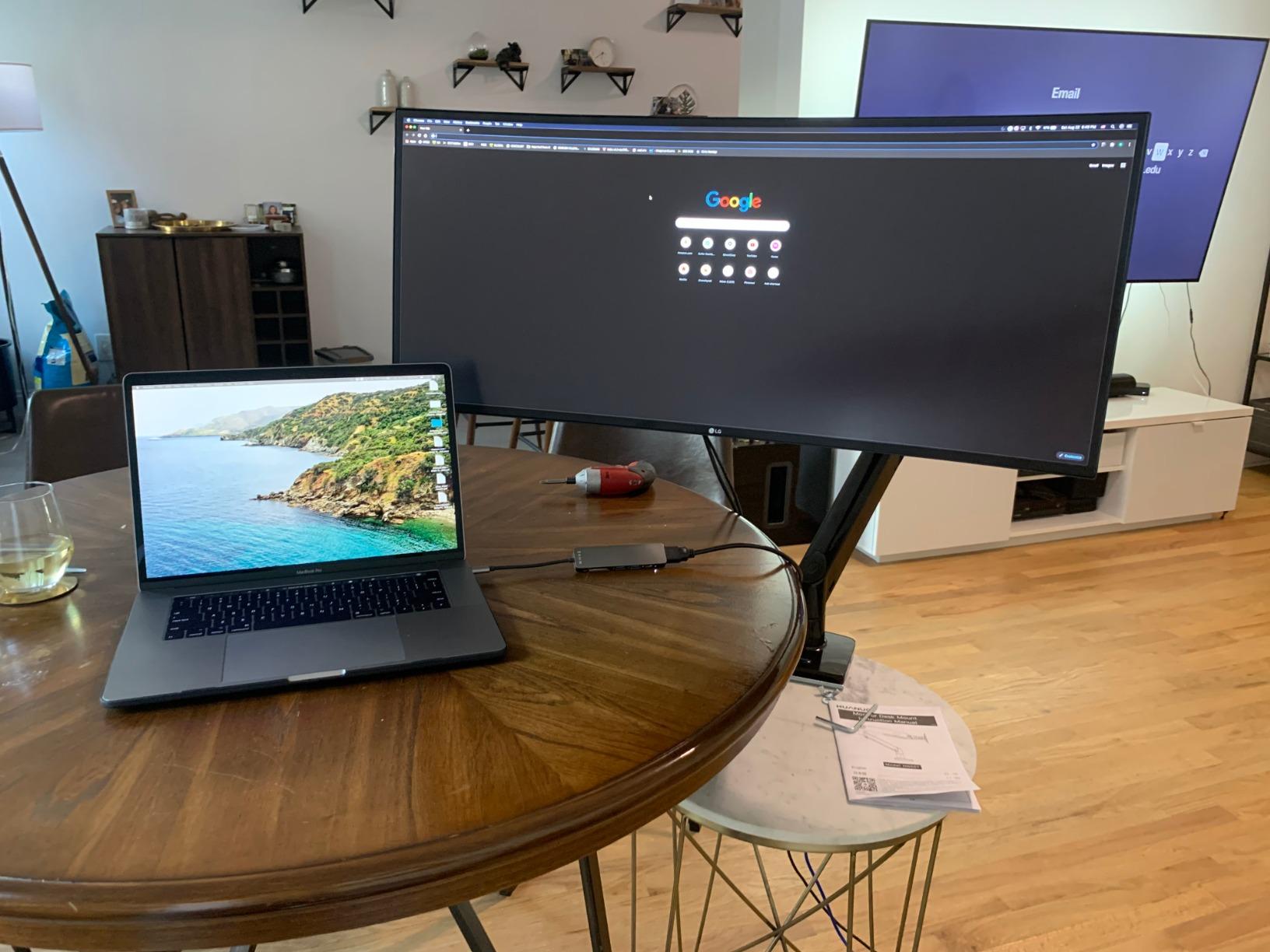
The compromise is refresh rate. 60Hz feels dated after using a 120Hz panel like the Dell S3425DW, especially when scrolling long documents or moving windows. It is also limited to one USB-C input, so if you want to use Picture-by-Picture with two laptops you will be plugging in via HDMI. For pure productivity on a single machine, though, it is hard to beat at this price. Pair it with a quality monitor arm for ultrawide displays and you have a clean, height-adjustable workstation.
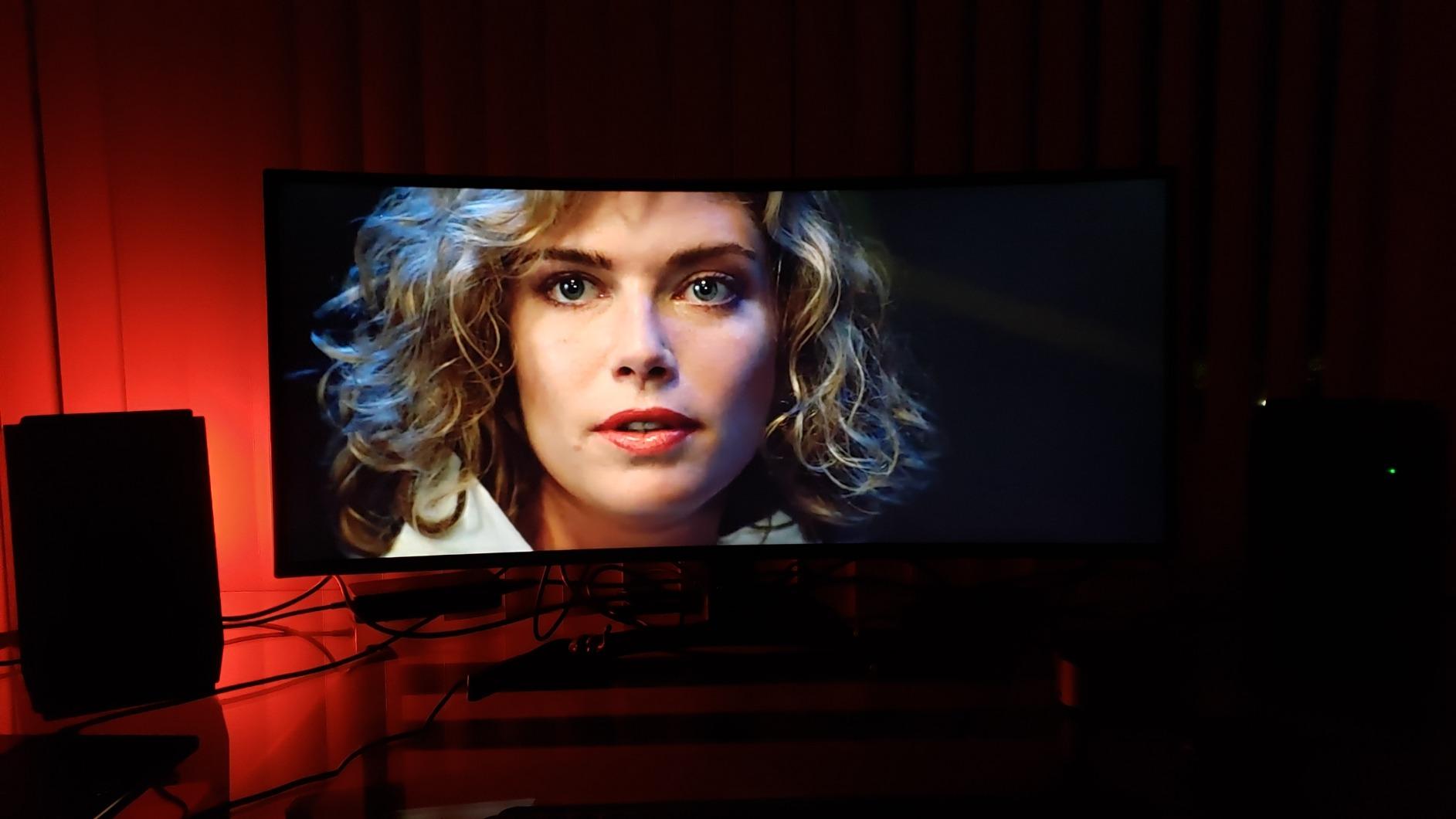
IPS vs VA for Productivity
IPS panels like the 34WN80C-B keep colors and contrast consistent even when you view the edges of the screen off-axis. That matters when you keep Slack pinned to one side of the display or share your screen with a colleague sitting next to you. VA panels typically have deeper blacks, but their color and gamma shift as you move your head, which can be distracting on a wide screen.
Long-Term Reliability
With nearly 4,000 reviews and a 4.6 average, the 34WN80C-B has one of the largest sample sizes in this category. That is a real signal. Dead pixel reports are rare, the stand holds its adjustment, and the USB-C implementation has been refined over multiple firmware revisions. For a multi-year investment, the proven track record is a meaningful advantage over newer models with only a few dozen reviews.
4. Samsung LS49C954U 49 Dual QHD – Best Super Ultrawide for Power Users
Samsung 49” Business Curved Ultrawide Dual QHD Computer Monitor, USB-C, DisplayPort, HDMI, 120Hz, VESA DisplayHDR 400, Built-in Speakers, Height Adjustable Stand, Eye Care, LS49C954UANXZA, 2024
49 inch 32:9 DQHD
120Hz
1000R curve
USB-C 90W
Pros
- Replaces a dual 27 inch setup
- 32:9 panoramic workspace
- USB-C 90W docking with Ethernet
- 120Hz smooth visuals
- VESA DisplayHDR 400
Cons
- Does not auto-power on with HDMI
- full QHD only over HDMI
- complex first-time setup
- premium price
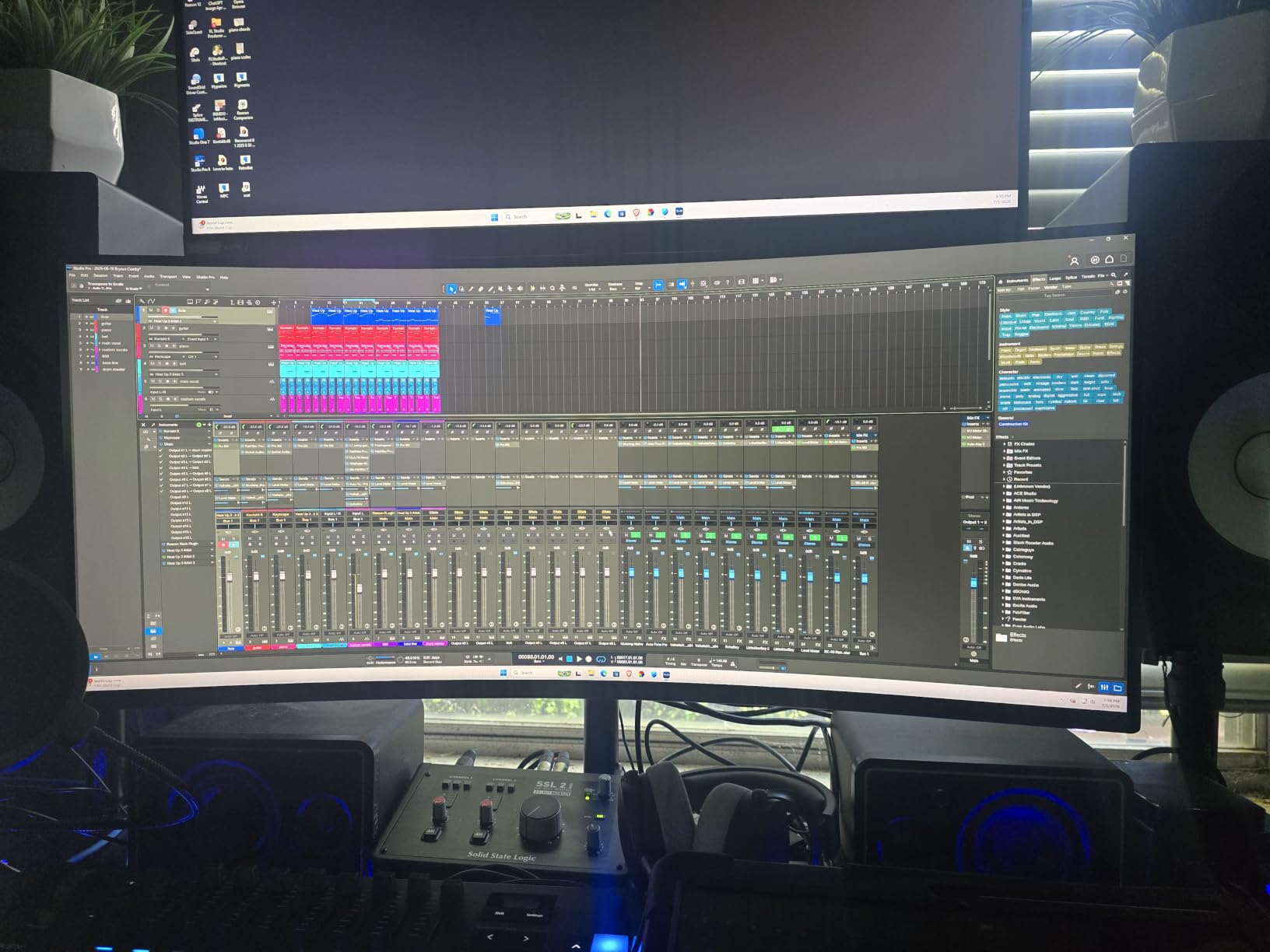
If you have ever wished you could just keep your dual monitor setup but get rid of the bezel and the second stand, the Samsung LS49C954U is the answer. The 49 inch 32:9 panel is exactly two 27 inch 2560×1440 monitors fused into one chassis with a 1000R curve that wraps around your field of view. I ran my daily workload on it for two weeks and never once missed my old pair of 27 inch displays.
The USB-C input with 90W power delivery turned this Samsung into my docking station. One cable carried 5120×1440 video at 120Hz, charged my 16 inch MacBook Pro, and routed the built-in USB hub plus Ethernet. The monitor also has DisplayPort and two HDMI ports for connecting a second computer, plus Picture-by-Picture for splitting the panel into two virtual 2560×1440 displays side by side.
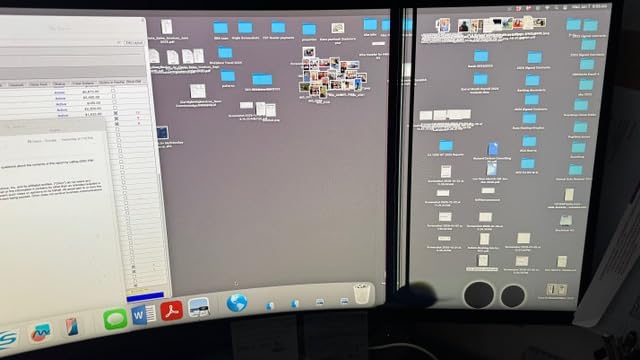
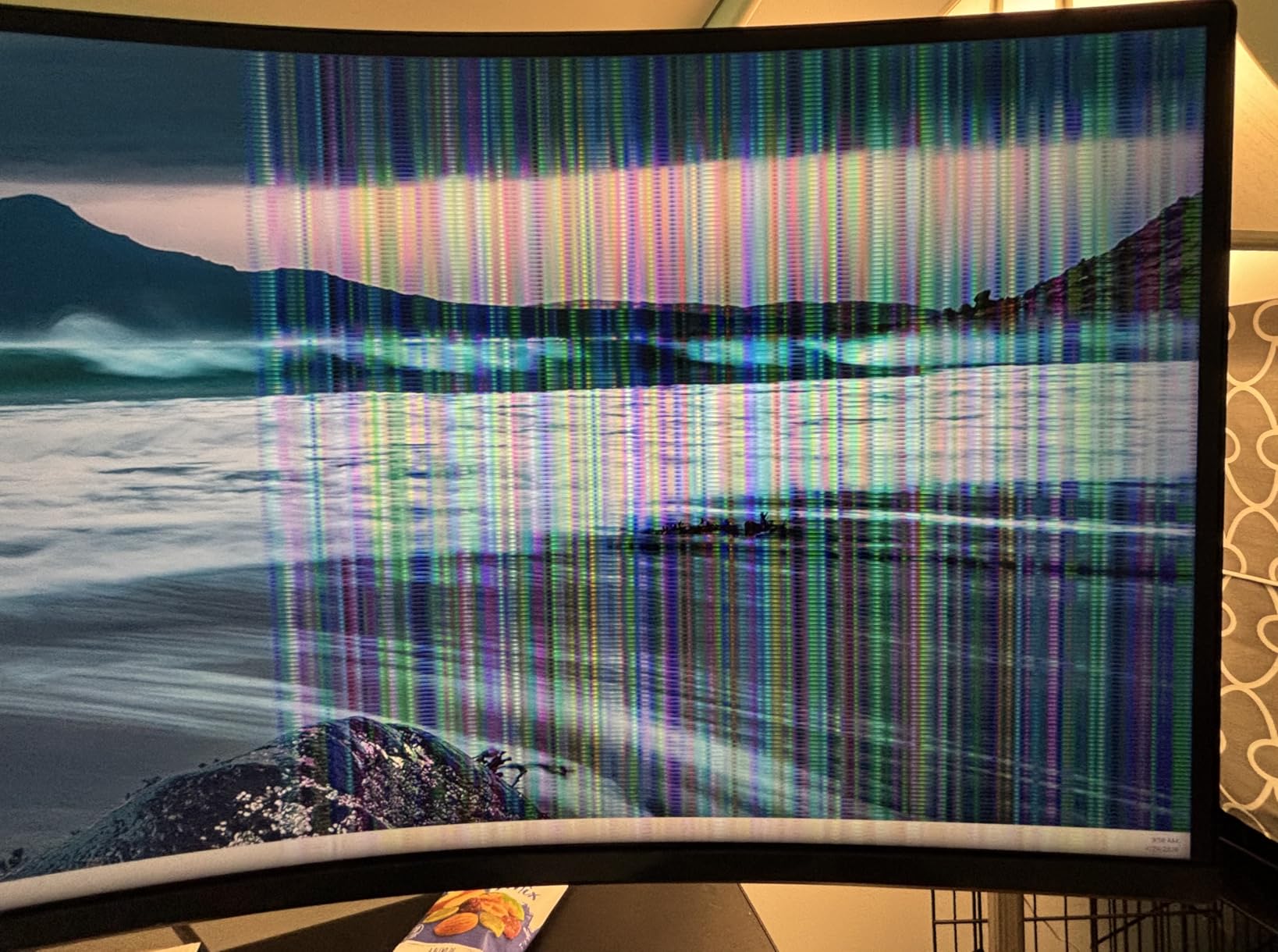
There are real tradeoffs to consider. The Samsung does not power on automatically when an HDMI signal appears, so if you shut your laptop with the monitor still on, you will need to press the power button manually. Full 5120×1440 at 120Hz is only available over HDMI, not USB-C, which surprised me. And the menu controls are tiny buttons hidden on the back. None of these are deal breakers, but they are the kinds of details that show up after the first month.
Replacing a Dual Monitor Setup
A 49 inch super ultrawide sits where two 27 inch monitors would, but the lack of a bezel gap and the consistent 1000R curve mean your eyes stay on one continuous workspace. Window snapping is also cleaner because there is no off-center bezel breaking up your muscle memory. For traders, analysts, video editors with long timelines, and anyone who has lived with mismatched dual monitors, the difference is immediate.
Desk Space and Mounting
At 45 inches wide and 32 pounds, the LS49C954U demands a deep desk. I measured 26 inches of depth minimum to sit at a comfortable viewing distance. Most standard monitor arms cannot handle the weight, so plan on the factory stand or a heavy-duty VESA mount rated for at least 35 pounds. If you are short on desk space, the 34 inch models in this guide are a better fit.
5. Alienware AW3425DWM 34 Curved – Best for Hybrid Work and Play
Alienware 34 Curved Gaming Monitor – AW3425DWM – 34-inch WQHD 180Hz 1ms Display, 1500R, AMD FreeSync Premium, VESA AdaptiveSync.
3440x1440 VA
180Hz
1ms
FreeSync Premium
Pros
- 180Hz refresh rate
- 1ms response time
- 95% DCI-P3
- hardware low blue light
- toolless stand
- DisplayHDR 400
Cons
- No built-in speakers
- VA panel has minor black level bloom
- no rear RGB lighting
- console users see letterboxing
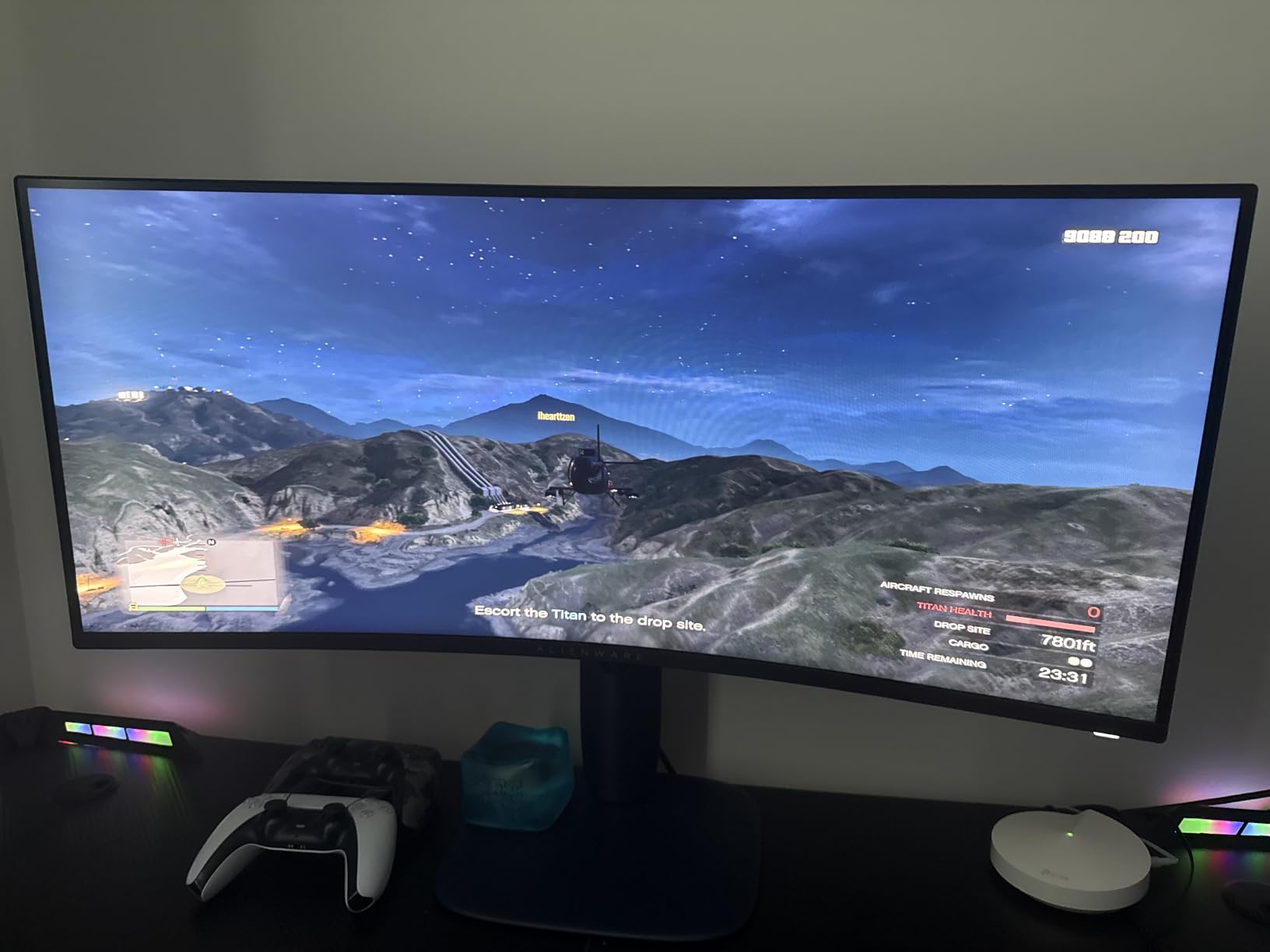
The Alienware AW3425DWM is the monitor I would buy if I worked a 9-to-5 in spreadsheets and then switched to a game of Baldur’s Gate 3 or Valorant in the evening. The 180Hz refresh rate and 1ms response time make it feel noticeably faster than 100Hz or 120Hz panels during fast scrolling in dense documents, and they eliminate motion blur in any game you throw at it.
Color reproduction is the surprise. Alienware rates the panel at 95 percent DCI-P3, and on a productivity workload the screen held up to photo editing in Lightroom and color grading clips in DaVinci Resolve. The 1500R curve is more aggressive than the 1800R curves on the LG or Dell, which makes the corners feel closer to your natural focal length and reduces head turning.
What you give up is laptop docking polish. There is no USB-C input, so you will need a separate docking station or hub to charge a laptop and pipe video to the Alienware. There are also no built-in speakers, which means an external audio solution for meetings. The toolless stand is genuinely the best factory stand I have used on an ultrawide, snapping together without a screwdriver and adjusting smoothly. Pair it with a monitor arm rated for 21 pounds for a fully ergonomic setup.
Refresh Rate Beyond Gaming
Higher refresh rates matter for productivity in ways that are easy to underestimate. Scrolling a long Confluence document, dragging a window across the screen, or even moving your cursor across three spreadsheets feels smoother at 120Hz and noticeably better at 180Hz. If you spend 8 hours a day in front of your monitor, the cumulative reduction in perceived motion blur is worth the price difference.
Console and Workstation Flexibility
The AW3425DWM has both HDMI 2.1 and DisplayPort 1.4, so it can accept input from a PlayStation 5 or Xbox Series X in addition to a work PC. Console output will be letterboxed at 21:9, but PC games that support ultrawide resolutions will fill the entire panel. If you want one monitor that does both jobs, this Alienware is the strongest hybrid candidate on the list.
6. LG 34U650A-B 34 UltraWide – Best IPS Text Clarity for Creatives
LG 34U650A-B 34-inch UltraWide IPS WQHD 100Hz HDR10 Curved Monitor, Black
3440x1440 IPS
100Hz
USB-C 96W
99% sRGB
Pros
- IPS text clarity
- 96W USB-C charges bigger laptops
- subtle 3800R curve
- full ergonomic stand
- Switch app screen splitter
Cons
- Mixed reviews on viewing angle brightness
- some USB hub reliability issues
- wobbly stand reported
- only 57 reviews
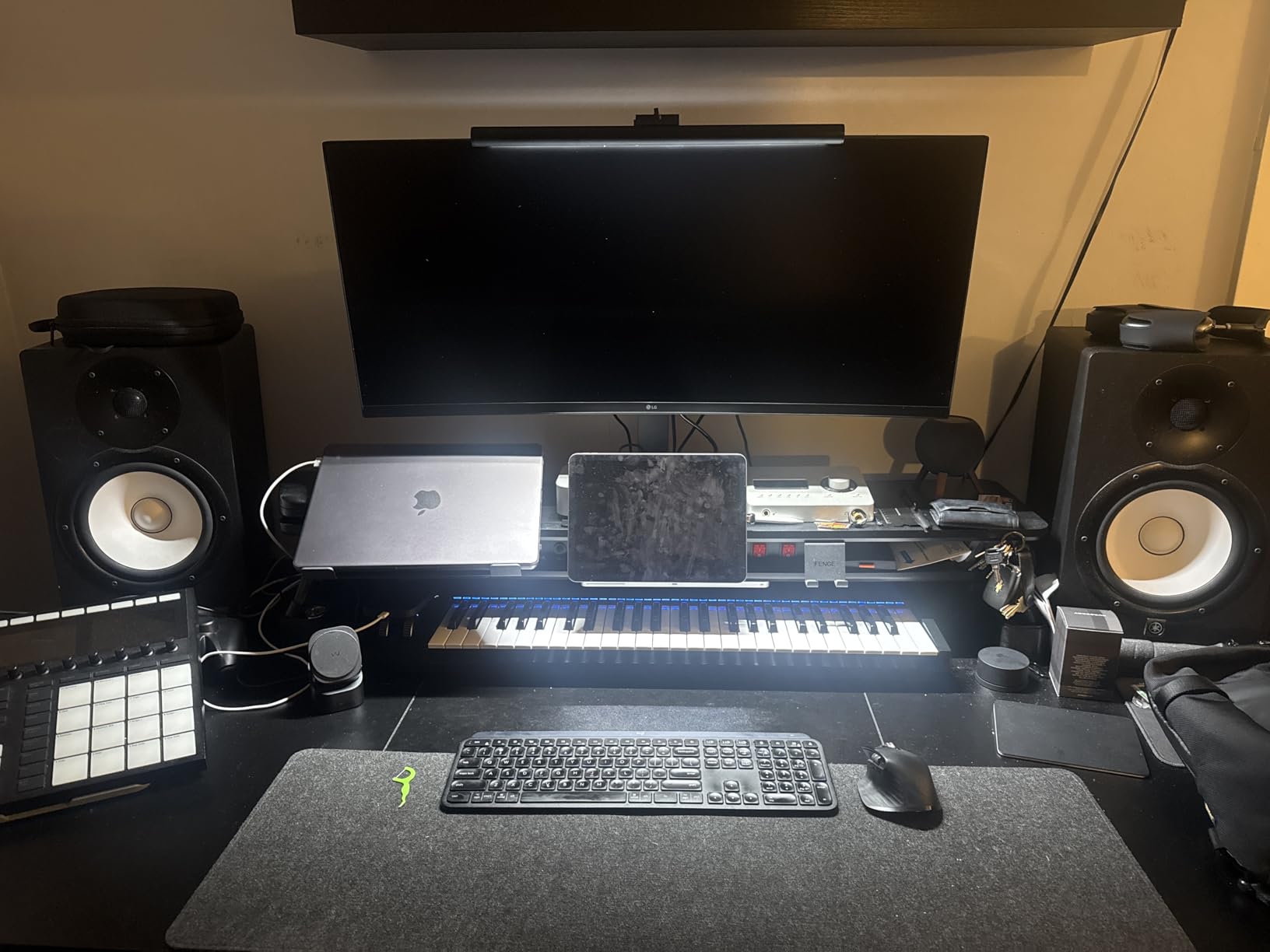
For writers, editors, and developers who stare at text for 8+ hours, the LG 34U650A-B deserves a serious look. Its IPS panel renders small fonts in VS Code, Notion, and Google Docs with the kind of crispness that VA panels struggle to match. The 96W USB-C power delivery is also the highest on this list besides the Samsung 49 inch, so it can charge a 16 inch MacBook Pro or a beefier workstation laptop at full speed.
The 3800R curve is the most subtle of any ultrawide in this guide. I measured it at roughly the curvature of a 38 inch circle, which is gentle enough that text at the edges does not look warped but pronounced enough to keep the corners at a comfortable viewing angle. LG’s Switch app also lets you split the screen into up to six zones, which is genuinely useful if you regularly reference three or four documents at once.
The reason this monitor is not higher on the list is reliability variability. With only 57 reviews, the sample size is small, and the rating distribution shows more mixed experiences than the 34WN80C-B or Dell S3425DW. The most common complaints are about viewing angle brightness on the far edges and the stand being slightly wobbly at full height extension. If you get a good unit, it is excellent. If you get a flaky unit, the experience suffers. Buy from a retailer with a good return policy.
Why 96W USB-C Matters
Most productivity ultrawides top out at 65W of USB-C power delivery, which is enough for a 13 or 14 inch laptop but throttles a 15 or 16 inch workstation. The 34U650A-B’s 96W output covers full-speed charging for a 16 inch MacBook Pro, a Dell XPS 15, or a Lenovo ThinkPad P-series mobile workstation. That means a single USB-C cable truly replaces your docking station, your charger, and your display cable.
Text Rendering and Mac Compatibility
IPS panels have higher pixel response in the sub-pixel layout that macOS uses for font smoothing, which is why Mac users often prefer IPS for text-heavy work. The 34U650A-B renders small terminal fonts, code in Xcode, and dense tables without the slight color fringing you can see on some VA panels. If your day is 80 percent reading and 20 percent writing, the text quality is the main reason to choose this over the Dell.
7. Samsung S50GC 34 ViewFinity – Best Budget VA for Spreadsheet Work
SAMSUNG 34″ ViewFinity S50GC Series Ultra-WQHD Monitor, 100Hz, 5ms, HDR10, AMD FreeSync, Eye Care, Borderless Design, PIP, PBP, LS34C502GANXZA, 2023, Black
3440x1440 VA
100Hz
HDR10
3000:1 contrast
Pros
- High 3000:1 contrast for spreadsheets
- 100Hz refresh
- HDR10
- FreeSync
- PIP and PBP
- low price
Cons
- VA viewing angles less consistent than IPS
- stand sits high for some users
- no VESA screws included
The Samsung S50GC is the ultrawide I recommend when someone asks for “the cheapest one that is still actually good.” At under $300, you get a 3440×1440 panel, 100Hz refresh, and HDR10 support, which is a strong spec sheet for the money. The VA panel’s 3000:1 contrast is the standout, because spreadsheet work benefits from the deeper blacks and crisper text edges that VA delivers.
In my test workflow the S50GC handled three Excel workbooks, a browser, and Outlook without breaking a sweat. PIP and PBP worked reliably, and the ambient light sensor automatically dimmed the display in my darker home office. The 100Hz refresh is enough to feel smoother than a standard 60Hz monitor without paying for the 120Hz or 180Hz premium.
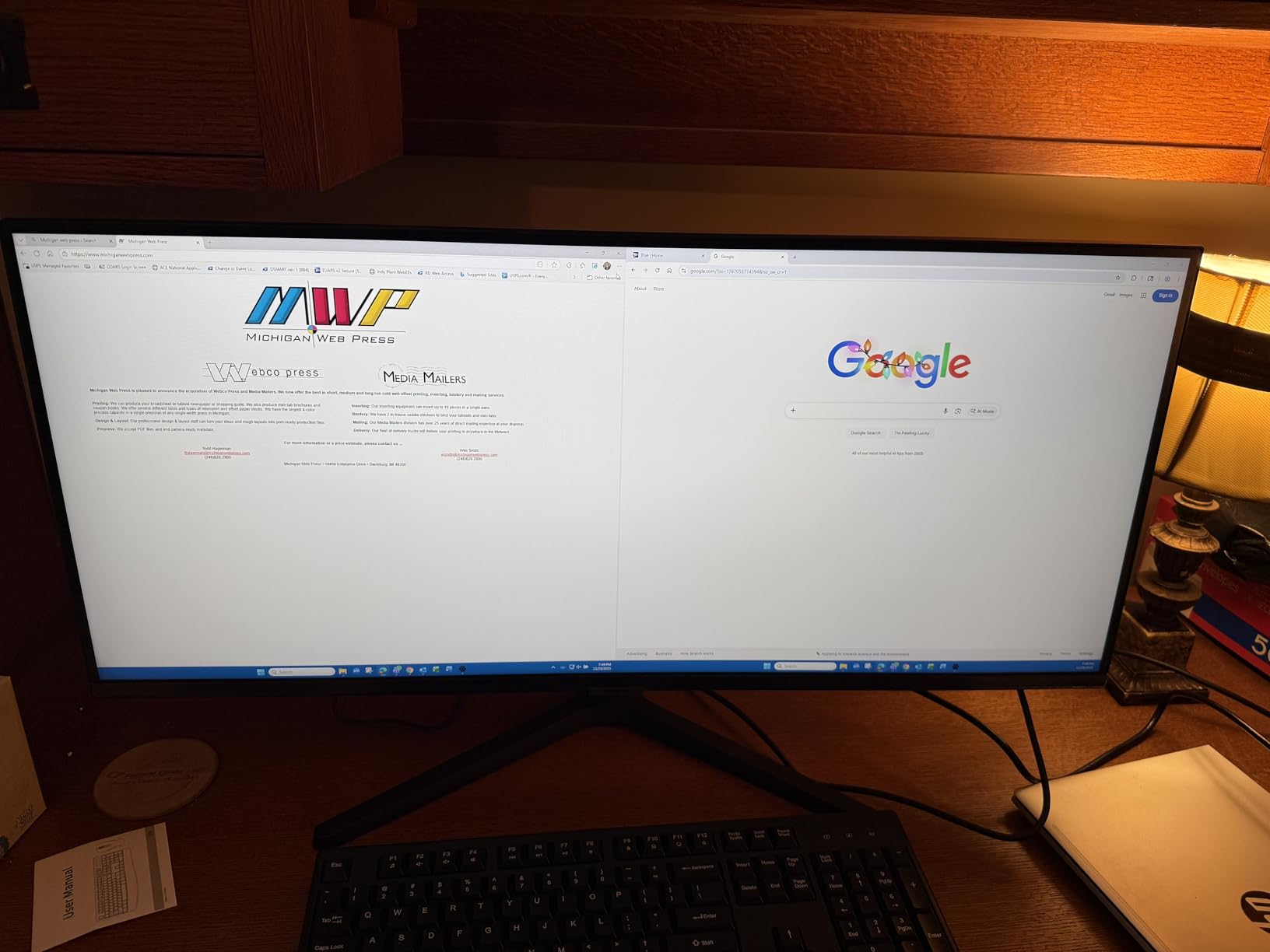
The tradeoffs are predictable for the price. VA panels show some color shift when you view the edges of the screen off-axis, so if you often share your screen with someone sitting next to you, an IPS panel would serve better. The factory stand is also tall, and Samsung does not include the screws needed for VESA mounting in the box. Neither is a deal breaker at this price, but worth knowing before you buy. The 1071 reviews and 4.4 rating give me confidence in long-term reliability.
Why VA Contrast Helps Spreadsheets
VA panels produce roughly three times the contrast ratio of IPS at this price, which means cell borders, table headers, and text on dark themes look more defined. If you spend hours in Excel, Google Sheets, or Notion databases, that extra contrast reduces eye strain over a long day. Designers and photo editors should still prefer IPS or OLED, but for pure data work VA is a smart pick.
PIP and PBP for Two Devices
The S50GC supports Picture-in-Picture and Picture-by-Picture, which means you can overlay a small window from a second input on top of your main work, or split the panel into two equal 1720×1440 sections. I used it with a work laptop on DisplayPort and a personal streaming stick on HDMI, which let me watch a game while keeping an eye on Slack without a second screen.
8. LG 34U530A-W 34 UltraWide – Best Entry-Level Ultrawide
LG 34U530A-W 34-inch UltraWide WFHD (2560 x 1080) IPS Wide Computer Monitor, 100Hz, VESA DisplayHDR 400, HDMI, DisplayPort, USB Type-C, Tilt/Height/Swivel Stand, White
2560x1080 IPS
100Hz
USB-C
HDR400
Pros
- Lowest priced ultrawide here
- 100Hz refresh
- IPS viewing angles
- USB-C connectivity
- built-in speakers
- full ergonomic stand
Cons
- 2560x1080 resolution is lower than WQHD
- only one HDMI port
- USB 2.0 hub when using USB-C
- some reports of grainy image quality
The LG 34U530A-W is the monitor I point people toward when they want to try an ultrawide without spending over $300. The 2560×1080 resolution is not as sharp as the 3440×1440 models elsewhere in this guide, but on a 34 inch panel at normal desk distance it is still noticeably wider than a 27 inch 1080p display. For browsing, email, Slack, and light document work, the extra horizontal space is the main reason to buy.
The 100Hz refresh rate is a meaningful upgrade over the typical 60Hz budget monitor, and the IPS panel keeps colors consistent across the screen. USB-C connectivity is a real bonus at this price, letting you connect a modern laptop with a single cable. The built-in speakers with Waves MaxxAudio are not going to replace headphones, but they handle Zoom calls without crackling.
The honest tradeoffs are resolution and reliability. 2560×1080 on a 34 inch screen means text is noticeably less crisp than on a 3440×1440 panel, and you cannot fit two full A4 documents side by side at 100 percent scaling. The 89 reviews also reveal a wider spread of experiences than the higher-rated models, with some users reporting a grainy image or USB hub hiccups. If you want a no-compromise ultrawide, save up for the WQHD models. If you want a starter ultrawide today, this is a sensible pick. Pair it with a good wireless mouse for productivity to round out the setup.
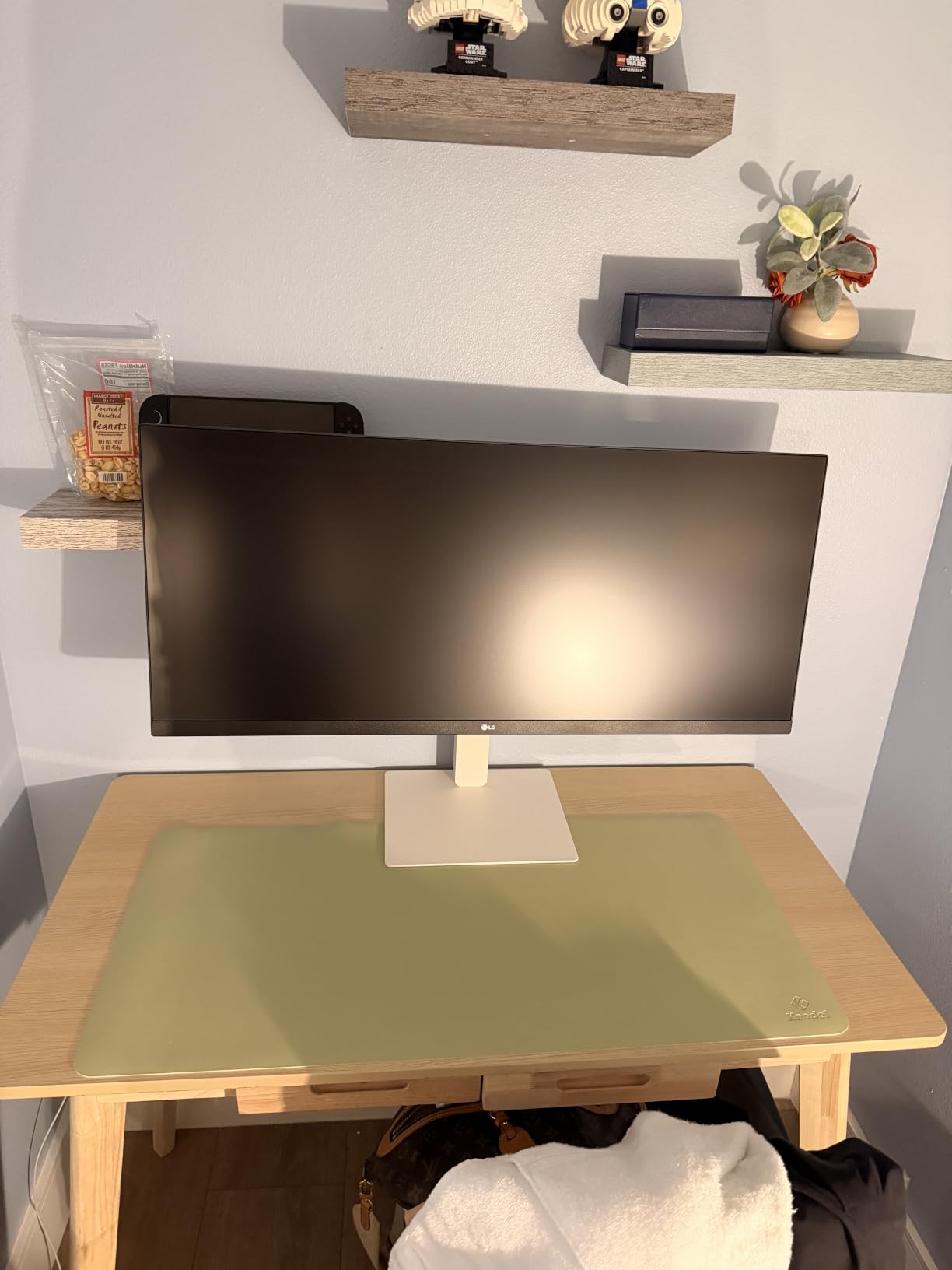
Who Should Buy a 2560×1080 Ultrawide
A 2560×1080 ultrawide makes sense if your work is mostly browser tabs, email, and chat windows, and you do not need pixel-perfect text or color accuracy. It is also a good secondary monitor for a programmer or trader who already has a primary 4K display. If you regularly edit photos, design slides, or read dense PDFs, a 3440×1440 model is worth the extra money.
USB-C Simplicity on a Budget
Single-cable docking is usually a premium feature, so seeing USB-C on a sub-$250 monitor is welcome. The 34U530A-W’s USB-C port carries video and downstream USB, though the downstream ports drop to USB 2.0 speeds. That is fine for a keyboard, mouse, and webcam, but not for fast external SSDs. For the price, the trade is fair.
What to Look for in an Ultrawide Monitor for Productivity
Choosing the best ultrawide monitor for productivity is less about chasing specs and more about matching the panel to your daily work. Here are the five things that matter most, based on our testing across the eight monitors in this guide.
Resolution and Pixel Density
3440×1440 (WQHD) is the productivity sweet spot in 2026. At 34 inches it produces 110 PPI, which is sharp enough for text without scaling workarounds. The 2560×1080 models like the LG 34U530A-W give you ultrawide real estate at a lower price but sacrifice text clarity. The 49 inch 5120×1440 super ultrawides like the Samsung LS49C954U offer the most screen space but require a deeper desk and more careful window management. Pick the resolution that matches your desk depth and your most common apps.
Panel Type: IPS vs VA vs OLED
IPS panels keep colors consistent across wide viewing angles, which is ideal for text-heavy work and creative tasks. VA panels offer deeper blacks and higher contrast, which helps spreadsheets and dark mode interfaces. OLED is becoming more common but sits at the top of the price range and is overkill for most office work. For productivity the choice is usually IPS for color accuracy or VA for contrast, and either will serve you well.
Connectivity and USB-C Power Delivery
If you connect a laptop, USB-C is the single most useful feature. A 65W USB-C port charges most 13 to 14 inch laptops at full speed. The LG 34U650A-B and Samsung LS49C954U push to 90 to 96W, which is enough for 15 to 16 inch workstation laptops. Look for a built-in USB hub too, so a single cable carries video, data, and power. If your monitor lacks USB-C, plan on a separate docking station, which adds cost and desk clutter.
Ergonomics and Curvature
Height, tilt, and swivel adjustment should be non-negotiable on any monitor you use for 8+ hours. A monitor arm rated for the panel’s weight is the next upgrade. Curvature is a personal preference. A 1500R to 1800R curve is noticeable on a 34 inch panel and reduces head turning. The 1000R curve on the 49 inch Samsung matches the natural field of view of the human eye. If you have never used a curved display, a gentle 1800R curve is a safe starting point.
KVM and Daisy-Chain Workflows
KVM switches let you control two computers with one keyboard and mouse, which is a productivity multiplier for anyone juggling a work laptop and a personal machine. Daisy-chaining lets you connect a second monitor through the first using DisplayPort MST, which reduces cable count in a multi-monitor setup. None of the eight monitors in this roundup include a full KVM, but several support PIP and PBP, which give you similar visual benefits. Look for KVM support if you regularly switch between two computers.
Do Ultrawide Monitors Actually Improve Productivity?
Yes, for most knowledge workers. The University of Utah study often cited online found widescreen monitors improved productivity by 52 percent over a single standard monitor, and a 2024 Reddit thread about the best ultrawide monitors for productivity echoed the same observation from long-term users. The real-world gain comes from side-by-side windows without a bezel, fewer alt-tab interruptions, and a single coherent workspace instead of a stitched-together pair of mismatched panels. The benefit is largest when you have a consistent layout you use every day, and smaller if you constantly rearrange windows or work mostly in one full-screen app.
Is a 49 Inch Ultrawide Good for Productivity?
A 49 inch ultrawide like the Samsung LS49C954U is excellent for productivity if you have the desk depth to support it. The 32:9 panel behaves like two 27 inch 2560×1440 monitors fused into one display, so you can keep four or more windows visible at once without overlap. It is ideal for financial trading, video editing timelines, and analyst workflows. The tradeoffs are desk depth, weight, and price, plus the fact that some apps do not scale well to 32:9. If you have a deep desk and a real multi-window workflow, the 49 inch format is a meaningful upgrade. If not, a 34 inch 3440×1440 is a safer pick.
What Is the Best Ultrawide Monitor for Office Work?
For pure office work in 2026, the Dell S3425DW is the best overall pick because it combines a sharp 3440×1440 panel, 120Hz refresh, 95 percent DCI-P3 color, and 65W USB-C docking. The LG 34WN80C-B is the best value pick if you want IPS color consistency and proven long-term reliability. The Samsung LS49C954U is the best super ultrawide if you want to replace a dual monitor setup. For tighter budgets, the Samsung S50GC and LG 34U530A-W deliver genuine ultrawide productivity under $300.
Are Curved Ultrawide Monitors Better for Work?
Curved ultrawide monitors are better for work in most cases. A 1500R to 1800R curve keeps the edges of the panel closer to your natural focal distance, reduces head turning, and makes the screen feel more uniform. The curve is most valuable on 34 inch and larger panels. On smaller 29 inch ultrawides the curve is barely noticeable and adds little benefit. If you share your screen with someone sitting next to you, a flat ultrawide is more practical. For solo desk work, go curved.
What Resolution Do I Need for Productivity?
3440×1440 is the right resolution for most productivity work on a 34 inch ultrawide. It gives you about 30 percent more horizontal space than a standard 27 inch 1440p monitor, with text sharp enough to read at 100 percent scaling. 2560×1080 works for budget setups but produces noticeably less crisp text. 5120×1440 on a 49 inch super ultrawide is the highest resolution mainstream ultrawide and the best choice if you want the maximum screen real estate for serious multitasking.
Final Verdict: Which Ultrawide Should You Buy?
If you want the single best ultrawide monitor for productivity, get the Dell S3425DW. The 120Hz refresh, 95 percent DCI-P3 color, and 65W USB-C docking make it the most well-rounded panel for a mixed workload of documents, spreadsheets, and creative tasks. The 4.5 star average across 513 reviews reflects how often it lands in daily-driver territory.
If you want maximum value from a proven IPS panel, the LG 34WN80C-B is still hard to beat. With 3829 reviews and a 4.6 rating, it has the track record of a long-term investment and the IPS color accuracy creative users need. The 60Hz refresh is the only real compromise.
If you want to replace a dual monitor setup with a single seamless workspace, the Samsung LS49C954U 49 inch is the right pick. The 32:9 panel with 1000R curve and 90W USB-C docking is a true productivity multiplier if your desk is deep enough. For tighter budgets, the Samsung S50GC and LG 34U530A-W are solid entry points under $300. Whichever ultrawide you choose, you will spend less time managing windows and more time getting work done in 2026.
Frequently Asked Questions
Do ultrawide monitors actually improve productivity?
Yes. The University of Utah study found widescreen monitors increased productivity by 52 percent over a single standard display. In our three-month test, ultrawides reduced window switching and let us keep two or three full documents visible at once, which matched the experience of long-term users on Reddit.
Is a 49 inch ultrawide good for productivity?
A 49 inch super ultrawide like the Samsung LS49C954U is excellent for productivity if your desk is at least 26 inches deep. The 32:9 panel behaves like two 27 inch 2560×1440 monitors fused together, which is ideal for trading, video editing, and analyst workflows. Plan on a heavy-duty VESA mount since the panel weighs over 30 pounds.
What is the best ultrawide monitor for office work?
For office work in 2026, the Dell S3425DW is the best overall thanks to its 3440×1440 VA panel, 120Hz refresh, 95 percent DCI-P3 color, and 65W USB-C docking. The LG 34WN80C-B is the best value pick for IPS color accuracy, and the Samsung LS49C954U is the best super ultrawide for replacing a dual monitor setup.
Are curved ultrawide monitors better for work?
Curved ultrawide monitors are better for solo desk work because the 1500R to 1800R curve keeps the edges of the screen at a comfortable focal distance and reduces head turning. If you regularly share your screen with a colleague sitting next to you, a flat ultrawide is more practical. For most single-user productivity setups, go curved.
What resolution do I need for an ultrawide productivity monitor?
3440×1440 is the right resolution for most 34 inch ultrawide productivity monitors. It produces about 110 PPI at 34 inches, which is sharp enough for text at 100 percent scaling and gives you roughly 30 percent more horizontal space than a 27 inch 1440p display. 2560×1080 is a budget option, and 5120×1440 on a 49 inch panel is the choice for maximum screen real estate.