
There is no single best tablet for drawing, and anyone who tells you otherwise is selling something. The honest answer depends on three questions: do you want to draw straight onto the screen or on a separate pad, do you already have a computer you want to plug into, and how much desk space can you give up.
After weeks of switching between all three categories with the same art files, the pattern is clear. Pen displays suit illustrators who paint for hours and hate looking away from the canvas. Screenless graphics tablets suit anyone who already owns a good monitor and wants the cheapest reliable way in. Standalone tablets suit people who sketch on trains, in cafes, and anywhere without a socket.
Table of Contents
Top 3 Picks: Best Tablets for Drawing (October 2026)

Wacom Intuos Small
- Battery-free EMR pen
- 4096 pressure levels
- 6 x 3.7 inch active area
- 4 ExpressKeys

XP-Pen Artist 15.6 Pro
- 15.6-inch laminated 1920x1080 display
- 8192 levels
- 8 express keys and Red Dial
- 120% sRGB

Huion Kamvas Pro 16
- 15.6-inch laminated anti-glare glass
- 120% sRGB with 1000:1 contrast
- 6 express keys and touch bar
- 20-60 degree stand
If you want the short version, these three carry the list.
Best overall: the Wacom Intuos Small for the pen feel and the least demanding setup.
Best with a screen: the XP-Pen Artist 15.6 Pro for a laminated 15.6-inch canvas with a programmable dial.
Best premium all-rounder: the Huion Kamvas Pro 16 for colour, stand range and a single-cable desk.
For students who also need a general-purpose tablet, our picks on the best tablets for students cover that angle separately.
Best Tablets for Drawing at a Glance in 2026
| Product | Specifications | Action |
|---|---|---|
| Wacom Intuos Small |
|
Check Latest Price |
| XP-Pen Artist 15.6 Pro |
|
Check Latest Price |
 XP-Pen Magic Drawing Pad XP-Pen Magic Drawing Pad |
|
Check Latest Price |
| Huion Kamvas Pro 16 |
|
Check Latest Price |
 Huion Kamvas 13 Gen 3 Huion Kamvas 13 Gen 3 |
|
Check Latest Price |
 GAOMON M10K GAOMON M10K |
|
Check Latest Price |
 XP-Pen Artist12 XP-Pen Artist12 |
|
Check Latest Price |
 Wacom Cintiq 22 Wacom Cintiq 22 |
|
Check Latest Price |
 Huion Kamvas Pro 24 4K Huion Kamvas Pro 24 4K |
|
Check Latest Price |
 GAOMON PD1161 GAOMON PD1161 |
|
Check Latest Price |
 VEIKK VK1200 V3 VEIKK VK1200 V3 |
|
Check Latest Price |
 PicassoTab X11 PicassoTab X11 |
|
Check Latest Price |
Screenless, Pen Display or Standalone: Decide in 30 Seconds
A screenless graphics tablet is a flat pad with no display of its own. You draw on it and watch a cursor on your monitor. It is the cheapest way in, the least distracting for people who already sit at a good screen, and the easiest to travel with.
A pen display is a monitor with a pressure-sensitive digitizer behind the glass. You draw directly under the nib with no parallax gap, which is why illustrators who paint for hours move up to one. The cost is desk space, cables and a computer.
A standalone tablet runs its own operating system with no computer at all. That freedom is the whole point: sketch on a sofa, in a café, on a plane. The trade-off is app choice, because drawing software quality follows the operating system.
Your 30-second decision:
You want the least hassle and already have a good monitor: screenless pad.
You want your hand and cursor in the same place for long sessions: pen display.
You want to draw away from a desk entirely: standalone tablet.
Your software is Adobe-first: pen display or screenless pad on Windows or macOS.
Your software is Procreate-first or you want zero cables: standalone tablet.
1. Wacom Intuos Small: The Best All-Round Drawing Tablet
Wacom Intuos Small, Wired Graphic Drawing Tablet with Pen + Software
6 x 3.7 inch active area
4096 pressure levels
Battery-free EMR pen
4 ExpressKeys
Pros
- Reference EMR pen feel with no charging ever
- Compact 8.1 oz body that fits beside a keyboard
- Four ExpressKeys plus two configurable pen buttons
- Plug-and-play on Windows macOS and Chromebook
- Works with Photoshop Krita Clip Studio and Affinity
Cons
- Small 6 x 3.7 inch canvas limits large work
- Modest 4096 pressure levels
- Mac users need an adapter that is not included
This is the tablet we hand to people who ask what to buy first, and it has not disappointed across the files we moved through. The EMR pen needs no charging, no pairing and no battery, which removes an entire category of small annoyance that rechargeable styluses create on travel days.
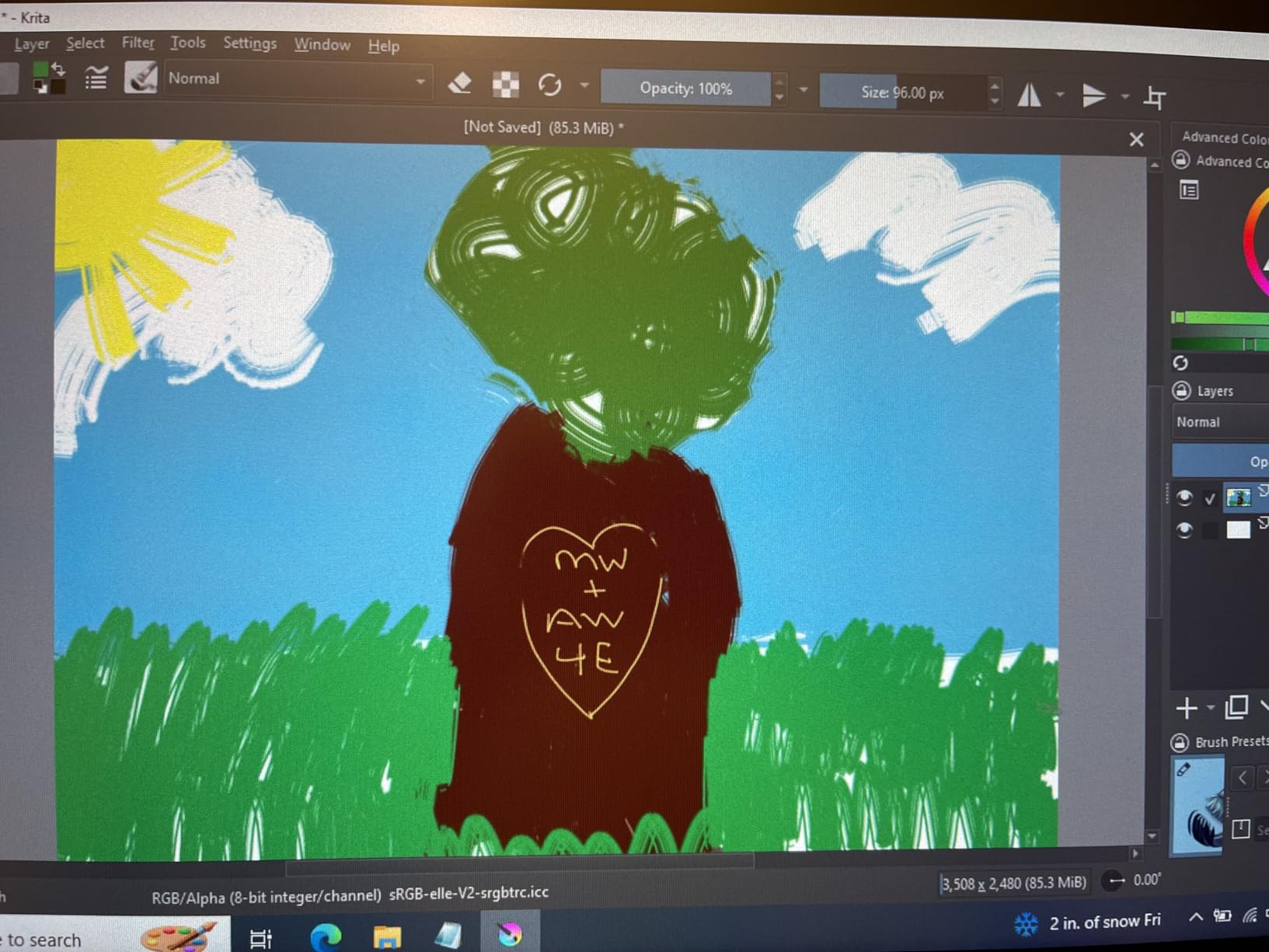
Setup took under two minutes. The cable went in, the four ExpressKeys mapped themselves sensibly, and the pen drew at the right pressure in Photoshop, Krita and Clip Studio Paint without a single driver detour.
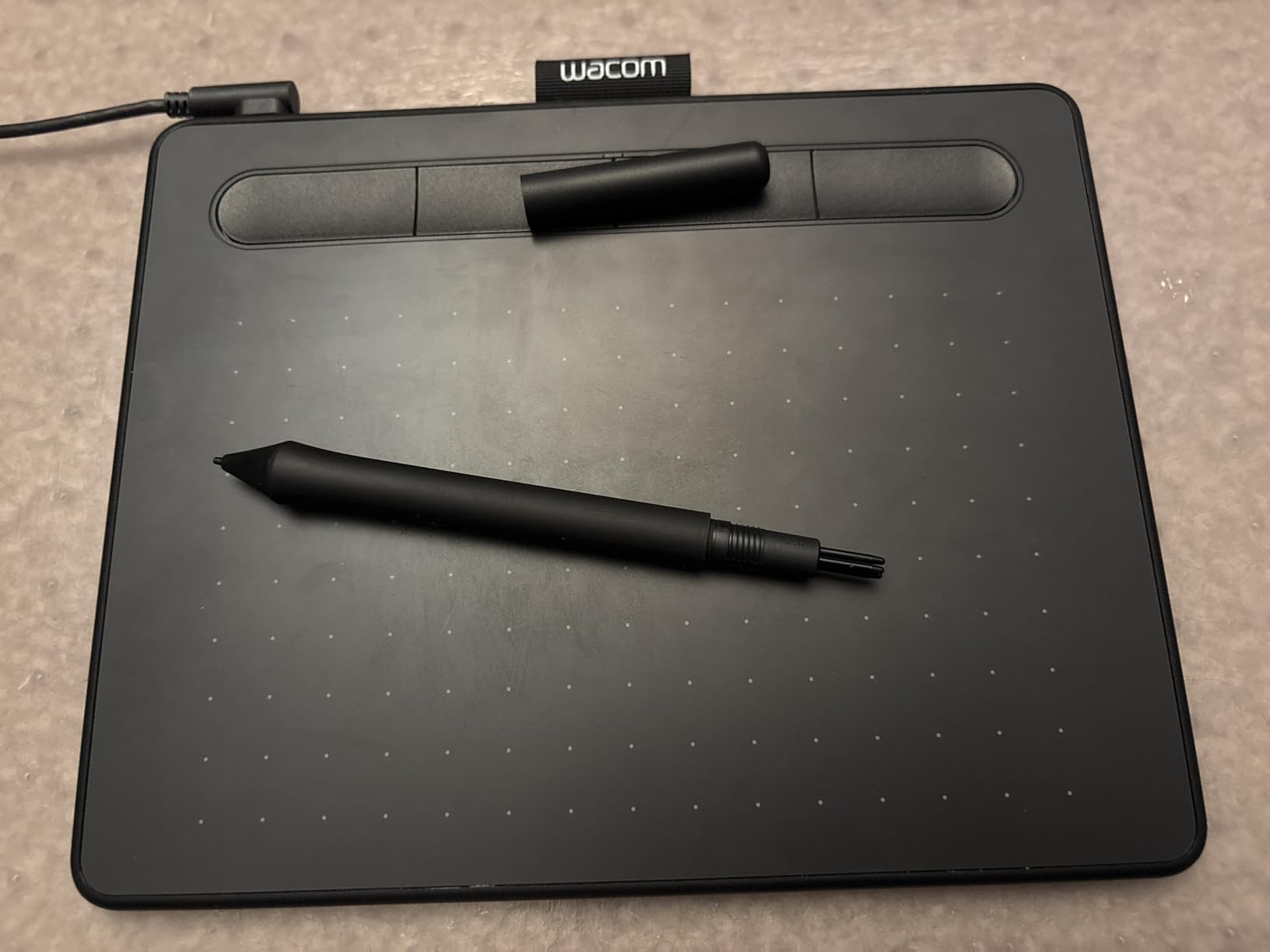
The body is genuinely small at 8.1 ounces, so it slides next to a keyboard rather than taking a desk. That makes it the pick for small workspaces, where a 10-inch pad forces you to shuffle the mouse out of the way every morning.
The honest limitation is the canvas itself. A 6 by 3.7 inch active area handles a character head, a symbol, a set of panels and thumbnail sketches. It is cramped for full-body figure work, and you will end up zooming and panning far more than on a larger pad.
What makes it the pick for southpaw setups and small desks
Because it is a screenless pad, rotating the body 180 degrees changes nothing about how you draw, and the ExpressKeys can be reassigned in the driver to match either hand. Nothing on the chassis is handedness-dependent.
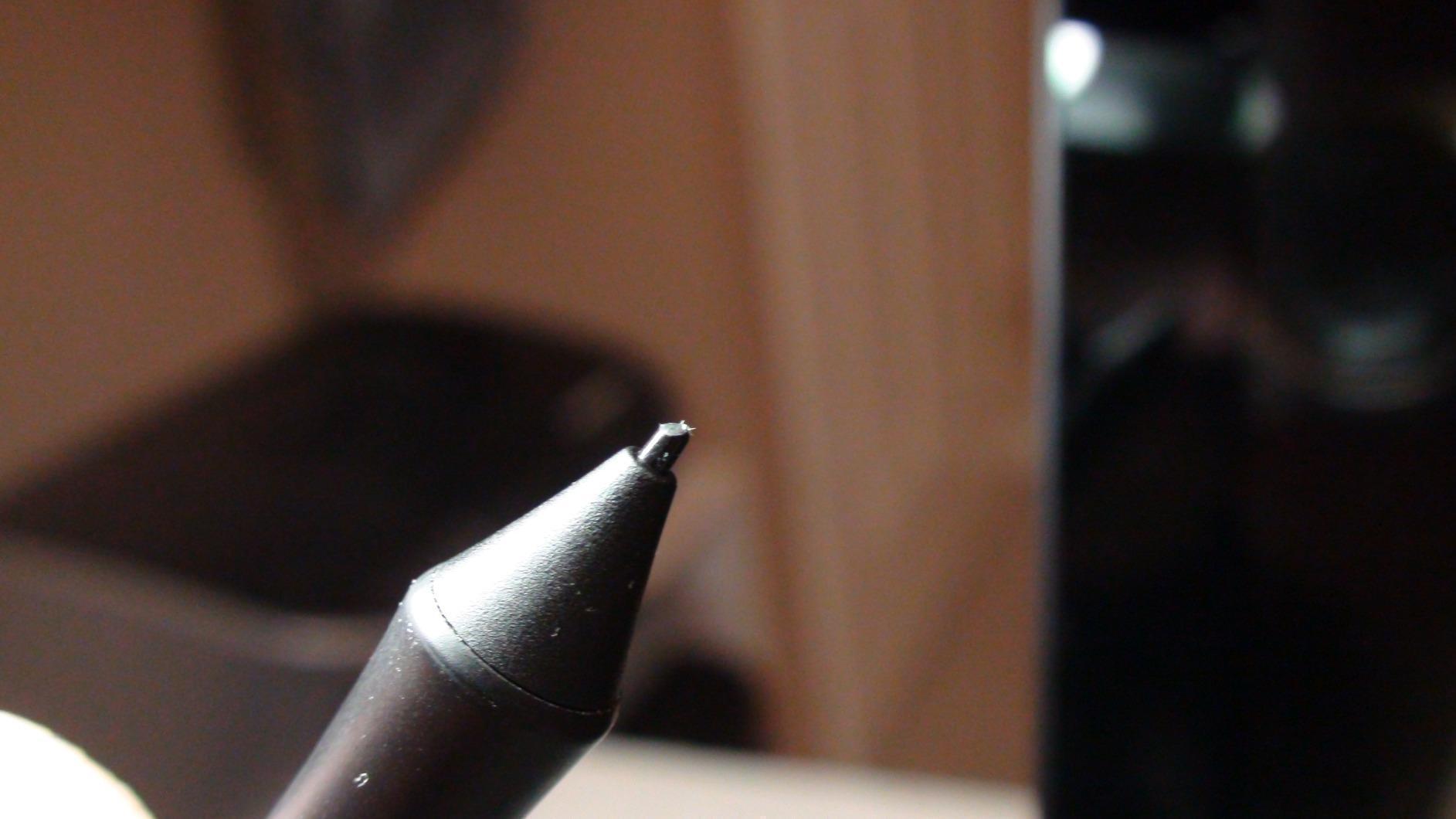
The surface is matte enough to stop the pen skating, and the nibs are standard, so replacements cost almost nothing. Plan for replacements: the supplied nibs dull faster than the tablet itself wears.
When another tablet suits you better
If hand-eye coordination on a separate monitor frustrates you, the hand-eye gap is real and no setting removes it. Practice fixes it, but a pen display removes the problem entirely.
If you paint full pages of illustration, the small active area becomes the bottleneck. Either accept more panning or move to a 10-inch pad such as the GAOMON M10K, or switch to a screen.
2. XP-Pen Artist 15.6 Pro: The Best Pen Display for Most Illustrators
15.6″ Drawing Tablet with Screen XPPen Artist 15.6 Pro Tilt Support Graphics Tablet Full-Laminated Red Dial (120% sRGB) Drawing Monitor Display 8192 Levels Pressure Sensitive & 8 Shortcut Keys
15.6 inch laminated 1920x1080 IPS
8192 pressure levels
8 express keys plus Red Dial
120% sRGB
Pros
- Full lamination gives low parallax and a paper-like feel
- Red Dial and eight express keys cut keyboard reach
- Battery-free PA2 pen with reliable tilt
- 120% sRGB colour with a 178-degree viewing angle
- Slim 11 mm body that moves between desks
Cons
- Needs a wired computer connection
- Occasional flicker reports on older laptops
- No VESA mounting and a limited bundled stand tilt
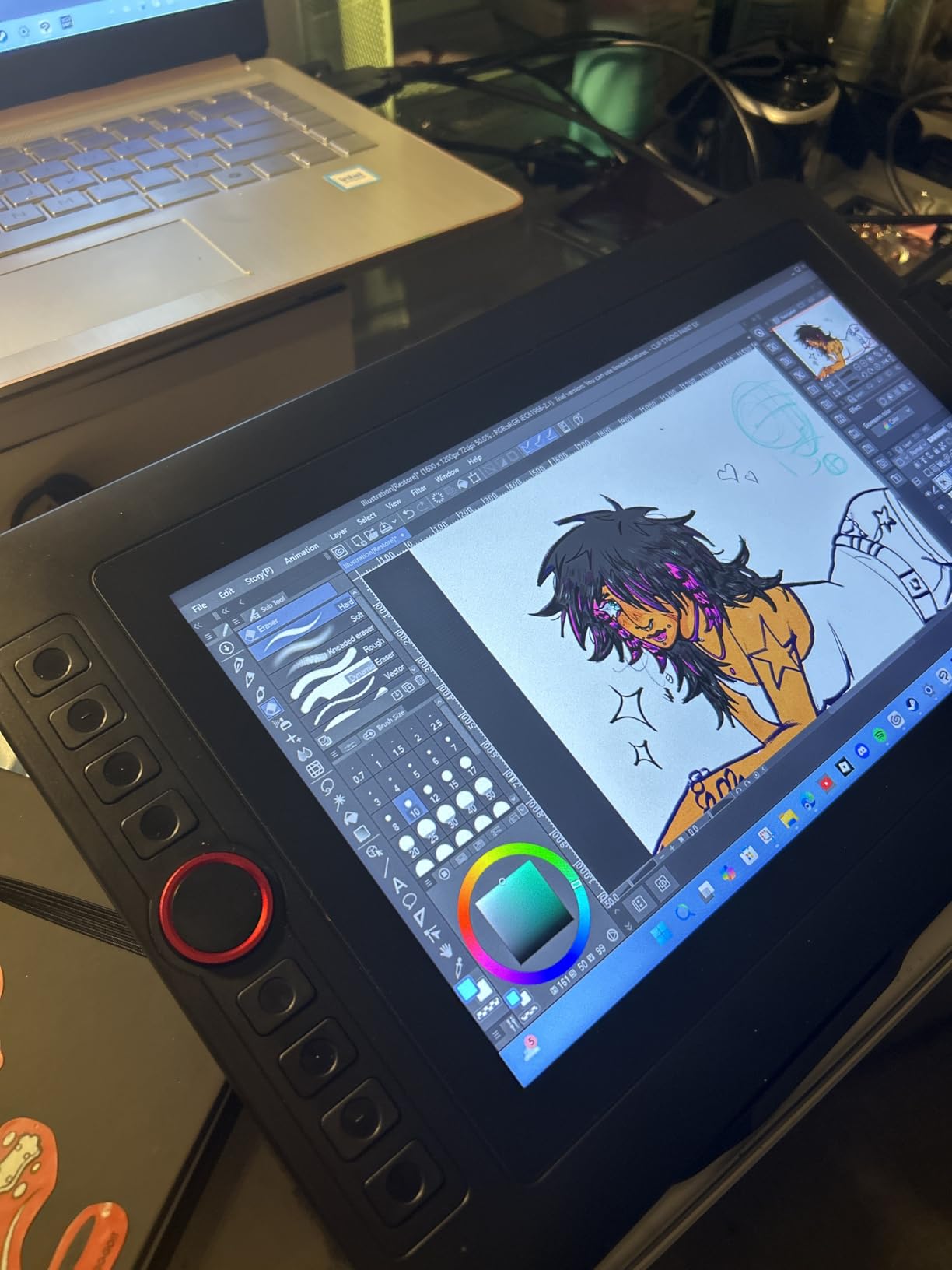
A 15.6-inch laminated screen is the size where full compositions stop needing constant zooming. Drawing across this panel felt closest to working on paper of any computer-connected option we tried, because full lamination removes the air gap between nib and cursor.
The Red Dial is the quiet hero. Mapping it to canvas zoom or brush size means your off hand never leaves the surface, which removes the reach that usually breaks a painting rhythm.
Colour holds up for client work. At 120% sRGB with a 178-degree viewing angle, the panel showed consistent colour from the side, which matters when you tilt a large screen back to catch highlights.
The 8192-level PA2 pen is battery-free, so there is no charging ritual and no pairing step. Tilt response is reliable enough for broad shading passes without hunting for an angle that registers.
Why it wins the mid-size pen display spot
Three things rarely appear together: a laminated 15.6-inch panel, eight express keys plus a dial, and a chassis thin enough to reposition between a desk and a sofa. Most rivals at this size give up one of the three.
It also handles PDF markup and note-taking well, so if you want one device for illustration and annotation, this covers both without a second purchase.
Where it frustrates people
Flicker shows up in a minority of reports, mostly on older laptops running through adapters. If your machine only has USB-C, check that your adapter carries video before unpacking.
The bundled stand has a narrow tilt range, and there is no VESA pattern on the back. Long sessions deserve an adjustable arm rather than the supplied foot.
3. XP-Pen Magic Drawing Pad: The Best Portable Standalone Tablet for Drawing
XPPen Magic Drawing Pad 12.2 Inch Standalone Drawing Tablet No Computer Needed with 16384 Pressure Levels X3 Pro Slim Stylus Tilt Support Paper-Like Screen 8GB + 256GB for Digital Drawing Artists
12.2 inch AG-etched 2160x1440 display
16384 pressure levels
8000 mAh battery, 13 hours
599 g and 6.9 mm
Pros
- AG-etched matte glass feels paper-like rather than glassy
- 16384 levels with a 60-degree tilt stylus
- Sharp 2160 x 1440 panel
- 599 g body with a 13-hour battery
- Case stylus holder glove and charger included
Cons
- Android drawing apps trail iPad software
- Palm rejection is imperfect without the glove
- Bundled software is bloat-heavy
- Android 14 with no stated upgrade path
This is the pick for anyone who draws on location. At 599 grams and 6.9 millimetres it disappeared into a jacket pocket during a week of train sketching, which no pen display on this list can do.
The AG-etched matte glass is the surprise. It drags the nib slightly, like paper, which forgives small lines and stops the glassy skid that makes many standalone tablets feel wrong to traditional inkers.
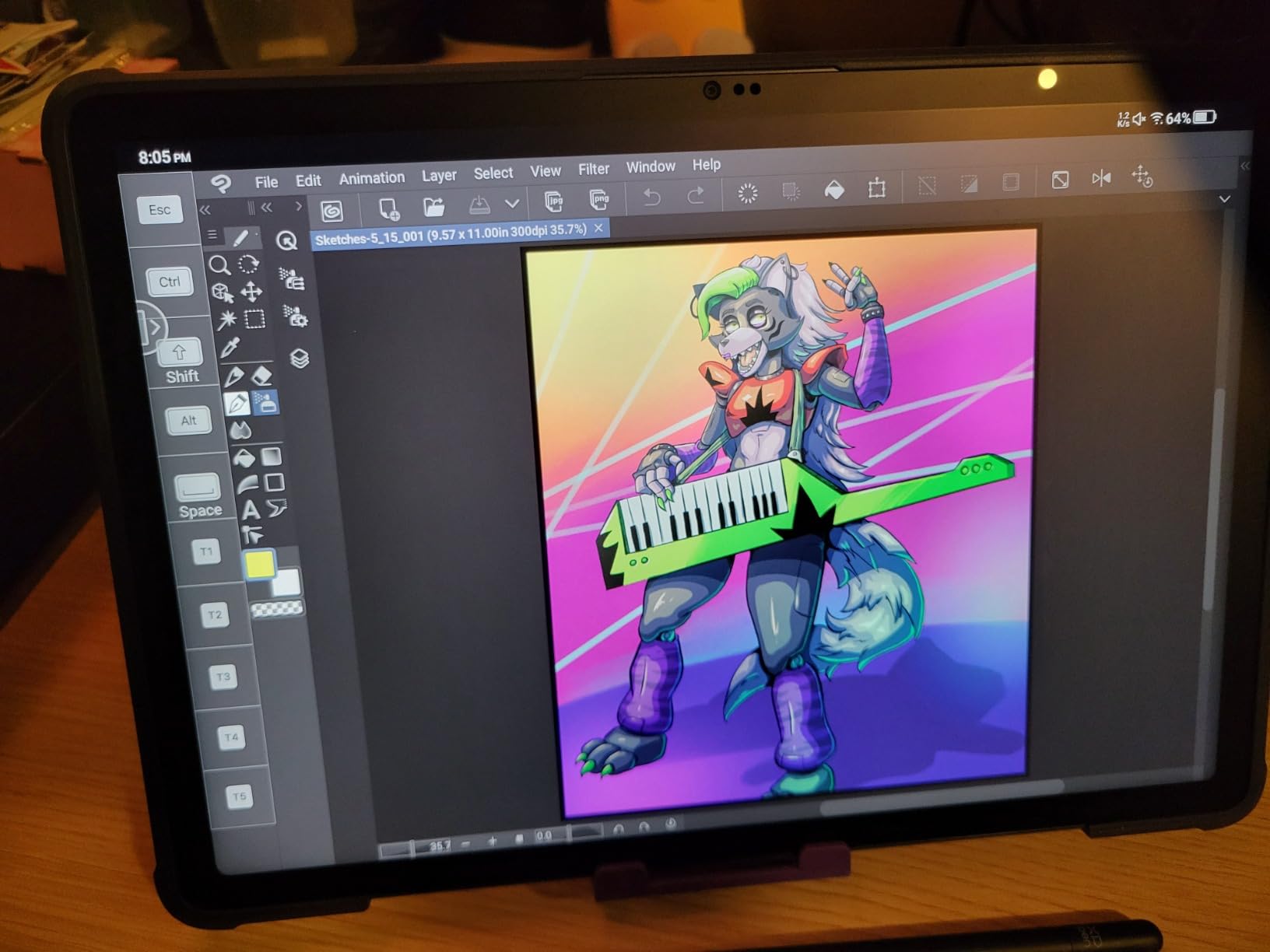
Screen clarity at 2160 by 1440 on a 12.2-inch panel is sharper than most 11-inch competitors, and the 8000 mAh battery carried a full sketch session of a few hours with plenty left over.
The X3 Pro stylus reports 16384 pressure levels with a 60-degree tilt range and needs no charging. That matters most here, because losing a pen on a train is worse than losing a pen at a desk.
Why it beats the other standalone option here
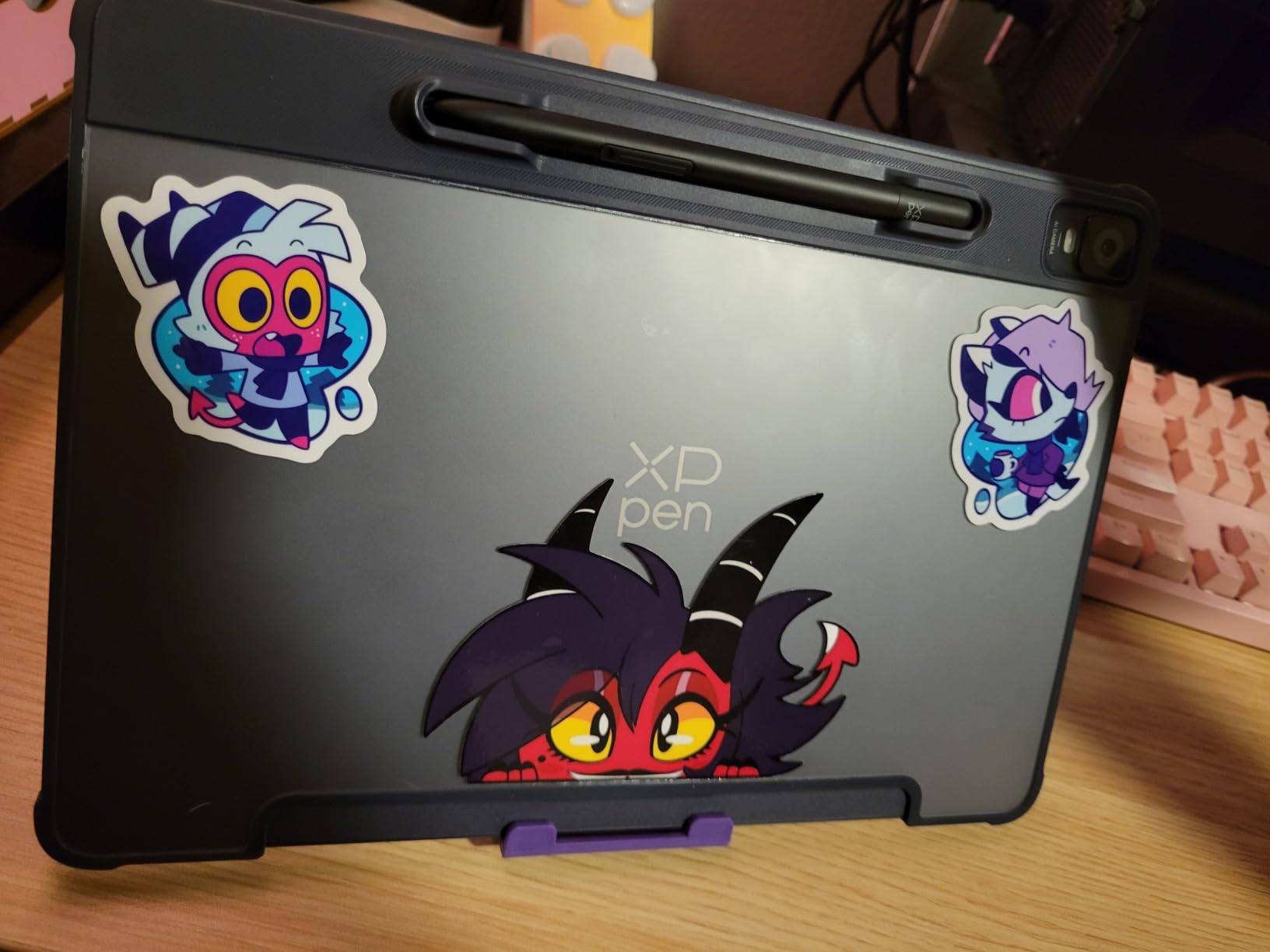
It ships with a case, holder, glove and charger, so the first-day accessory list is already handled. Screen sharpness and matte texture are both steps ahead of the entry-level standalone alternative.
TÜV-certified eye-care treatment with ten brightness steps is a small thing that matters when you are sketching in a bright room.
The software reality you should price in
Android drawing apps are the weak point. Clip Studio Paint and ibis Paint memberships are included, but the wider ecosystem of illustration apps sits elsewhere, and plugins are not part of the deal.
Palm rejection is imperfect, so draw with the supplied glove or set edge rejection in your app. The operating system is listed as Android 14 with no stated upgrade path, which matters if you keep art for years.
4. Huion Kamvas Pro 16: The Most Versatile for Colour and Comfort
HUION Kamvas Pro 16 Drawing Tablet with Screen,120% sRGB, Touch Bar,15.6″
15.6 inch laminated anti-glare glass
120% sRGB, 1000:1 contrast
6 express keys plus touch bar
Stand adjustable 20-60 degrees
Pros
- Laminated anti-glare glass with minimal parallax
- 120% sRGB with good shadow detail
- Touch bar plus six express keys
- Stand spans 20 to 60 degrees for posture
- One 3-in-1 USB-C cable handles video data and power
Cons
- Needs a connected computer
- 8192 pressure levels trails 16K pens
- 1080p resolution is modest for the panel size
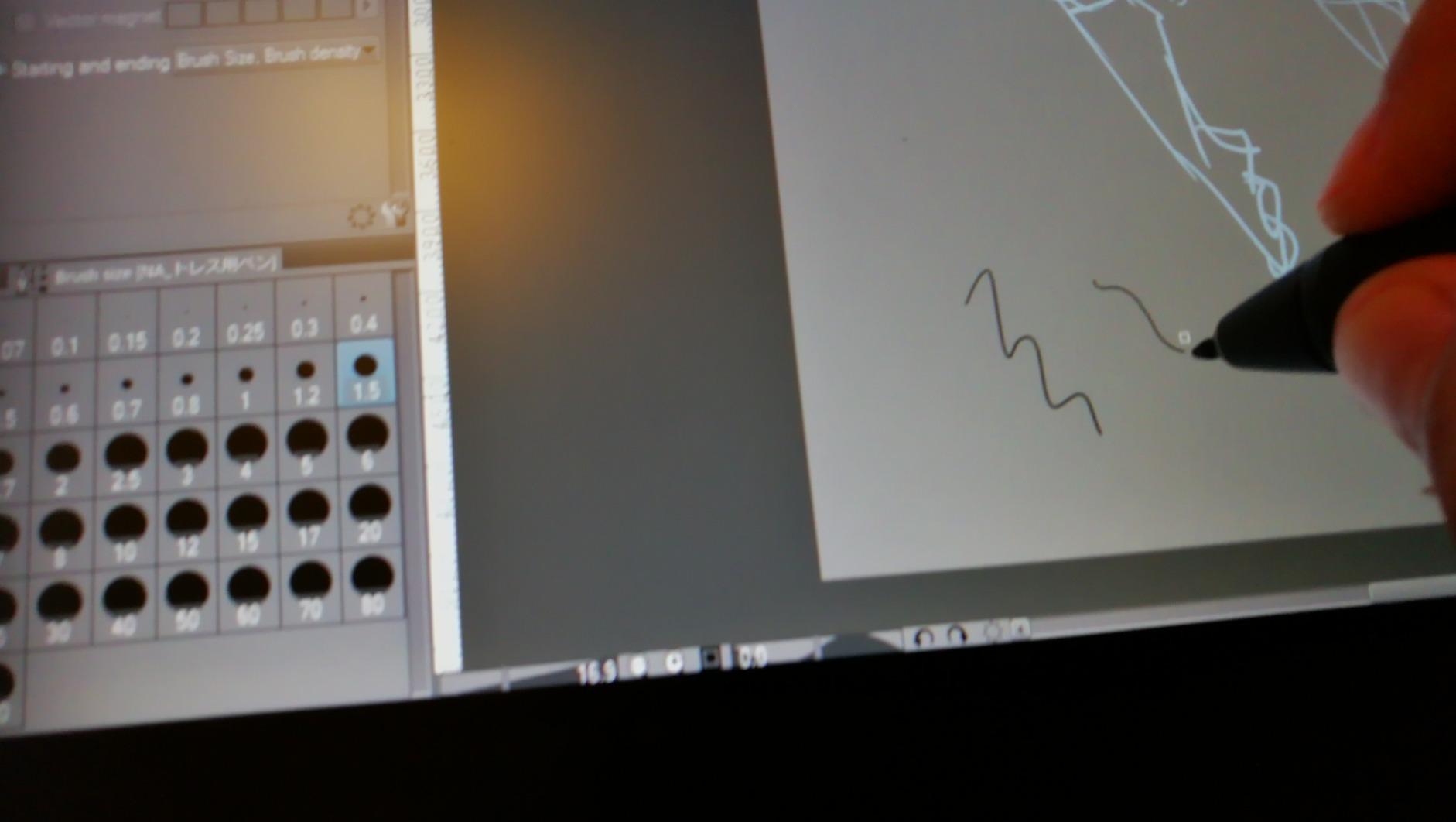
The Kamvas Pro 16 is the one we recommend when someone paints for four-hour blocks. The laminated anti-glare glass keeps a slight texture under the pen that reduces the mirror effect of a glossy panel without turning the surface grey.
Colour is the standout. At 120% sRGB with 92% Adobe RGB coverage and a 1000:1 contrast ratio, shadow detail held together in illustrations where cheaper panels turned to mush.
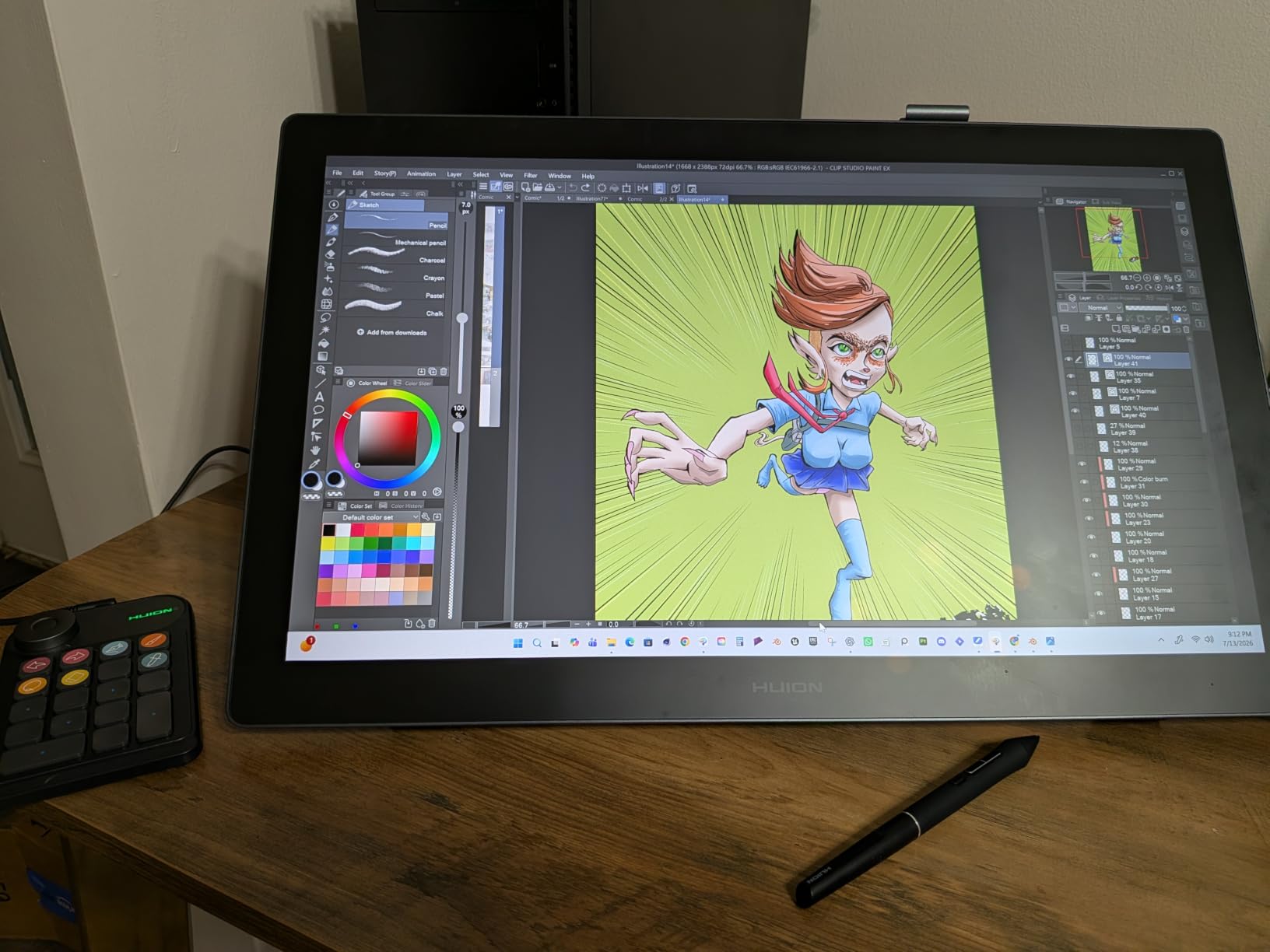
The ST200 stand spanning 20 to 60 degrees is not a marketing detail. It is the difference between a neutral neck at hour three and the hunched posture that ends a session, and it sits far better than fixed-foot stands.
Express keys and the touch bar handle zooming and brush changes, and the battery-free PW507 pen adds 60-degree tilt plus two programmable side buttons for pen and eraser switching.
Why studios and long-session artists pick it
Ergonomics plus colour is a rare pairing. The stand range, matte laminated glass and wide gamut together reduce the two things that end long painting sessions: neck strain and eye fatigue.
The single 3-in-1 USB-C cable keeps a two-port desk tidy, which matters more than it sounds when you also run a keyboard, a drive and a microphone.
Where it falls behind newer rivals
8192 pressure levels now sits a generation below 16K pens, though a well-tuned 8192 pen still outdraws a badly tuned 16K one in most hands. The 1920 by 1080 panel also shows softness beside a 4K reference monitor.
If your work is print-critical or you colour-match against a calibrated display, use it as a second screen rather than your reference.
5. Huion Kamvas 13 Gen 3: The Best Pen Display for Colour-Critical Work
HUION Kamvas 13 (Gen 3) Drawing Tablet with Screen 16K Pressure PenTech 4.0
13.3 inch laminated 1920x1080
16384 levels, 2g activation force
99% sRGB and 90% Adobe RGB
Factory calibrated to under 1.5 delta E
Pros
- Factory calibration certificate makes it dependable for colour work
- Full lamination plus Canvas Glass 2.0 anti-glare
- 16384 levels with a 2g activation force for fine linework
- Dual dials and five silent press keys
- Light 865 g body that suits southpaw and travel setups
Cons
- Needs a computer connection
- 13.3 inch canvas is small for large illustrations
- Driver install required before keys behave correctly
The Gen 3 Kamvas 13 ships with a factory calibration certificate and a stated delta E under 1.5 at 99% sRGB. That is a measurable claim, and for anyone printing or matching client colours it is the reason to pick this over a cheaper panel.
The 2 gram initial activation force is the sleeper feature for illustrators. Fine hatching and linework register without leaning on the nib, which reduces hand tension over a long session.
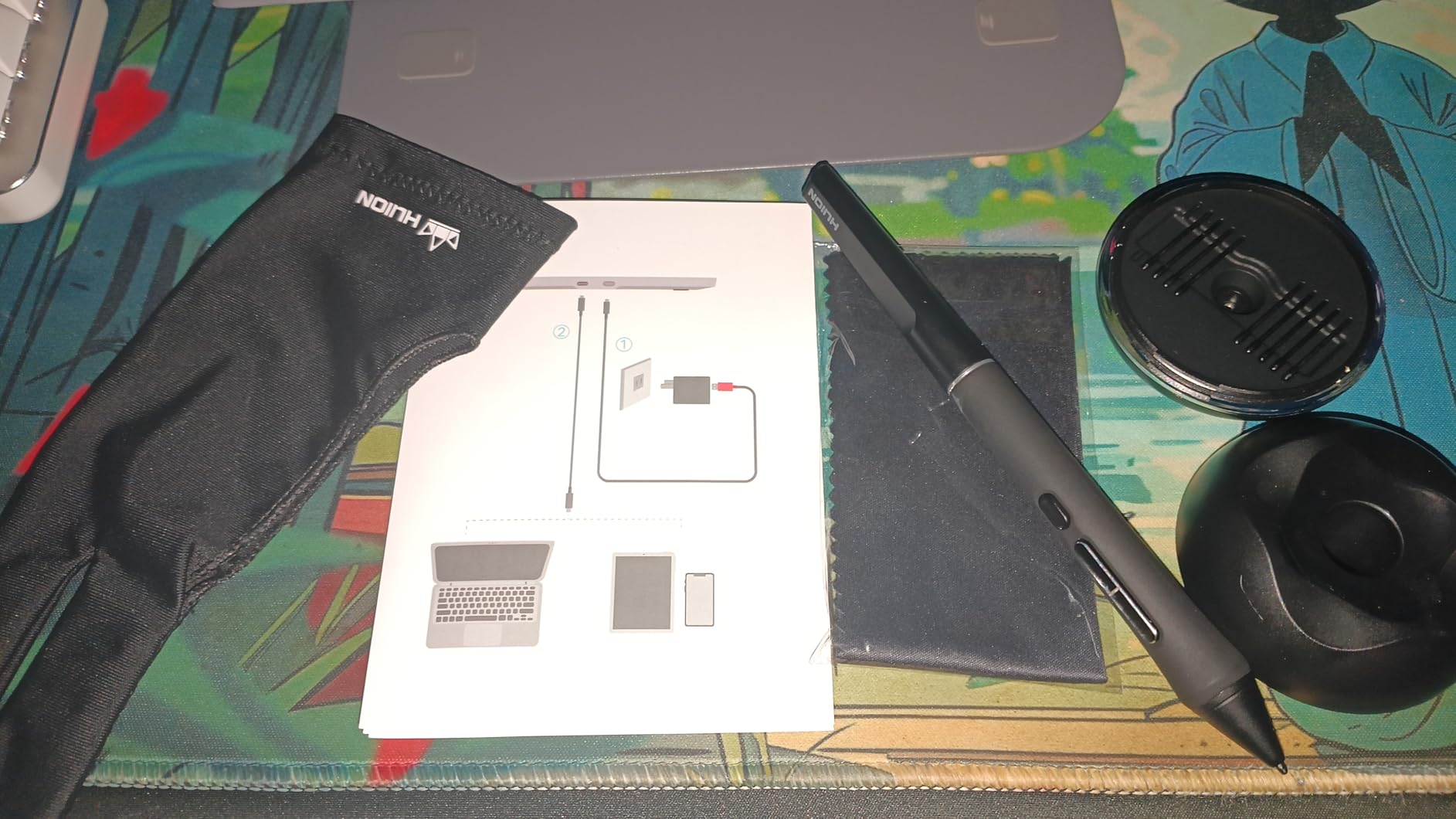
Canvas Glass 2.0 is a nano-etched anti-glare surface bonded to the display, so parallax is minimal and the texture stays pleasant through extended work.
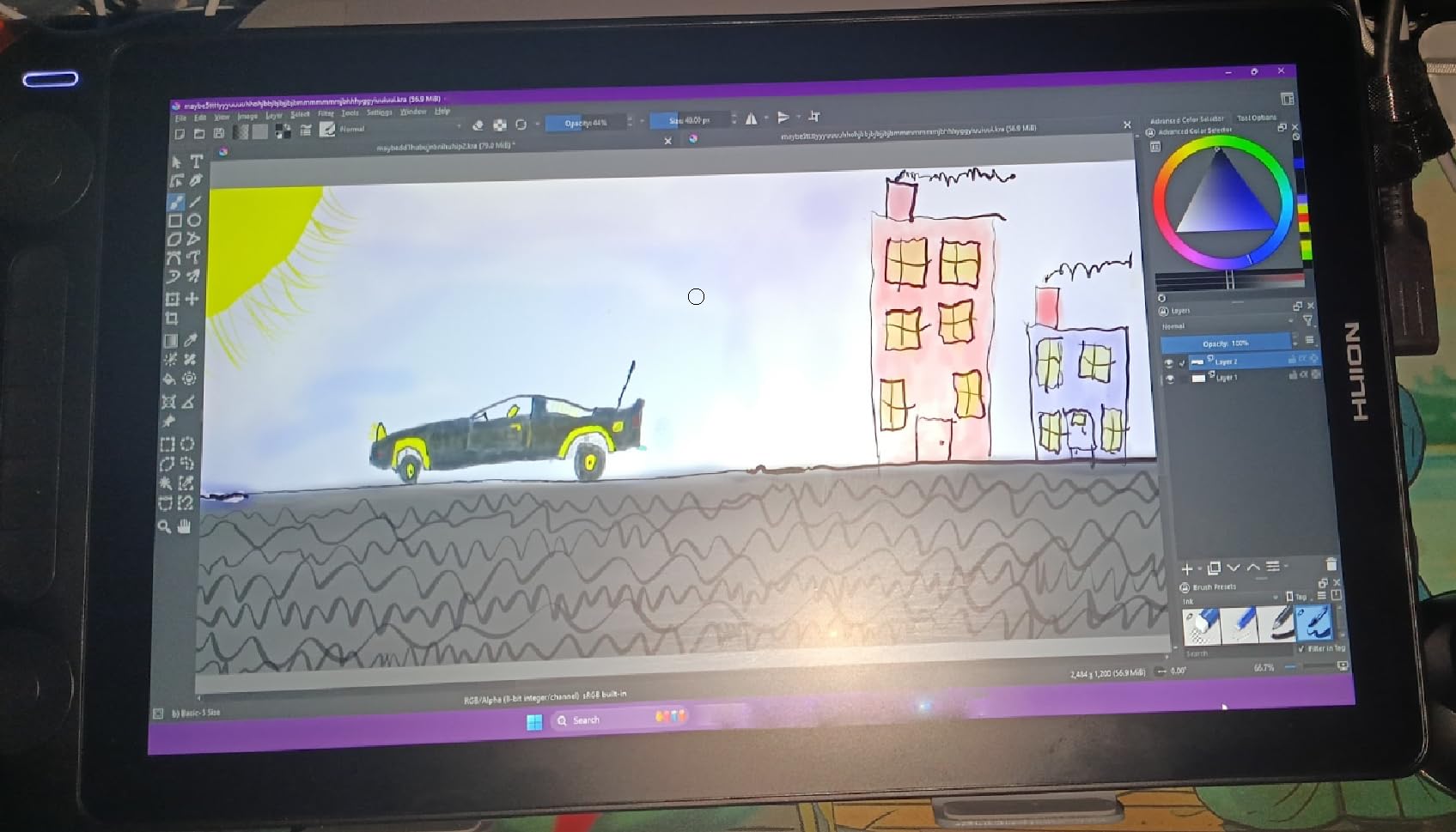
Two dial controllers plus five silent press keys let you drive zoom, size and opacity without reaching for a keyboard. The included 3-in-1 USB-C cable carries video, data and power in one run.
Why colour-critical artists choose it
Two dial controllers plus calibrated colour is a combination aimed at production work, where brush swaps and colour checks happen constantly. The 11.7 mm, 865 g body also travels better than most 13-inch displays.
The manufacturer states compatibility with Windows, macOS, Android over USB 3.1 and DP 1.2, and Ubuntu, which is broader than most rivals claim on paper.
Where the smaller panel bites
At 13.3 inches you keep panels and layers visible while drawing, but full-page compositions still need zooming. If you paint large, look at the 15.6-inch class instead.
Drivers must be installed before the keys and dials map correctly. Budget ten minutes for setup and a restart before you judge the build.
6. GAOMON M10K: The Budget Pick Screenless Tablet
GAOMON M10K Drawing Tablet, 10×6 with Touch Ring, 10 Keys & 8192 Pressure
10 x 6.25 inch textured active area
8192 pressure levels
10 press keys plus touch ring
Battery-free AP31 stylus
Pros
- Large textured area that feels papery
- Ten programmable keys plus a touch ring
- Generous accessory bundle with nibs sleeve and bag
- Battery-free 8192-level stylus with no perceptible latency
- Works on Windows macOS and Linux
Cons
- Pressure response has a buffer zone needing extra press
- Keys feel cheap and wiggly
- Pen can scratch and draw stray lines on lift-off
- Driver install requires removing other tablet drivers
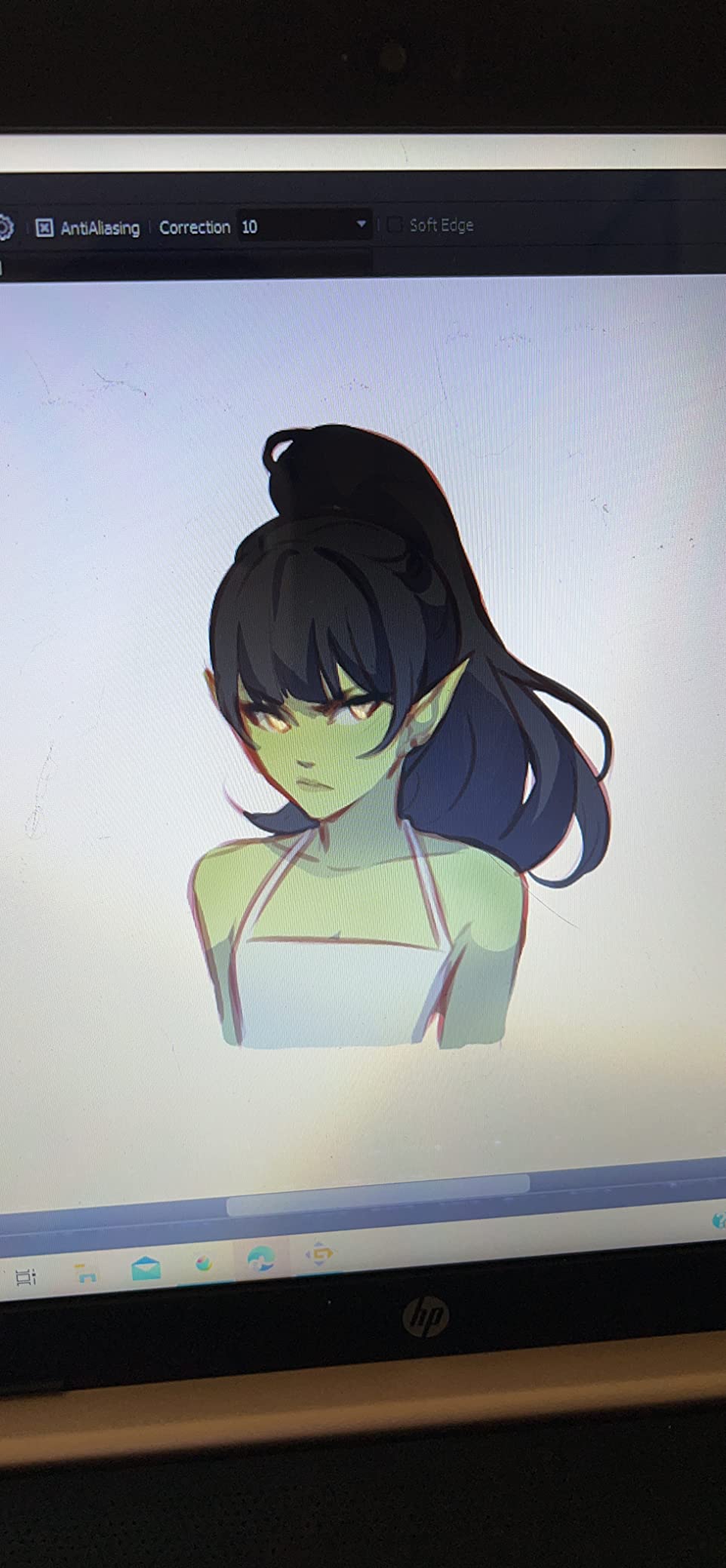
The M10K gives you a 10 by 6.25 inch textured surface, ten programmable keys and a touch ring for a fraction of what a Wacom of comparable size costs. For practice hours, that combination is hard to argue with.
The papery texture is the surprise at this tier. It grips the nib, reduces skidding on straight lines and made long sketching sessions feel less clinical than glass-topped rivals.
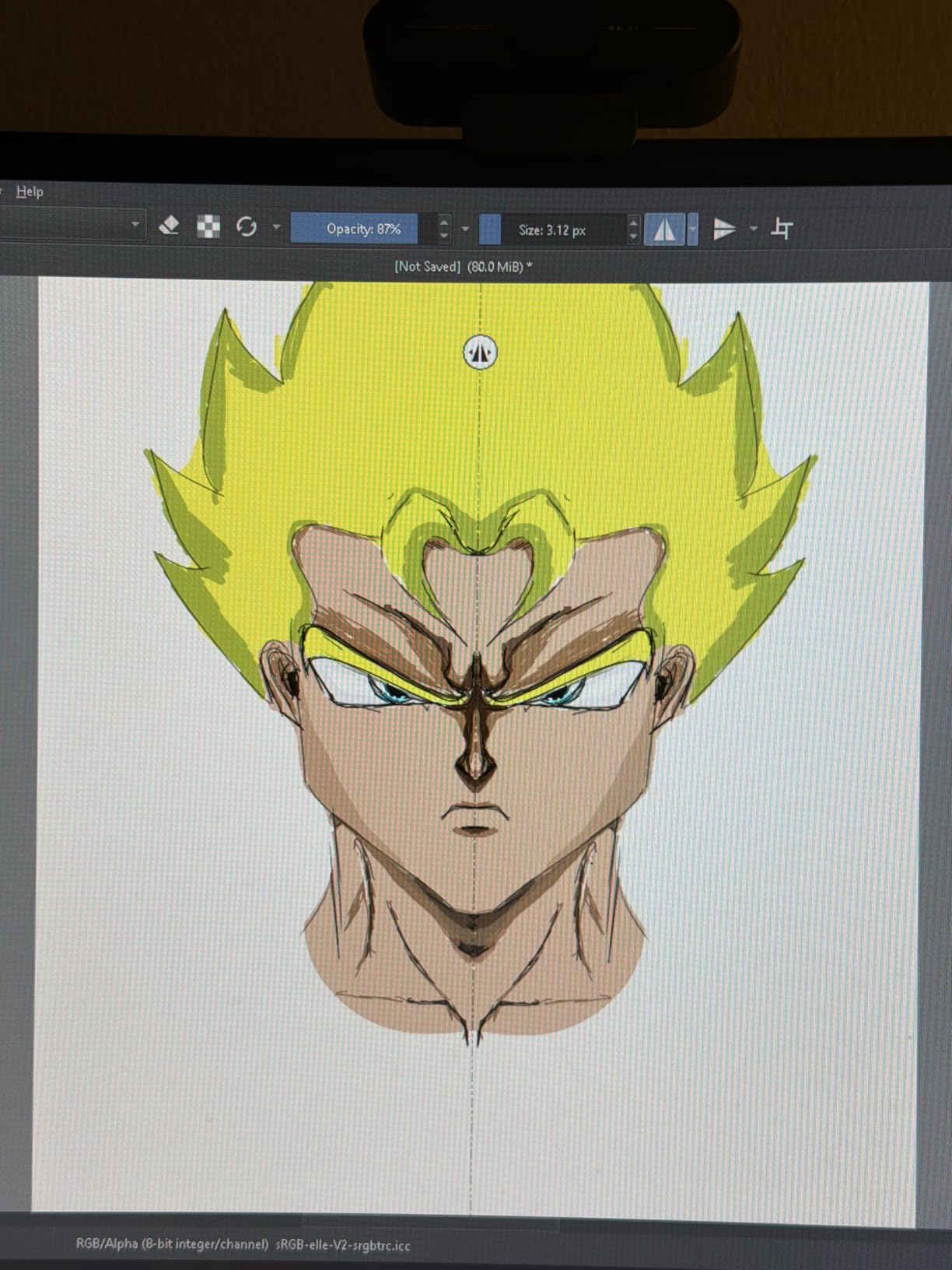
Tracking stayed accurate with no perceptible latency across the surface, and the battery-free AP31 pen removed any charging anxiety before a session.
The touch ring handles zoom, brush adjustment and scrolling, and it is configurable for southpaw use. Ten press keys plus two pen side buttons cover almost any shortcut you would otherwise reach for.
Why it beats pricier pads for practice
The maths is simple. You get roughly four times the active area of the Intuos Small, twice the pressure levels, and more shortcut controls, for less money than many entry-level competitors. The included bag, nib sleeve and eight spare nibs add up too.
Linux support through OpenTabletDriver is genuinely useful if you dual-boot, something several rivals here do not claim.
The rough edges you will feel
Pressure has a buffer zone, so light strokes need more pressure than expected until you adjust the curve. Line control for detail work still trails Wacom, and the press keys feel wiggly under fast tapping.
Driver installation means uninstalling any other tablet driver first. Follow that step in order or pressure behaves erratically in Photoshop.
7. XP-Pen Artist12: The Best Pen Display for Small Desks
XP-PEN Artist12 11.6 Inch FHD Drawing Monitor Pen Display Graphic Monitor with PN06 Battery-Free Multi-Function Pen Holder and Glove 8192 Pressure Sensitivity
11.6 inch 1920x1080 IPS
8192 pressure levels
6 shortcut keys plus touch strip
907 g with pen holder and glove
Pros
- Hexagonal battery-free pen feels natural and resists side-button presses
- Compact 907 g body fits a small desk
- Pre-installed anti-reflective protector saves a step
- Screen colour beats most laptop panels
- Exceptional value for a first pen display
Cons
- Screen is not laminated so parallax is visible
- No stand included
- Power button sits beneath the cable connection
- A minority of display failure and flicker reports
The Artist12 fits where larger displays cannot. At 907 grams it is light enough to shift between a monitor stand and a laptop riser without rearranging the desk, which is exactly what small workspaces need.
The hexagonal PN06 pen is shaped like a pencil and, more importantly, keeps the side button away from your grip. On round-barrelled pens that button gets pressed constantly by resting fingers.
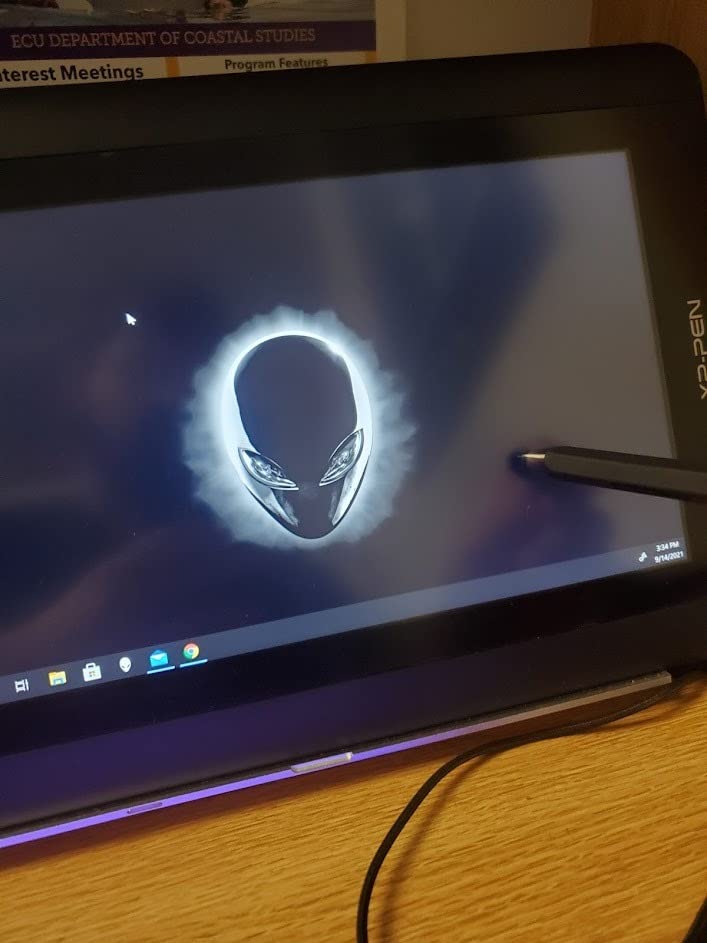
Six shortcut keys plus a programmable touch strip cover zoom and scrolling, and the box includes a pen holder, eight spare nibs, a glove and a cloth.
Screen colour at 100% sRGB looks better than most laptop panels we drew on, so this doubles as a workable second display for editing work alongside Photoshop, Illustrator or Clip Studio.
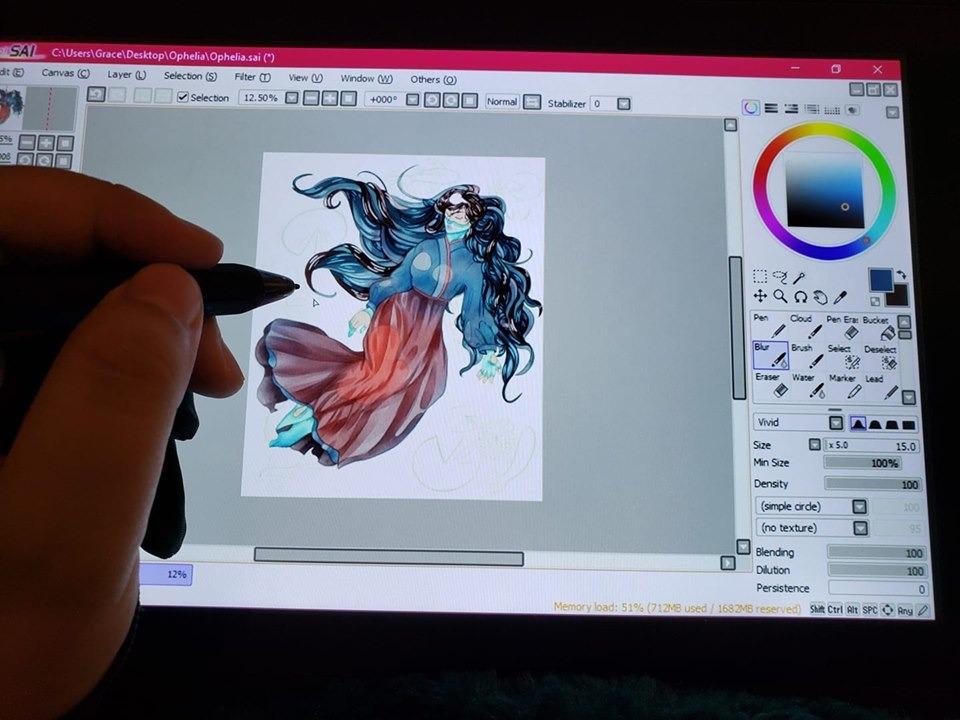
Why beginners and small-desk artists like it
It is the least intimidating pen display on this list, sits in an affordable bracket, and moves easily between rooms. If you are learning on a laptop and want a real drawing surface, this is the shortest path.
The digital eraser on the reverse end of the pen saves flicking tools back and forth between drawing and erasing.
What to fix before you start
The screen is not laminated, so a small gap between nib and cursor is visible at certain angles. That is the main thing laminations buy you, so expect a slightly less direct feel than the Kamvas models.
No stand is included. Buy an adjustable one. Also note that HDMI plus USB is a two-cable setup, and some slim laptops need an adapter for both.
8. Wacom Cintiq 22: The Best Pen Feel on a Large Canvas
Wacom Cintiq 22, Drawing Tablet with Full HD Screen & Pro Pen 2
22 inch screen, 18.74 x 10.55 inch area
Pro Pen 2 with tilt and two switches
1920x1080 LCD with anti-glare glass
Adjustable stand and 3-in-1 cable
Pros
- Pro Pen 2 pressure response and tilt are the reference standard
- 18.74 by 10.55 inch area suits full compositions
- Anti-glare glass with relaxed parallax reduces eye strain
- Wacom driver support is stable across professional software
- Adjustable stand included
Cons
- Most expensive option on this list
- 8192 levels and 1080p for a 22 inch panel
- Needs a computer plus an AC adapter
- Older hardware generation than newer Cintiq models
Owners buy the Cintiq 22 for one reason: the Pro Pen 2. Its pressure curve and tilt response are treated as the reference standard that other pens are judged against, and in side-by-side line tests that reputation held up.
The 18.74 by 10.55 inch active area is the real headline. Compositions fit without constant panning, and the wider workspace means fewer accidental zoom resets.
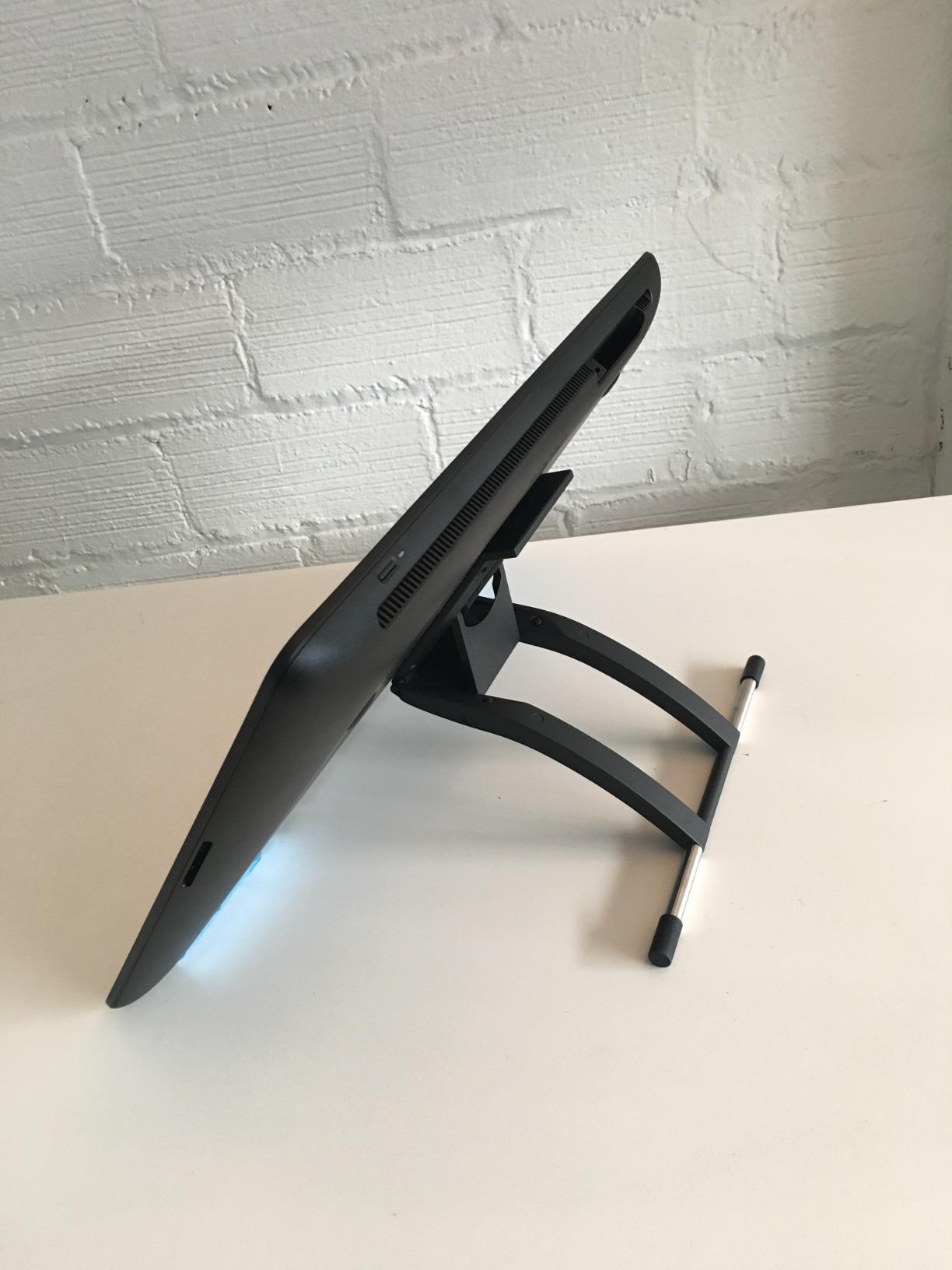
Anti-glare glass with relaxed parallax keeps the surface comfortable for long sessions and allows fingertip control when you need to nudge a layer.
The box is well thought out: adjustable stand, three replacement nibs, a nib remover, a 3-in-1 cable and an AC adapter, so nothing needs a second purchase.
Why studios and retouchers pick Wacom
Driver stability is the quiet reason many studios standardise on Wacom. When a tablet needs to work with the software, plug-ins and colour pipelines a team already runs, one vendor reduces a lot of support tickets.
Two customisable pen switches plus the reference nib quality make it the choice for people who draw with the same tool every day for years.
Where value does not work out
This is the most expensive option here and the specs trail several cheaper models. A 22-inch panel at 1920 by 1080 with 8192 levels is a previous-generation combination.
Compare it against a newer 15.6-inch or 4K option before buying. If you are starting out rather than replacing studio kit, the money is better spent on a mid-range panel with more resolution.
9. Huion Kamvas Pro 24 4K: The Best Pen Display for Large 4K Workflows
HUION KAMVAS Pro 24 4K UHD Drawing Tablet with Screen 140% sRGB
23.8 inch 3840x2160 Quantum Dot panel
140% sRGB with HDR support
Full-laminated anti-glare glass
Keydial Mini controller included
Pros
- 4K resolution fits toolbars and canvas side by side
- Quantum Dot 140% sRGB with HDR support
- Full lamination removes the air gap
- Keydial Mini keeps brush size and undo under the hand
- Integrated USB-A ports and audio output
Cons
- 13.7 lb chassis needs a deep desk
- 8192 levels behind current 16K pens
- Fixed 20-degree stand with no height adjustment
- Demands a capable computer and GPU
The Kamvas Pro 24 solves the problem every large pen display has: not enough room for tools and canvas at once. At 3840 by 2160 you can keep a full brush panel, a layer stack and a life-size canvas visible without panning.
Colour is the other argument. Quantum Dot coverage at 140% sRGB with HDR support gave the most convincing results of any pen display we worked on, and full lamination keeps nib and cursor aligned with no air gap.
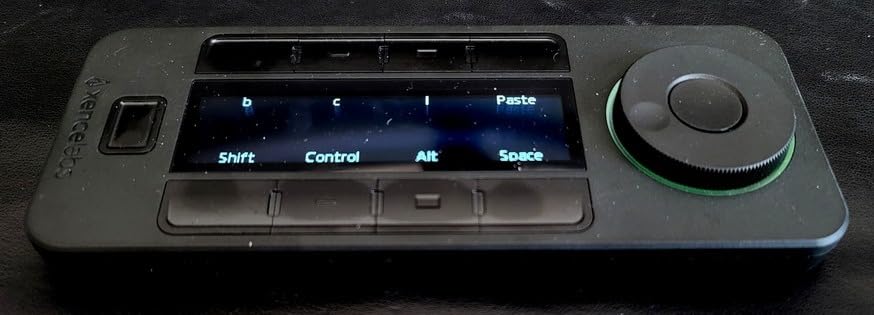
The Keydial Mini is a small express controller that puts brush size, undo and zoom under your hand, which on a 23.8-inch panel makes the difference between a fluid session and constant reaching.
Integrated USB-A ports and a headphone output mean you can run a single cable from the computer and still charge a phone or use audio.
Who this panel actually suits
Large illustration, animation layout, video and photo editing. Anyone whose canvas regularly exceeds what a 15.6-inch panel shows will feel the extra room immediately.
The new felt pen nibs are included for stronger friction, which helps when you are drawing at a shallow angle across a wide surface.
Physical limits to plan around
At 13.7 pounds the chassis needs a deep desk, and the integrated metal stand is fixed at 20 degrees. A separate adjustable arm is worth adding for long sessions.
Driving a 4K pen display smoothly needs a capable computer and graphics card. On modest hardware, expect input lag before you blame the tablet.
10. GAOMON PD1161: The Budget Pen Display Pick
GAOMON PD1161 Drawing Tablet with Screen, Tilt, 8 Shortcut Keys, 11.6″ FHD
11.6 inch 1920x1080 IPS with matte film
8192 pressure levels with tilt
8 programmable press keys
Battery-free AP50 stylus
Pros
- Matte anti-glare film gives a paper-like surface
- Two pens and eight spare nibs in the box
- Eight press keys plus two pen buttons remappable in the driver
- Compact body suits small desks
- Works with Krita Blender Photoshop and OneNote
Cons
- 100% sRGB is the lowest colour coverage here
- Matte film instead of laminated glass so parallax shows
- Needs HDMI plus USB and sometimes the AC adapter
- Support response times slower than larger brands
The PD1161 answers a narrow question well: can you get a real pen display with a tilting battery-free pen and eight remappable keys without spending much? Yes, and the matte anti-glare film makes the surface feel papery from the first stroke.
For a student who wants to move beyond a screenless pad but cannot justify a laminated panel, this is the sensible middle step.
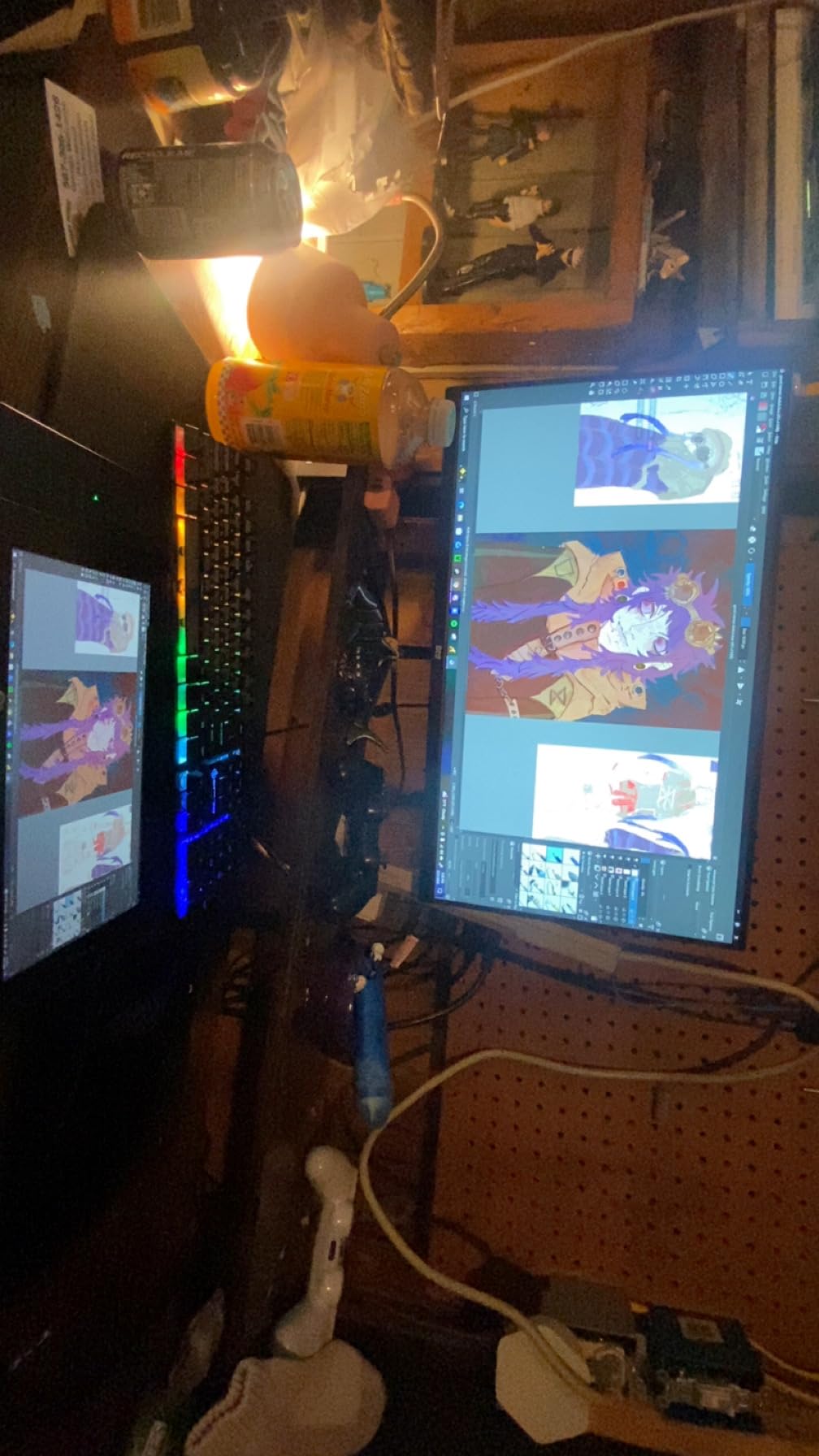
The accessory bundle is generous for the money: pen holder, eight spare nibs, a glove and a 3-in-2 cable. Software support covers Krita, MediBang, Blender, Photoshop, SAI, OneNote and Zoom.
Two programmable pen buttons handle eraser switching, and the eight press keys can be remapped in the driver to whatever you use most.
Why it makes sense as a first pen display
It teaches screen-drawing habits on a real pen display without a laminated-glass premium. Artists who later move up usually keep the muscle memory of tilting a pen on the glass rather than adapting to a new input model.
It also handles note-taking and PDF markup, which makes it useful beyond illustration.
Know the limits before buying
Colour coverage at 100% sRGB is the lowest here, so do not use it as a colour reference for print work. The surface is a film rather than bonded glass, so a small parallax gap is visible.
Plan for HDMI plus USB, and the AC adapter on laptops that cannot supply enough power. Driver setup is required before the keys map correctly.
11. VEIKK VK1200 V3: The Best Budget Pen With 16K Response
VEIKK VK1200 V3 11.6″ Drawing Tablet with Screen,16K Pressure, 1 Stand
11.6 inch laminated 1920x1080 IPS
Two battery-free pens, 16384 levels
6 customizable shortcut keys
All-metal body, 0.45 kg
Pros
- Full lamination cuts parallax at a budget price point
- 16384 levels and 60-degree tilt on two pens
- 28 spare nibs plus stand and glove in the box
- Matte anti-glare glass feels paper-like
- Compact metal body suits travel
Cons
- Roughly a quarter inch of screen edge is unresponsive
- Driver install and troubleshooting needed first
- Inactive edge strip breaks full-screen mode in Photoshop
- Pens feel very light
- 72% NTSC colour is weak for colour work
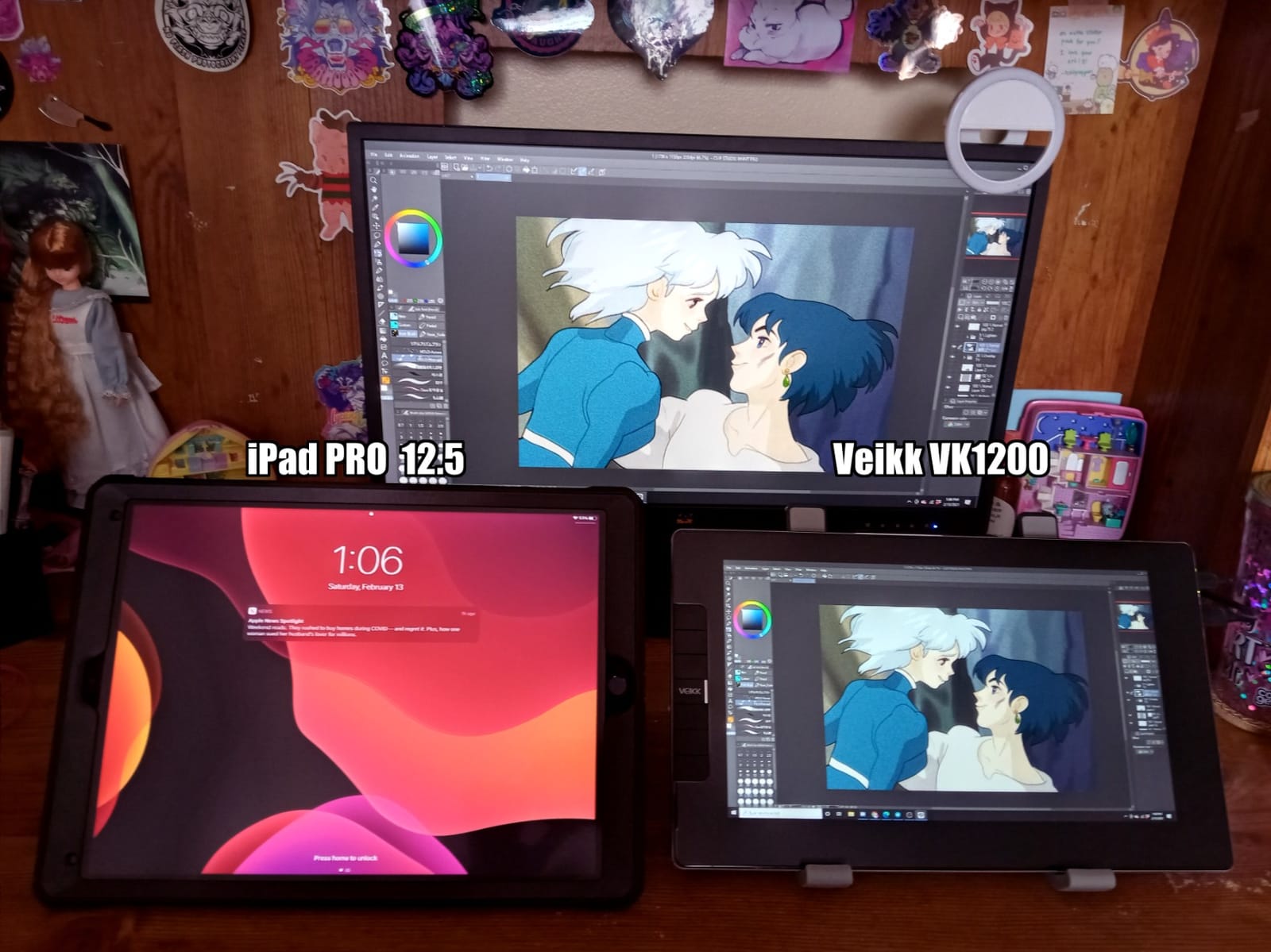
The VK1200 V3 puts a laminated screen and 16384-level pens into an entry-level price band, and the matte anti-glare glass gives a drawing feel closer to far costlier displays than the spec sheet suggests.
Two battery-free pens in the box is unusual at this price. One can stay in the bag while the other lives on the desk, which removes the single most common way people lose a stylus.
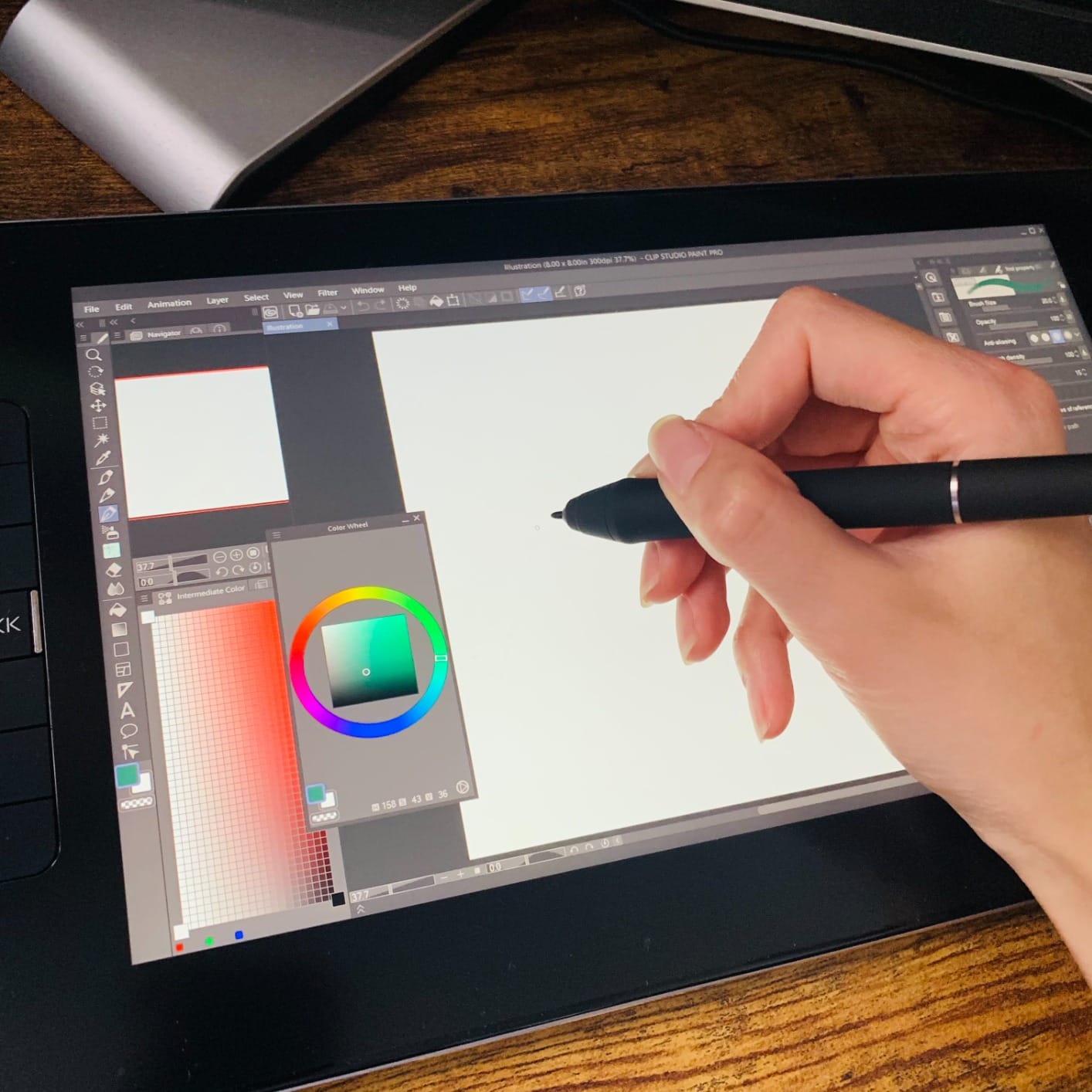
Six fully customizable shortcut keys remap to undo, redo and other frequent actions, and the full-featured USB-C cable carries power, data and display in one run.
At 0.45 kg the all-metal body with an anti-slip back travels well, and the included stand is enough to get started at a desk.
Why it is worth the driver setup
Lamination is the feature you cannot add later. Once the glass is bonded to the display, the nib and cursor align properly, so this is the cheapest way to get direct drawing at home.
The 28 spare nibs and artist glove in the box remove almost every first-week accessory purchase.
Set expectations on the edges and colour
Roughly a quarter inch of the screen edge is unresponsive, which breaks full-screen mode in Photoshop and can throw an erratic long stroke. Turn full-screen off and map your workspace to the active area.
Colour coverage is listed at 72% NTSC, which is not enough for colour-critical work. Use it for inking, line art and general illustration instead.
12. PicassoTab X11: The Best Standalone Tablet for Beginners
11″ Standalone Drawing Tablet, Portable PicassoTab, No Computer Needed -X11
11 inch laminated 2560x1440 display
4096 pressure levels
Octa-core with 6 GB RAM, 128 GB
Lifetime Concepts Pro upgrade included
Pros
- Fully laminated 2K display reduces parallax and glare
- Responsive warranty service with free repairs and replacements
- Case glove protector and adapter bundled
- Tutorials and guides help new artists start
- Storage expands to 1TB
Cons
- Bundled stylus has iffy pressure sensitivity and disconnects
- Palm rejection is unreliable even with the glove
- Pre-installed apps need replacing with Krita or Clip Studio
- Reports of ghost touching and sluggish performance
- USB charging port durability concerns
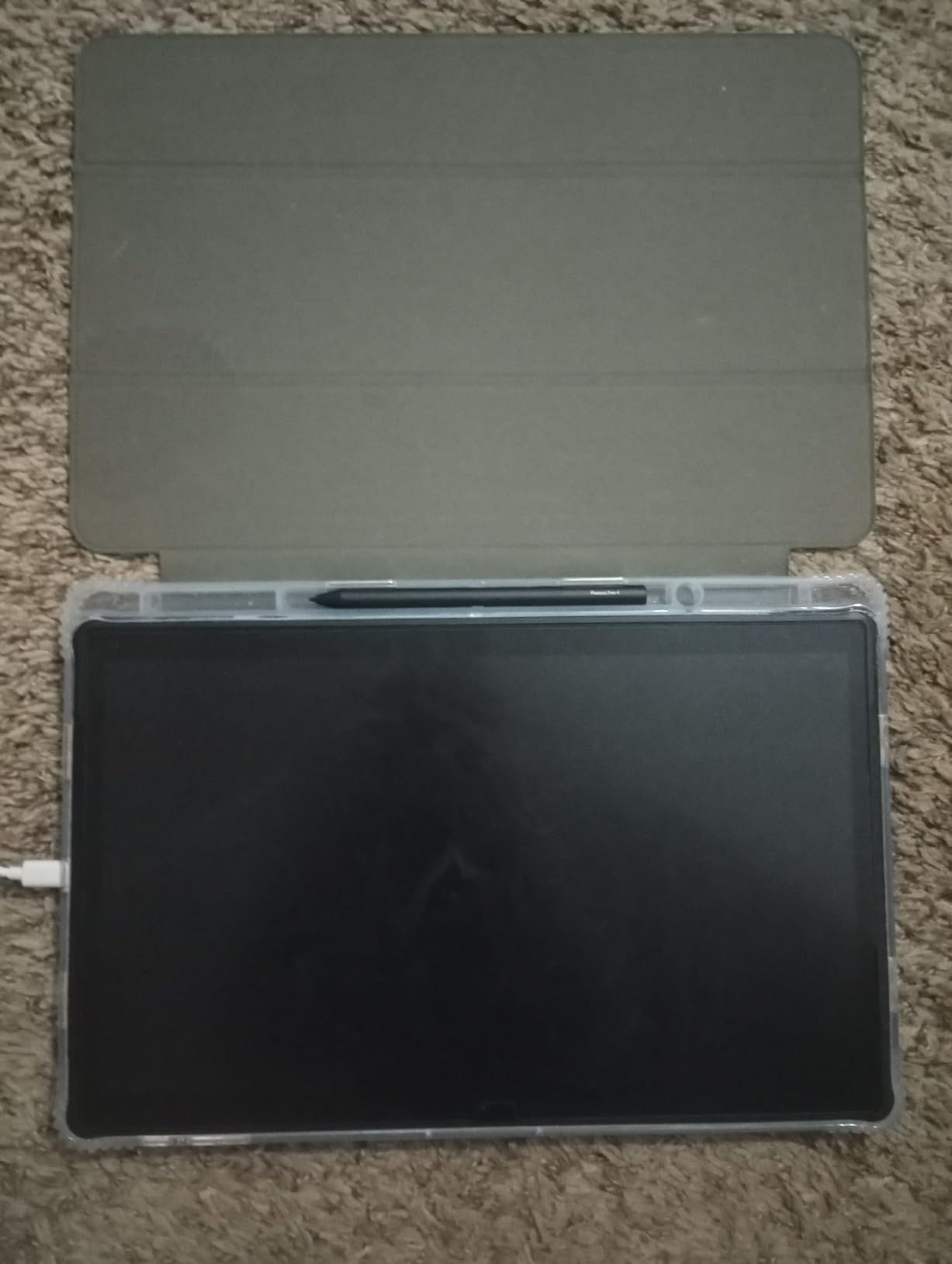
The X11 is built for someone deciding whether they enjoy digital art at all. The fully laminated 2K screen removes parallax, and the bundled tutorials with a lifetime Concepts Pro upgrade lower the barrier to a first finished piece.
Reviewers single out the manufacturer’s warranty service, describing free repairs and replacements. That matters more than any spec for a first purchase from an unfamiliar brand.
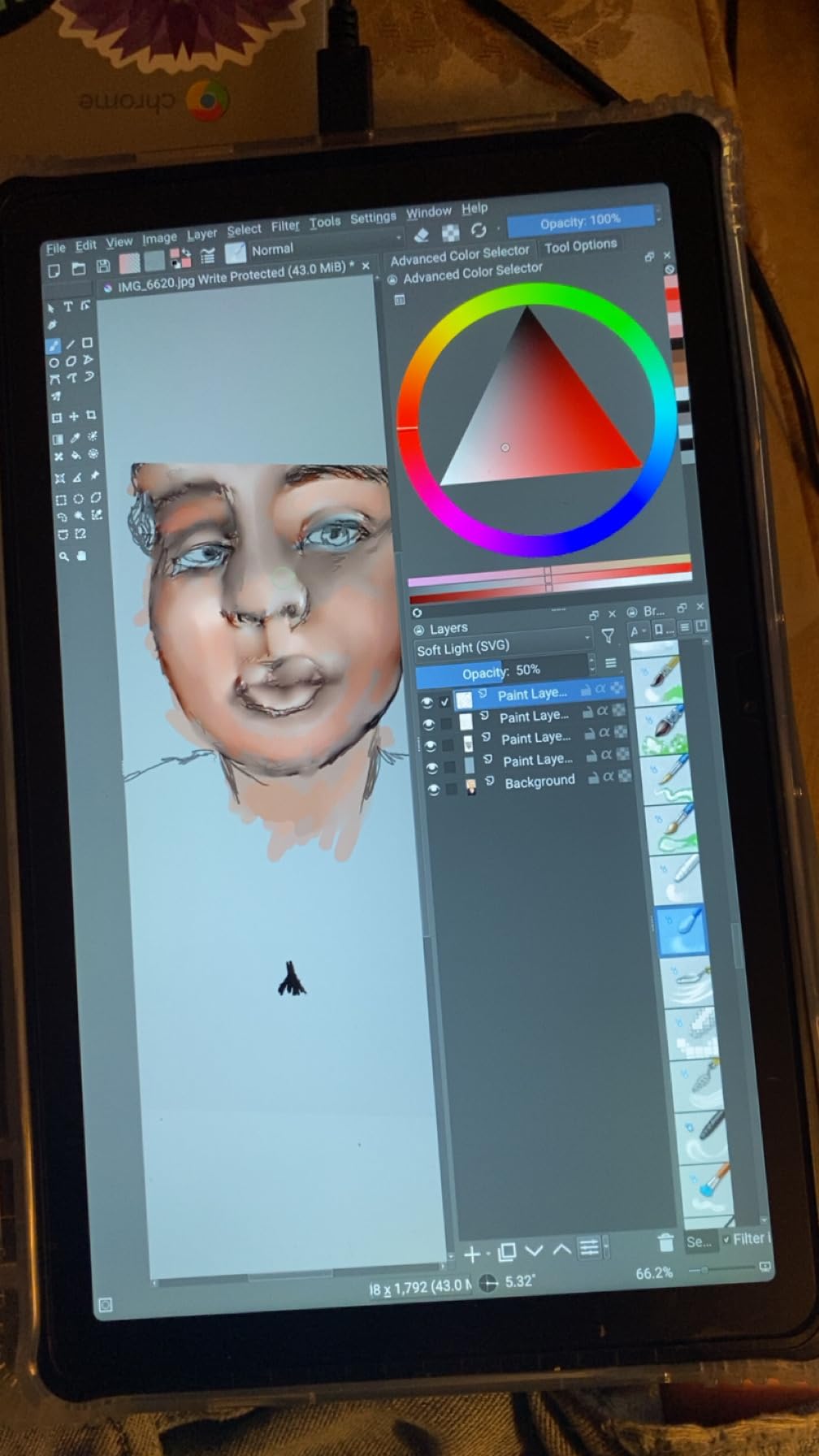
An octa-core processor, 6 GB of memory and expandable storage are enough for sketchbook work and 2D illustration, though it is not a machine for heavy 3D scenes.
The box includes a case, glove, screen protector and universal power adapter, so a beginner does not have to guess what else is needed.
Why it works as a first standalone
No computer, no driver and no cables. Open it, install a drawing app and start, which removes the two most common reasons beginners give up in week one.
Support being responsive means a first broken device is not the end of the experiment.
The stylus is the weak link
The included pen has inconsistent pressure response and disconnects in a share of reports. Budget for a replacement pen early rather than trusting it for detailed linework.
Palm rejection is unreliable, bundled apps need replacing, and ghost touching shows up in some units. Test it on your own desk first, and keep the return window open until you are happy.
How to Choose a Drawing Tablet: Nine Criteria That Matter
1. Active drawing area beats every other spec
Size determines how much you can draw before zooming. A 6 by 3.7 inch pad suits studies and icons; 10 by 6.25 inches handles full characters; 15 inches and up stops you panning constantly.
2. Pressure level counts are a weak quality proxy
4096 versus 16384 levels sounds like a huge gap, but a well-tuned 4096-level pen outdraws a badly tuned 16384 pen every time. What matters is the pressure curve, the minimum activation force and whether the driver exposes both. Judge pen feel in person rather than from a number.
3. Battery-free EMR beats rechargeable AES for most people
EMR pens sense position through the tablet and never need charging or pairing, which removes a whole failure category. AES pens use a rechargeable battery inside the barrel, last weeks between charges and often include a shortcut button. EMR suits reliability; AES suits travel and extra buttons.
4. Lamination determines directness
A laminated display bonds the glass to the digitizer so the cursor sits under the nib. A non-laminated screen has an air gap you can see at shallow angles, which reads as parallax. Anti-glare etched or matte surfaces cut glare but change how the pen feels against the page.
5. Express keys, dials and rings save real time
Every press key, dial and touch ring you can reach without lifting your hand removes a keyboard trip. Six to ten keys plus one dial or ring is the sweet spot; fewer than four keys means constant reaching.
6. Resolution and colour: accuracy beats gamut size
Colour gamut claims such as 140% sRGB describe volume, not accuracy. Factory calibration with a stated delta E figure is the number that tells you whether you can trust the colours. On resolution, 1920 by 1080 is fine up to about 15 inches; above 16 inches the softness becomes obvious.
7. Check ports and cables before you buy
Two-cable setups need HDMI plus USB, and a USB-C port on your laptop does not always carry video. A single 3-in-1 USB-C cable is the cleanest option. Also check whether your computer needs a separate power adapter.
8. Operating system limits your software
Screenless and pen-display options run Windows, macOS and mostly Linux with drivers. Standalone tablets lock you into the app ecosystem of their operating system, so decide on your software before your hardware.
9. Ergonomics decide how long you last
A stand that holds 20 to 60 degrees prevents neck strain; a fixed foot does not. Express key placement matters for southpaw artists too, since a ring or dial on the wrong side becomes awkward. Test your posture before you settle.
What a Drawing Tablet Really Costs in Year One
The headline number is never the real one. A complete setup usually adds a stylus, an adjustable stand or arm, a case, replacement nibs and sometimes software.
Screenless pads such as the Intuos Small or GAOMON M10K arrive with a pen, nibs and a cable, so the extra cost is mainly a stand if you want better posture.
Pen displays often arrive without a stand, or with a fixed-angle one, so an adjustable arm is the most common addition. Nibs and a spare pen cover most of the rest, and bundled protective films help with the scratching that buyers complain about most.
Standalone tablets need a case and, ideally, a second stylus, since losing the only pen is the fastest way to end a sketching habit. Software is the variable line: desktop applications are one-off purchases or subscriptions, while mobile apps are often cheaper with a membership.
Our wider reading on tablets that double as creative tools sits in the [best drawing tablets for digital artists](https://ijate.net/best-drawing-tablets-for-digital-artists/) guide, and for reading-heavy use the [best tablets for reading](https://ijate.net/best-tablets-for-reading/) roundup covers the other side of the same hardware.
Fixes for the Problems Buyers Hit Most
Line jitter or wobble. Turn off any smoothing or stabiliser in your app, check the pen nib is seated flat, and raise the tablet slightly so your viewing angle is steeper. Slow curves are usually view angle, not hardware.
Input lag. Test with a second computer before blaming the tablet, because a 4K pen display on modest hardware is the usual cause. Close heavy applications and check the cable carries video, not just data.
Pressure works in one app only. That is an application permissions issue. Give the drawing app input focus and check that no other tablet driver is running, since two drivers competing is the classic cause.
Parallax. This one is physical. Laminated screens minimise it; a matte film or a cover sheet on an unlaminated panel makes it worse. Remove any extra sheet you have added.
Driver install failures. Uninstall every other tablet driver first, reboot, then install the newest driver for your exact model. Mixing drivers is the most common reason pressure behaves oddly.
The screen goes blank or flickers. Confirm the input source in your display settings and reseat the video cable at both ends. Older laptops with adapters are the most common trigger.
Frequently Asked Questions
Which tablet is good for drawing?
The best tablet for drawing depends on three things: whether you draw on the screen, whether you have a computer to connect to, and how much desk space you have. For drawing straight onto a display, the XP-Pen Artist 15.6 Pro is our pick. For a screenless pad, the Wacom Intuos Small wins on pen feel and setup. For drawing anywhere, the XP-Pen Magic Drawing Pad is the portable standalone option.
Are tablets or iPads better for drawing?
A standalone tablet and a pen display suit different work. Standalone tablets run their own operating system and are the only option for drawing away from a desk. Pen displays plug into a computer, cost less for a larger canvas and run full desktop software such as Photoshop, Illustrator and Blender with all their plugins. If your software is Adobe-based, choose a pen display; if you sketch on the move, choose a standalone tablet.
What is the difference between a graphic tablet and a drawing tablet?
The two words usually describe the same thing. Some brands use graphic tablet for a screenless pad and drawing tablet for a pen display, while others use them interchangeably. The useful distinction is between a screenless graphics tablet with no display, a pen display that is a monitor you draw on, and a standalone tablet with its own operating system.
What do professional digital artists use to draw?
Professional illustrators commonly use a 15.6-inch or larger pen display with a laminated screen and a battery-free stylus, driven by Photoshop, Clip Studio Paint, Illustrator, Procreate or Krita. Concept artists and animators often add a 4K pen display so tool panels and canvas fit together. Retouchers working to print or broadcast standards tend to prioritise factory-calibrated colour over screen size.
How much does a decent drawing tablet cost?
A dependable screenless pad sits at the affordable end of the range, and everything above that buys either a screen or standalone freedom. Mid-range pen displays sit in the middle and cover most hobbyist needs. Professional 4K pen displays and premium standalone devices sit at the top. Budget for accessories too: a stand, spare nibs, a case and software can add meaningfully to the first-year cost.
What is better, XP-Pen or Huion?
Both brands have largely converged on the same core hardware, so the deciding factors are screen size, lamination and the controls you prefer. XP-Pen leans toward larger laminated panels with dials and generous bundles. Huion tends to compete harder on colour accuracy, offering factory calibration figures on several pen displays. Check the lamination and gamut claims for the exact model rather than the brand.
Final Verdict: The Best Tablets for Drawing in 2026
The best tablets for drawing split cleanly by category, and picking the wrong one is the expensive mistake. Start with the Wacom Intuos Small if you want the reference pen feel and the simplest setup, the XP-Pen Artist 15.6 Pro if you want to draw directly on a laminated screen, or the XP-Pen Magic Drawing Pad if you need to sketch away from a desk entirely.
Match your pick to your desk, your software and your hand, then budget for the stand and the spare pen. Whatever you choose, give it two weeks of daily practice before judging the pen, because every tablet feels wrong in the first session and most feel excellent by the fifth.